
Two-factor authentication (2FA) adds an extra layer of security to an eCitizen account by requiring an additional verification step when signing in. However, if you no longer want to use 2FA, have changed how you manage your account security, or need to troubleshoot access issues, you may want to remove the feature from your account.
This guide explains how to disable two-factor authentication on an eCitizen account through the available security settings. It takes you through the process of accessing the 2FA option, confirming the change, and checking that the feature has been successfully disabled.
READ ALSO: How To Enable Two-Factor Authentication (2FA) on eCitizen Account
What is eCitizen Account Two-Factor Authentication (2FA)?
eCitizen Account Two-Factor Authentication (2FA) is a security feature that adds an extra layer of protection to your eCitizen account. In addition to entering your eCitizen password when logging in, you are required to complete an additional verification step to confirm that you are the authorised account holder.
When Two-Factor Authentication is enabled, eCitizen may require you to enter a One-Time Password (OTP) sent to your registered phone number, email address, or both, depending on your selected login OTP preferences. This helps prevent unauthorised access to your eCitizen account even if someone obtains your password.
What is eCitizen Account Two-Factor Authentication (2FA) Disable?
eCitizen Account Two-Factor Authentication (2FA) Disable is the process of turning off the two-factor authentication security feature on your eCitizen account. When 2FA is disabled, you will no longer be required to complete the additional OTP verification step when signing in to your account, depending on the current eCitizen login security requirements.
Disabling eCitizen 2FA removes the additional verification layer that helps protect your eCitizen account from unauthorised access. Before disabling the feature, it is important to ensure that your eCitizen password is secure and that your account details are kept up to date.
Requirements Needed To Disable eCitizen Account Two-Factor Authentication (2FA)
Before disabling two-factor authentication on your eCitizen account, make sure you have the necessary account access and verification details required to change the security setting. Having these two requirements ready will help you complete the process smoothly and confirm the change successfully. The two requirements needed to disable Two-Factor Authentication (2FA) on your eCitizen account are:
- ID Number
- eCitizen Password
Two-factor authentication (2FA) adds an additional verification step to your eCitizen account when you sign in, providing extra protection beyond your password. If you no longer want to use this security feature, you can manage the 2FA setting from your account and disable it. This may be relevant if you have changed your preferred account-security method or no longer need the additional verification step.
How To Disable Two-Factor Authentication (2FA) on eCitizen Account
After accessing your eCitizen account, you can manage two-factor authentication from the available security settings. Disabling the feature requires you to locate the 2FA option and complete any confirmation or verification steps presented by the platform. Follow the steps below to disable Two-Factor Authentication (2FA) on your eCitizen Account:
- Step 1: Visit eCitizen website

To disable Two-Factor Authentication (2FA) on eCitizen account, you first need to visit eCitizen website using https://accounts.ecitizen.go.ke/
- Step 2: Click on Sign in
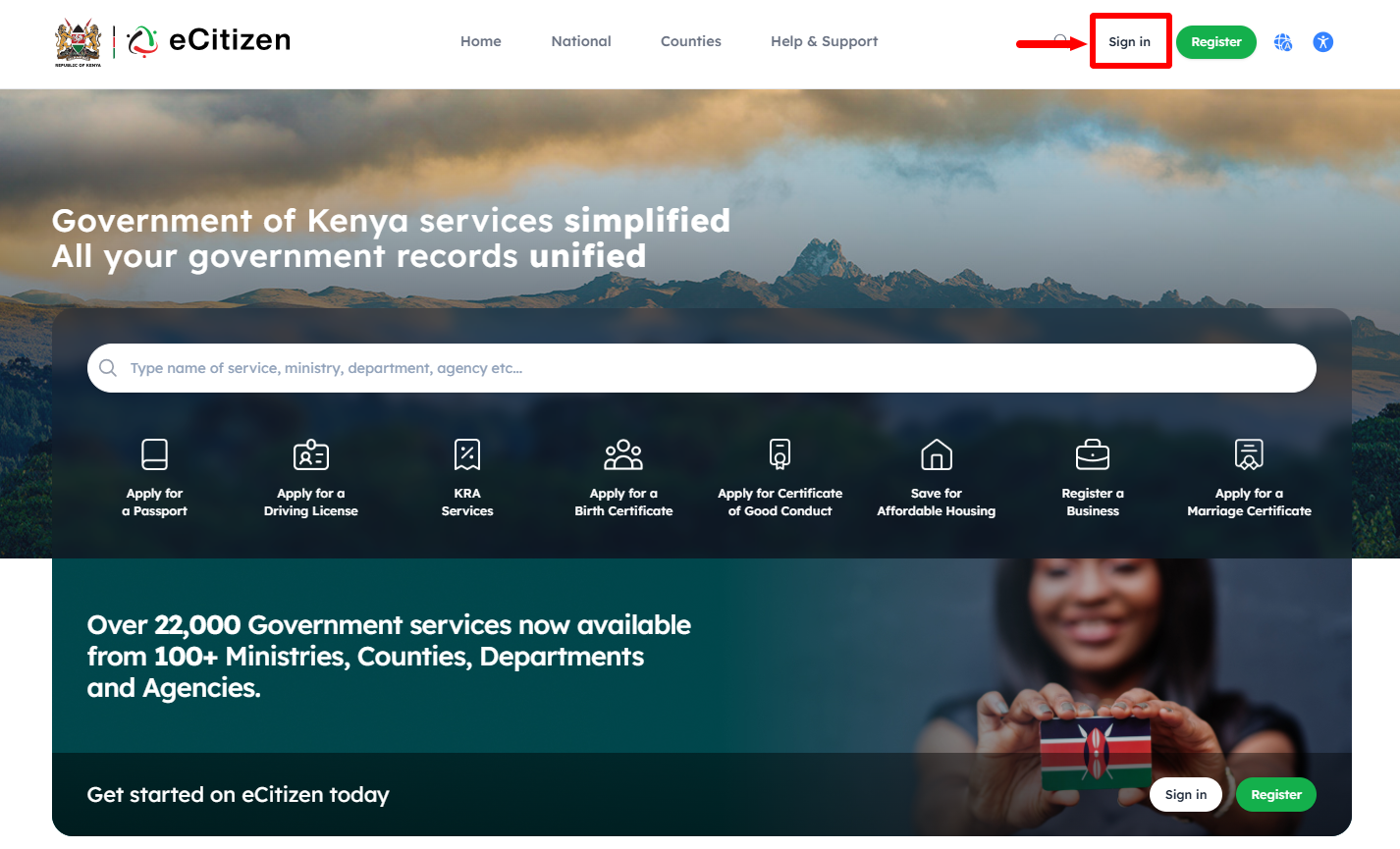
Once you are on eCitizen website, on the top menu click on “Sign In” button.
- Step 3: Enter ID Number
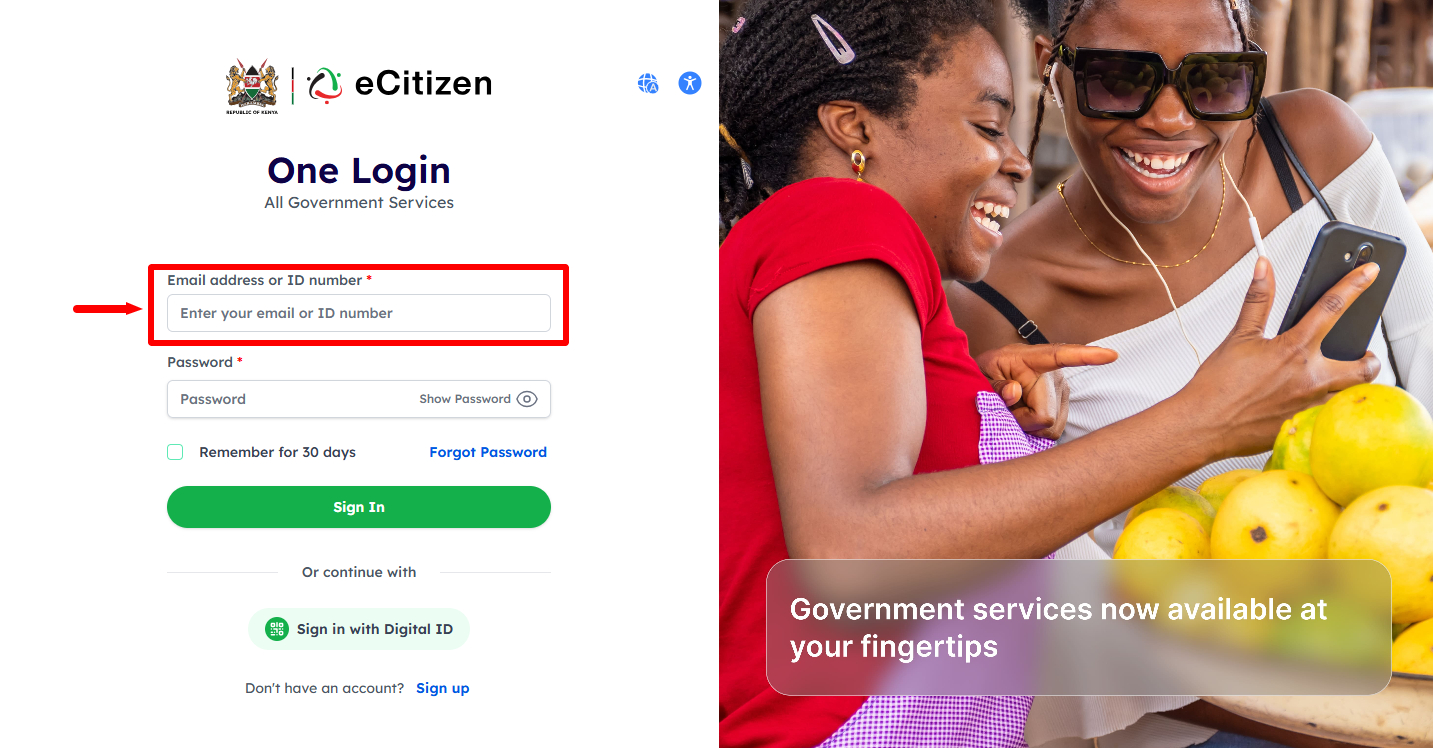
Next, enter your “ID Number” and proceed to the next step.
- Step 4: Enter eCitizen Password
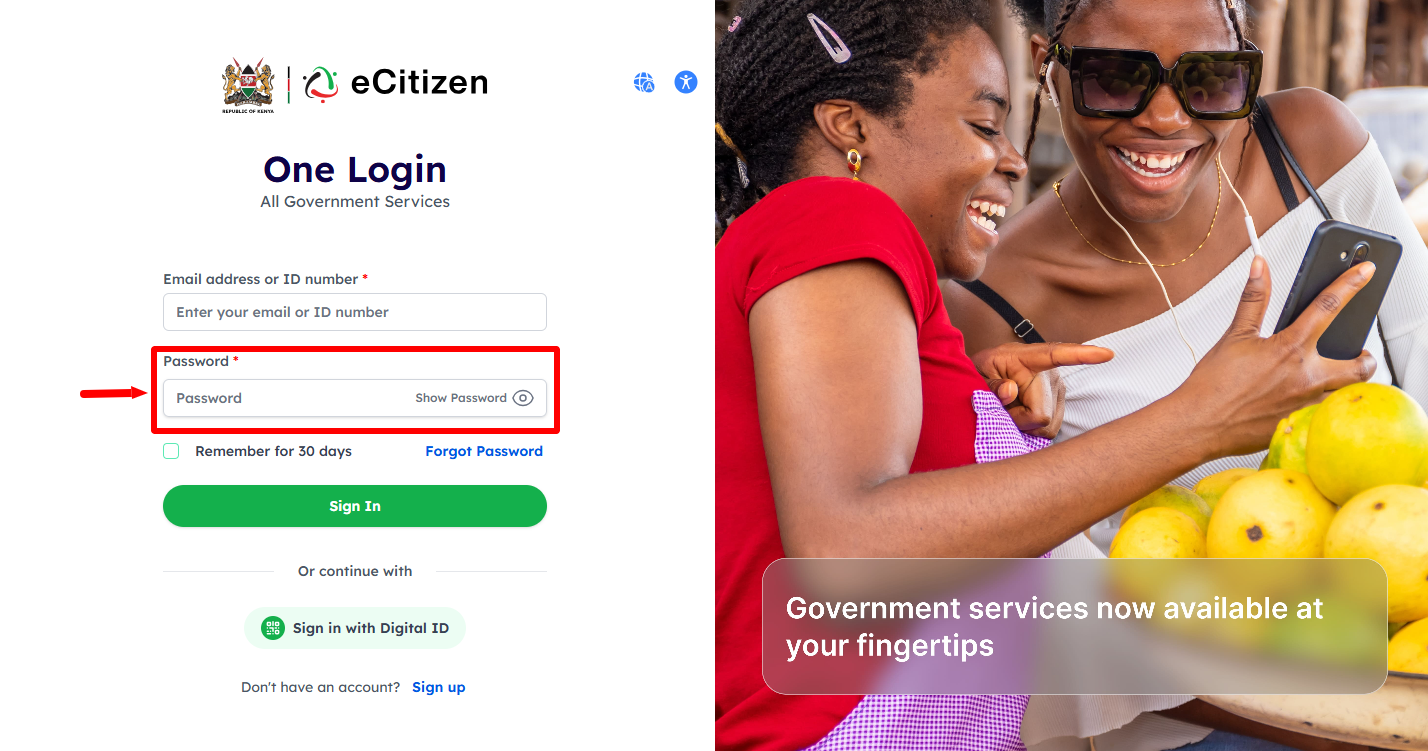
In this step, enter your “eCitizen Password” then click on the “Sign In” button.
- Step 5: OTP Verification
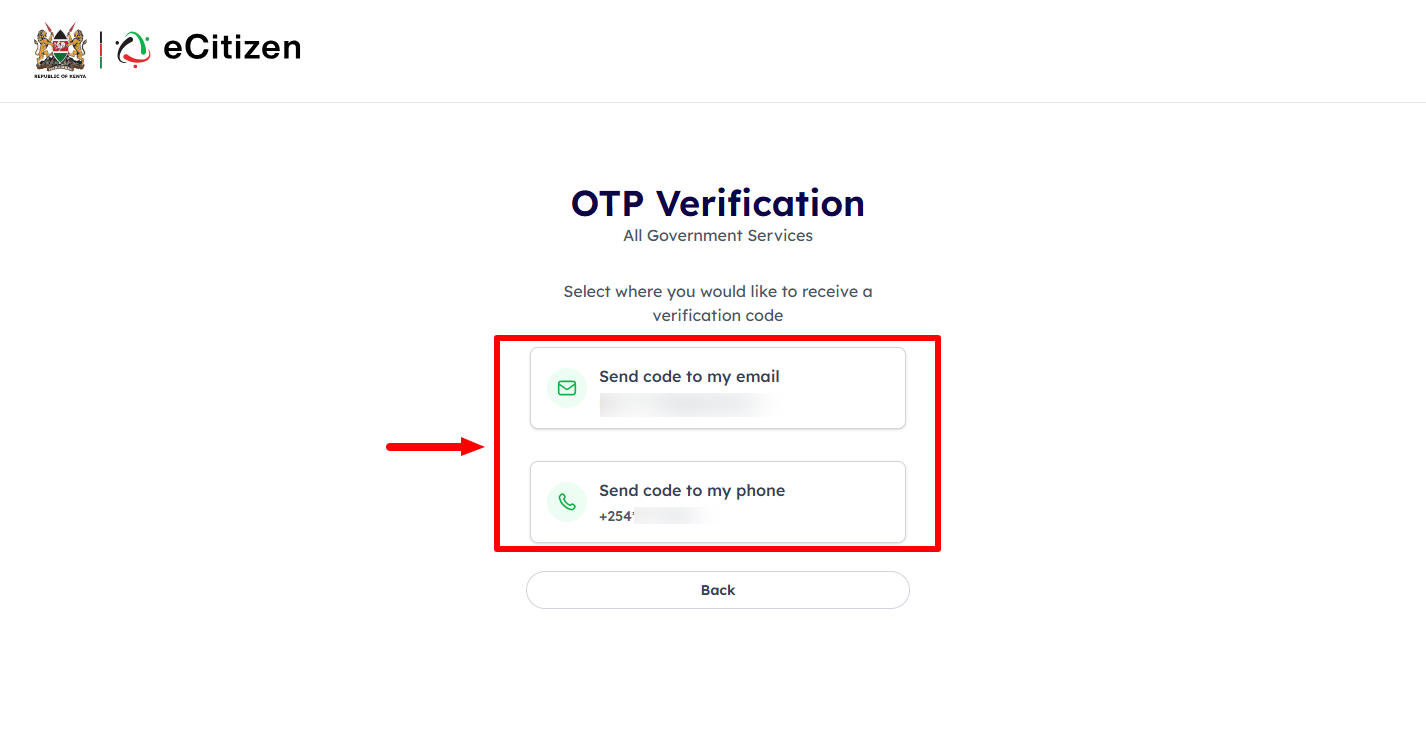
If you have enabled Two-Factor Authentication (2FA) on your eCitizen account, you will have to verify using either the OTP sent to “Email Address” or “Phone Number” and proceed to the next step. Select where you would like to receive a verification code
- Step 6: Enter eCitizen OTP Verification Code
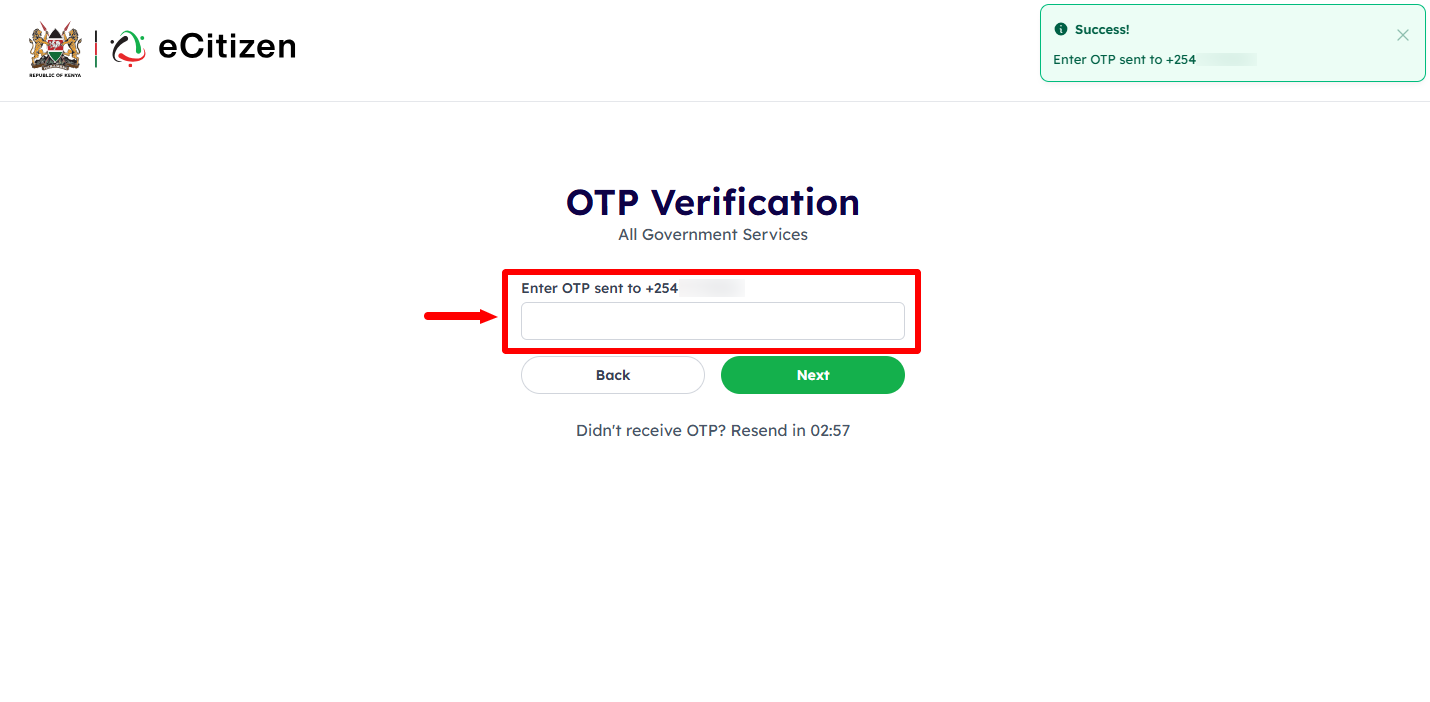
Enter the eCitizen OTP Vertification code that has been sent to your Phone Number or Email Address, depending on what you selacted and then click on the “Next” button to proceed.
- Step 7: eCitizen Login Successfull

Once you have entered the correct eCitizen OTP code, you will be logged into your eCitizen account successfully and you can now start the process of disabling eCitizen 2FA on your eCitizen account.
- Step 8: Click on Account Management
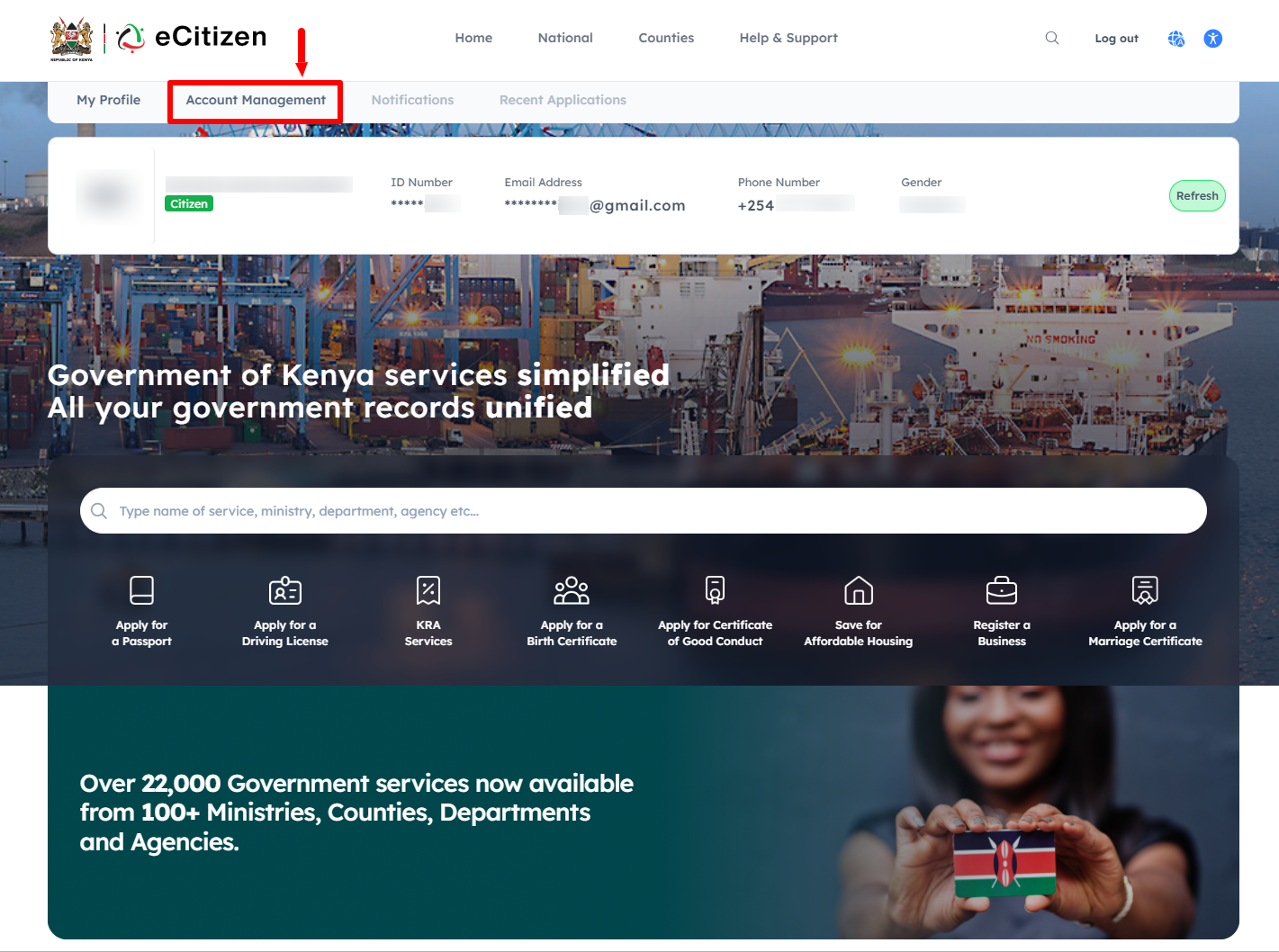
In this step, you need to click on “Account Management” to start the process of disabling Two-Factor Aunthentication (2FA) on eCitizen account.
- Step 9: Disable eCitizen Two-Factor Authentication (2FA)
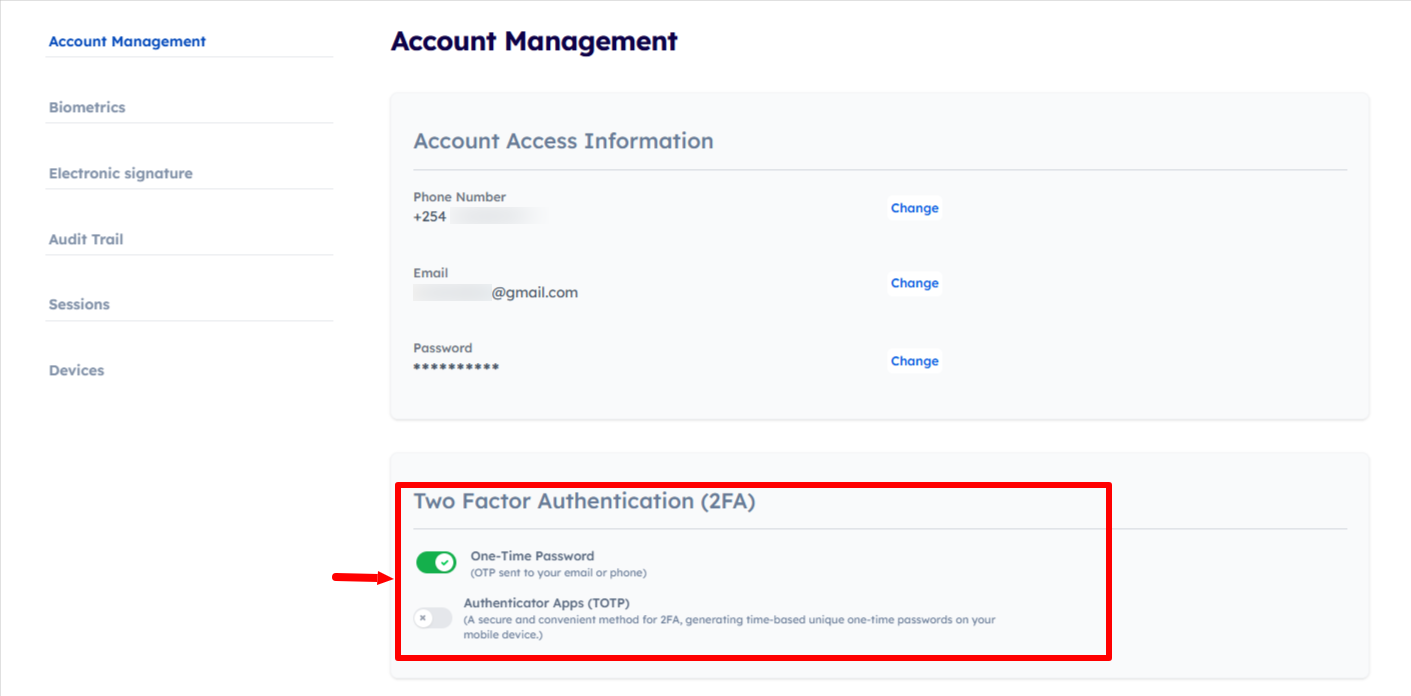
Next, under eCitizen account management, scroll down to “Two-Factor Authentication (2FA)” section to disable 2FA on eCitizen account. On the One-Time Password, toggle it to “Disable” so that you wan’t be prompted to enter eCitizen OTP code during login process to your eCitizen account.
- Step 10: Verify Account Ownership
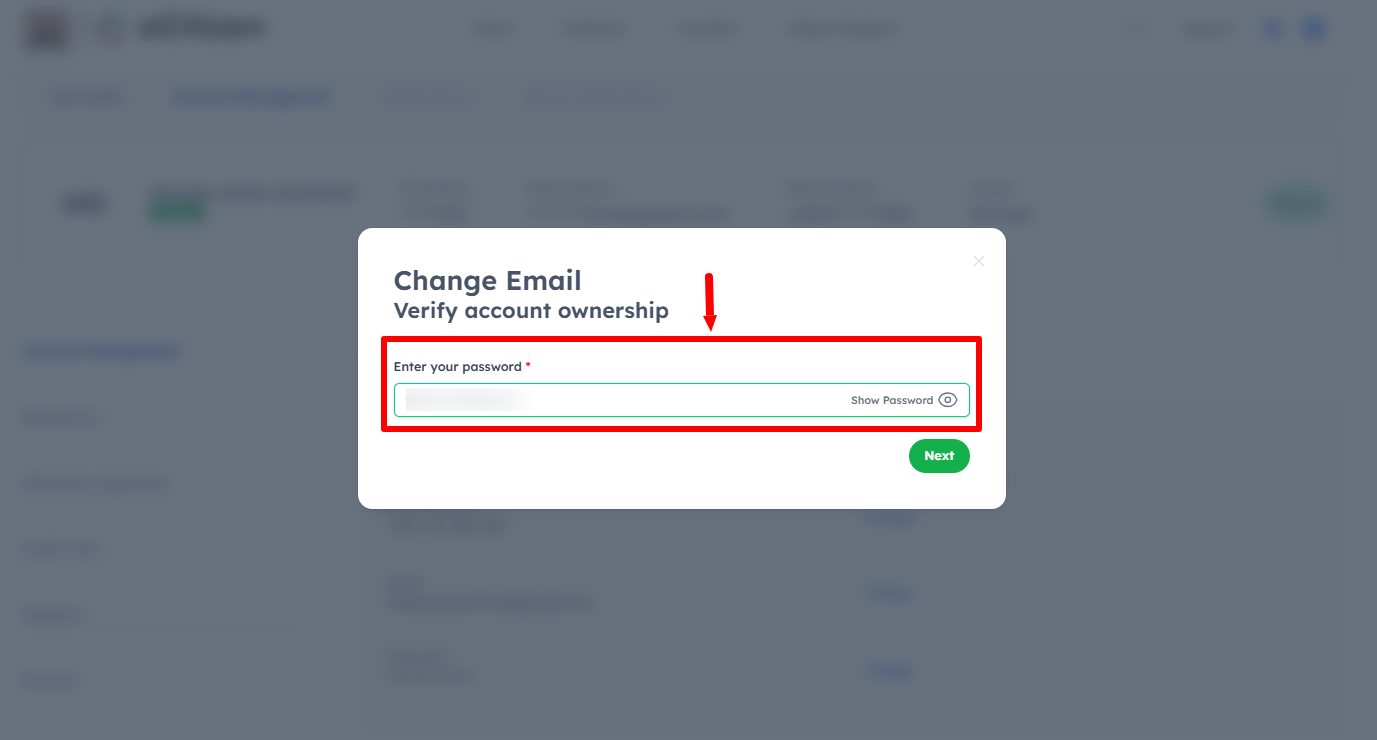
In this step, you need to verify eCitizen account ownership by entering your “eCitizen Password” and then clicking on the “Next” button.
- Step 11: Disable One-Time Password (OTP for Email or Phone)
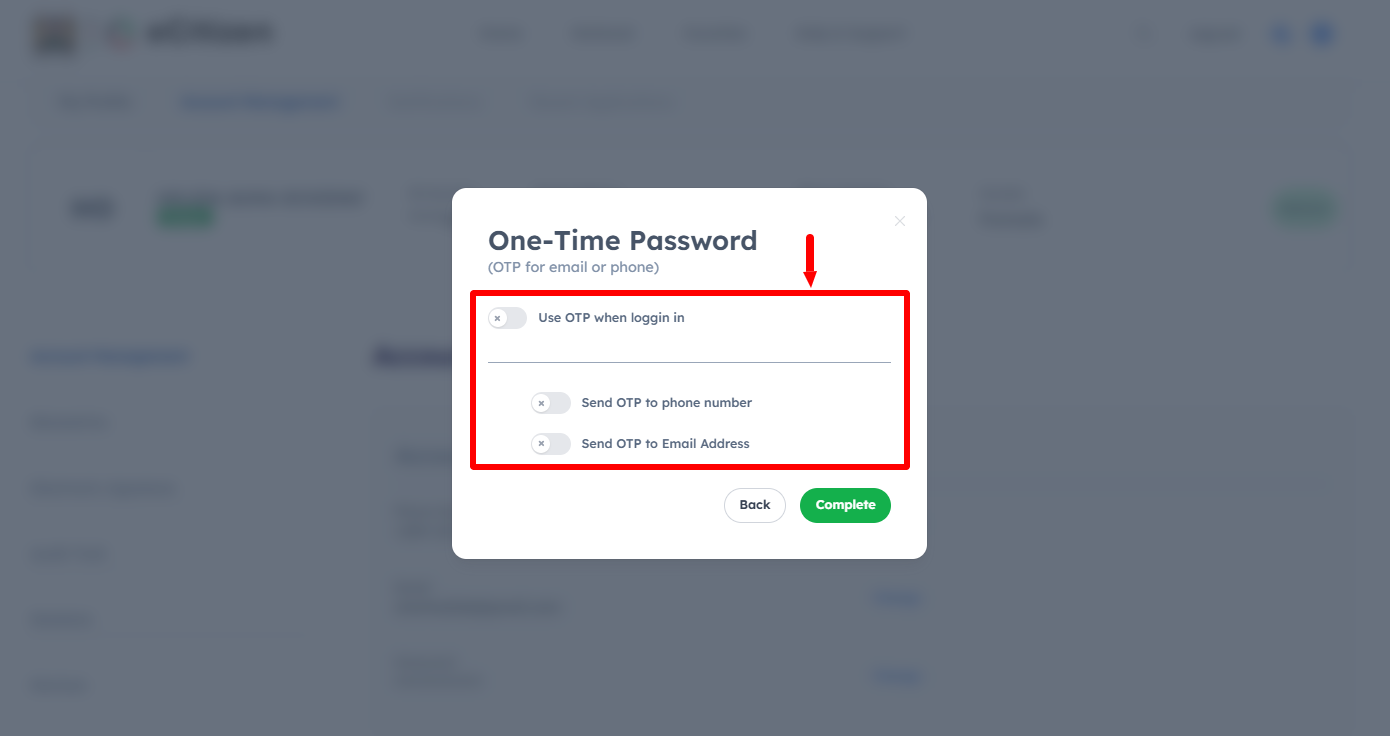
Next, you now need to toggle OFF the “Use OTP when logging in” option to disable eCitizen account 2FA. This means you will no longer be prompted to enter eCitizen account One-Time Password (OTP) during the eCitizen login process. Once you have disabled 2FA on eCitizen, click on the “Complete” button.
- Step 12: Login OTP Preferences Updated
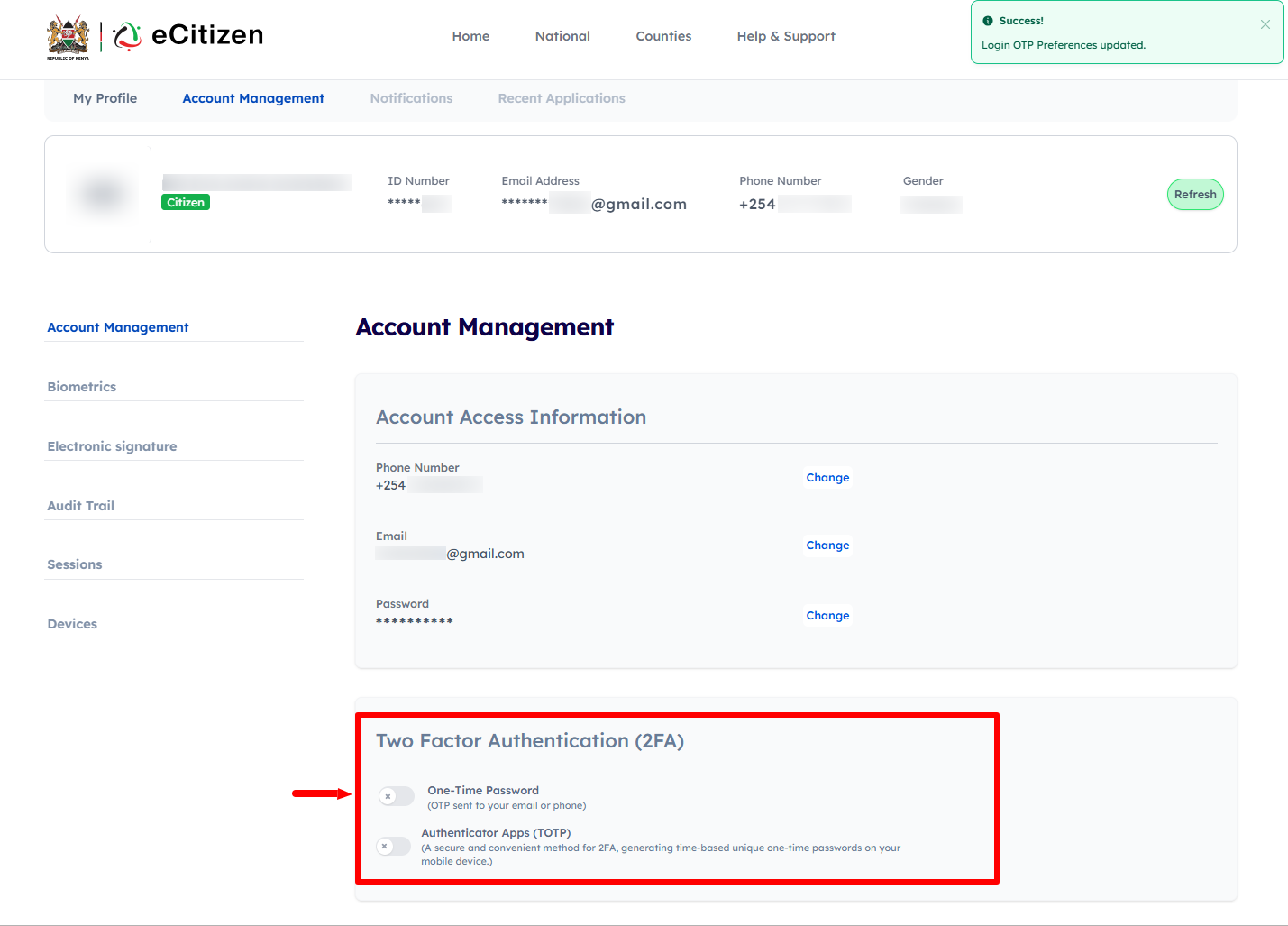
In this last step, you will see a notification that “Login OTP Preferences Updated” meaning that eCitizen Two-Factor Authentication (2FA) has been sucessfully disabled on your eCitizen account. Next time you log in to eCitizen, you won’t be prompted to enter the One-Time Password (OTP) since you have disabled eCitizen Two-Factor Authentication (2FA) on your account.
Overview: eCitizen Account Two-Factor Authentication (2FA) Disable
To disable Two-Factor Authentication (2FA) on your eCitizen account, start by visiting the eCitizen website and clicking on Sign in. Enter your ID number and eCitizen password, then complete the OTP verification by entering the eCitizen OTP verification code. Once the login is successful, click on Account Management and select the Two-Factor Authentication (2FA) option.
READ ALSO: How To Change Email Address on eCitizen Account
Next, verify ownership of your eCitizen account as required. Proceed to disable the One-Time Password (OTP) verification for your preferred contact method, such as your phone number or email address. After completing the process, your login OTP preferences will be updated and Two-Factor Authentication will be disabled on your eCitizen account.