
Your eCitizen account can have an electronic signature associated with it for use when signing documents digitally through supported eCitizen services. If you want to confirm which signature is currently saved to your account, checking it before signing a document can help you ensure that the correct signature is being used.
This guide shows you where to find the electronic signature associated with your eCitizen account and how to view it online. By checking the signature in advance, you can confirm its appearance and determine whether it is the one you want to use when accessing services that require a digital signature.
READ ALSO: How To Check eCitizen Account Audit Trail
What is eCitizen Account Electronic Signature?
An eCitizen Account Electronic Signature is a digital signature associated with an eCitizen account and used to electronically sign documents through the eCitizen platform. Instead of signing a document manually with a pen, the user can apply a digital signature when completing certain online government services and document processes.
The electronic signature is displayed on documents that have been signed using the eCitizen digital signature feature. It provides a visible indication that the document has been electronically signed through the eCitizen platform and can form part of the document’s digital authentication and verification information.
What is eCitizen Account Electronic Signature Check?
eCitizen Account Electronic Signature Check is the process of reviewing the electronic signature associated with an eCitizen account. It allows users to check the digital signature information available on their account and confirm that the signature feature is available for use when signing documents electronically.
The electronic signature can be displayed on documents that have been signed using the eCitizen digital signature feature. Checking the electronic signature can help users confirm the signature information before or after using it to electronically sign documents through eCitizen.
Requirements Needed To Check eCitizen Account Electronic Signature
Before checking the electronic signature saved on your eCitizen account, ensure that you have the required account information and access needed to view your signature details. Having these two requirements ready will make it easier to access the relevant section and confirm the electronic signature associated with your account. The two requirements needed to check your eCitizen Account Electronic Signature are:
- ID Number
- eCitizen Password
Checking the electronic signature on your eCitizen account allows you to see the signature currently associated with your profile before using it for digital signing. This can be particularly useful when you want to confirm that the correct signature is saved or determine whether the existing one needs to be replaced. The signature can be viewed through the relevant section of your eCitizen account.
How To Check eCitizen Account Electronic Signature
After signing in to your eCitizen account, you can access the relevant account settings to view the electronic signature currently associated with your profile. The process allows you to locate the signature details and confirm which electronic signature is saved on your account. Follow the steps below to check your eCitizen Account Electronic Signature:
- Step 1: Visit eCitizen website

The first step in the process of checking eCitizen Account Electronic Signature is to visit eCitizen website using https://accounts.ecitizen.go.ke/
- Step 2: Click on Sign in
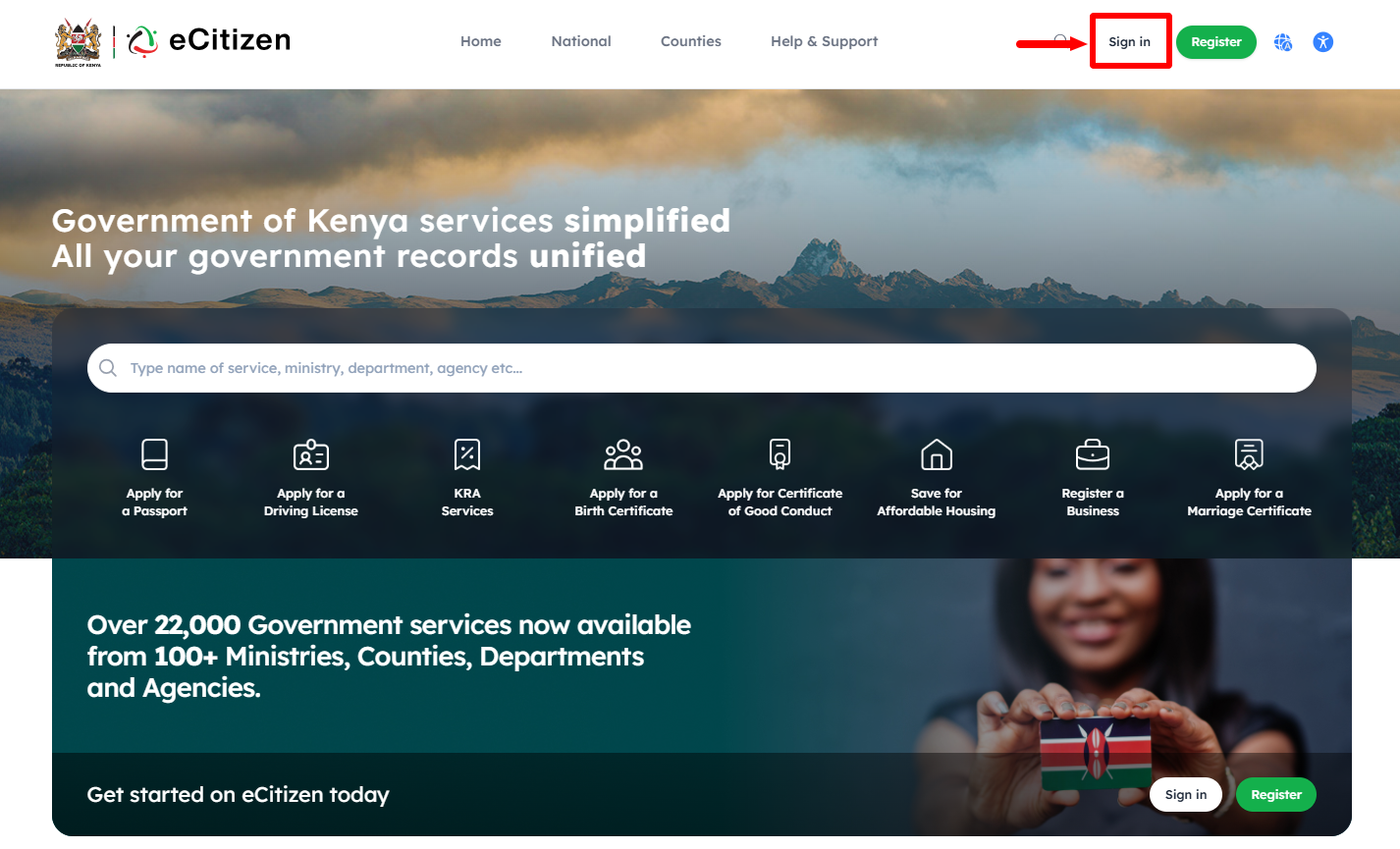
Once you are on the eCitizen website, click on “Sign In” button to start the process of checking Electronic Signature on eCitizen account.
- Step 3: Enter ID Number
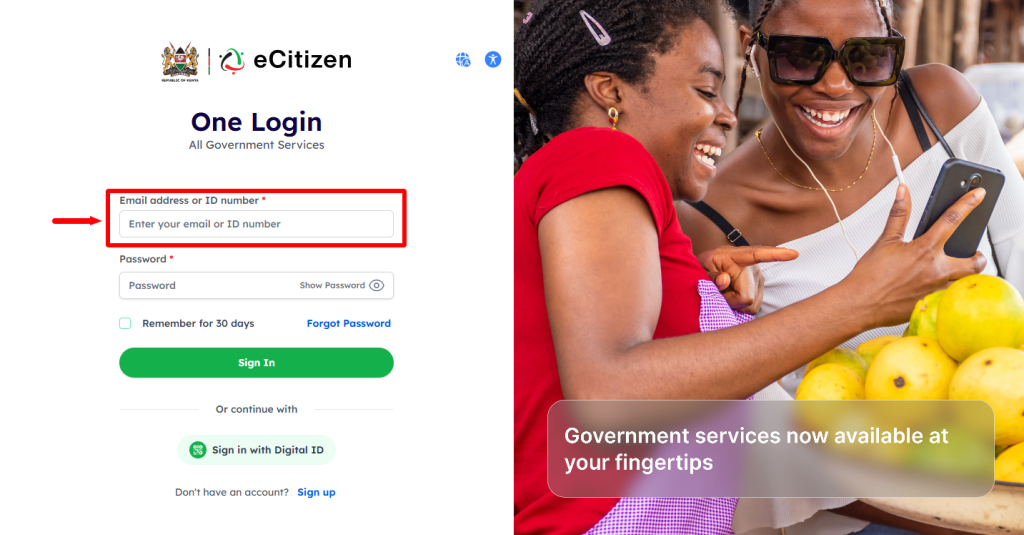
Next, enter your “ID Number” and then proceed to the next step.
- Step 4: Enter eCitizen Password
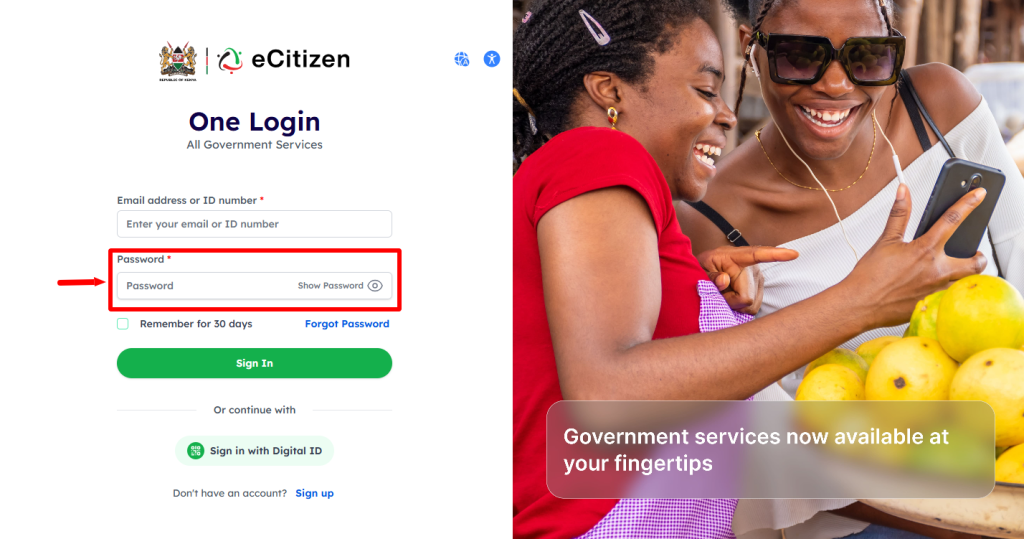
In this step, you need to enter your “eCitizen Password” and then proceed and click on the “Sign In” button.
- Step 5: OTP Verification
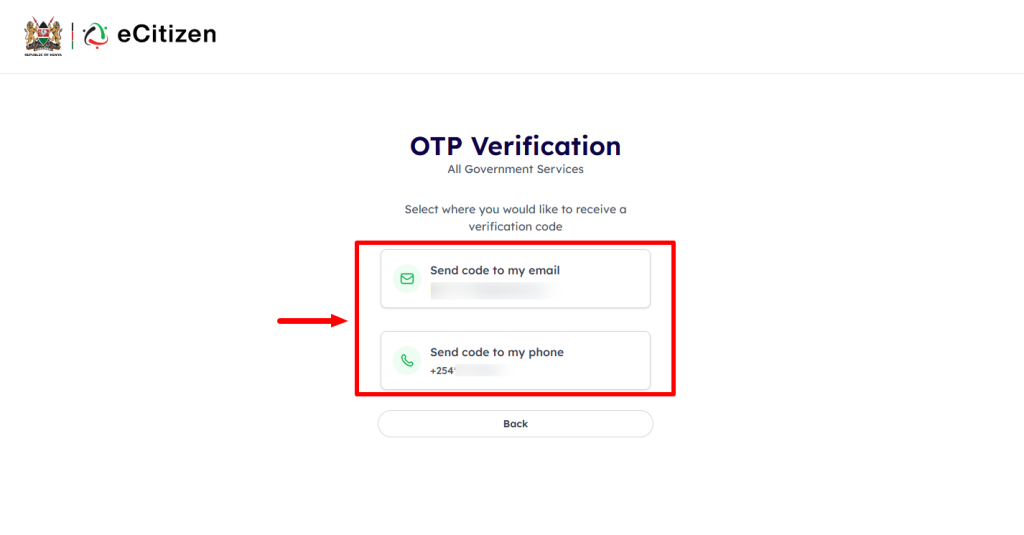
If your eCitizen account has Two-Factor Authentication (2FA) enabled, you need to select the option that you want to receive the One-Time Password (OTP) either via Phone Number or Email Address.
- Step 6: Enter eCitizen OTP Verification Code
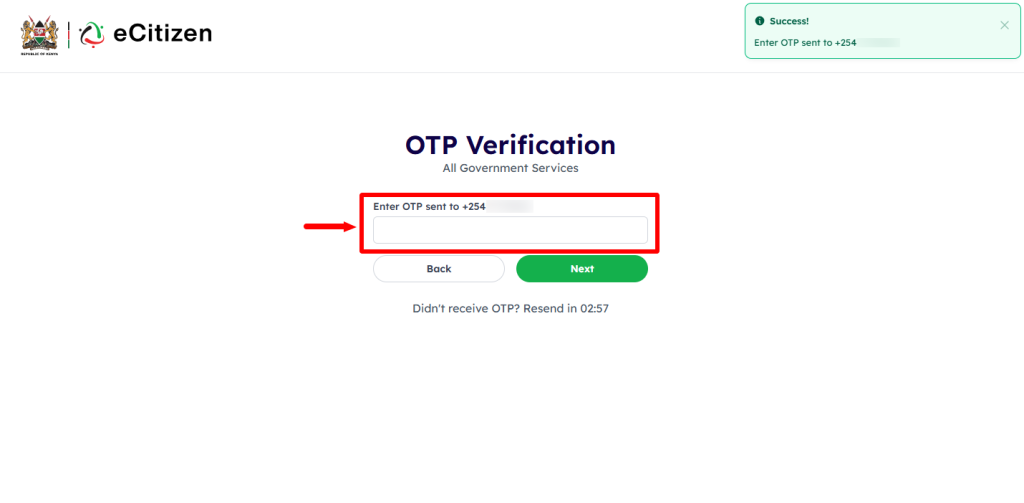
Next, enter the eCitizen One-Time Password (OTP) that has been sent and click on the “Next” button to proceed to the next step.
- Step 7: eCitizen Login Successfull

Once you have entered everything correctly i.e. ID Number, eCitizen Password and eCitizen OTP Code, you will be successfully logged into your eCitizen account. Now you can start the process of checking eCitizen Electronic Signature online.
- Step 8: Click on Account Management
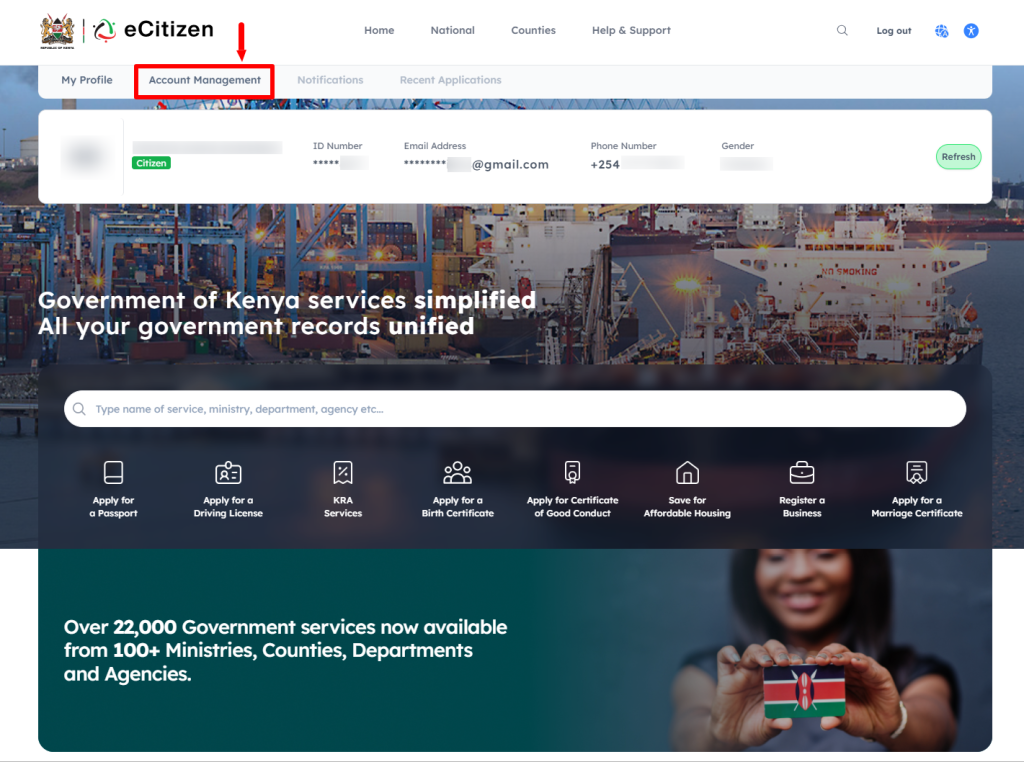
Next, click on “Account Management” and scroll down to “Electronic Signature” section.
- Step 9: Electronic Signature
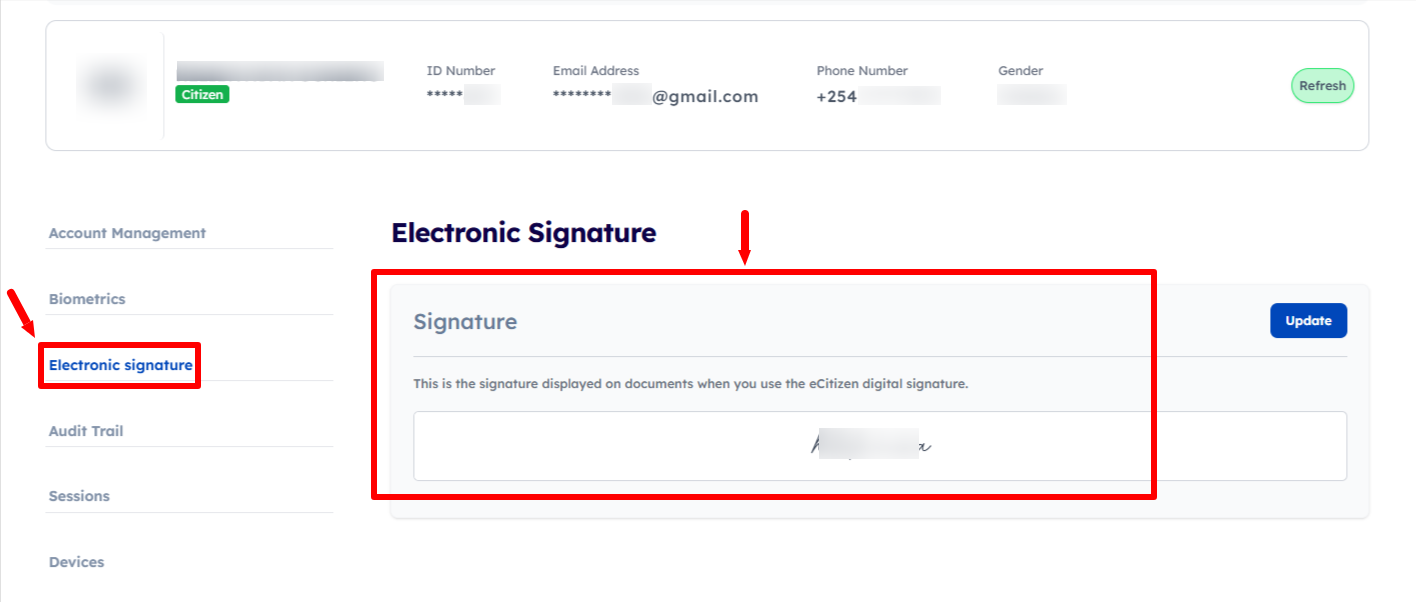
Lastly, your eCitizen Electronic Signature will be displayed on the account dashboard. Checking the eCitizen electronic signature will help you confirm the signature information before or after using it to electronically sign documents through eCitizen. The eCitizen electronic signature is displayed on documents when you use the eCitizen digital signature.
Overview: eCitizen Account Electronic Signature Check
To check your eCitizen Account Electronic Signature, start by visiting the eCitizen website and clicking on Sign in. Enter your ID number and eCitizen password, then complete the OTP verification by entering the eCitizen OTP verification code. Once the login is successful, you will be able to access your eCitizen account.
READ ALSO: How To Disable Two-Factor Authentication (2FA) on eCitizen Account
After logging in, click on Account Management to access your account settings and information. Select Electronic Signature to view the electronic signature associated with your eCitizen account and check the signature information available for use when signing documents through eCitizen.