
The audit trail on an eCitizen account can provide a record of activities and actions associated with the account. Reviewing this information can be useful when you want to keep track of account activity, confirm that a particular action was performed, or investigate changes made within your eCitizen account.
This guide explains where to find the audit trail and how to access the available activity records on your eCitizen account. By reviewing the information displayed, you can better understand the actions recorded and check the relevant details associated with your account activity.
READ ALSO: How To Disable Two-Factor Authentication (2FA) on eCitizen Account
What is eCitizen Account Audit Trail?
eCitizen Account Audit Trail is a record of activities and changes made to an eCitizen account. It provides information about account events, such as changes to OTP preferences and login activity to the eCitizen account, allowing users to review actions that have taken place on their account.
The eCitizen account audit trail shows details such as the date and time an activity occurred, the event code, the source of the activity, its status, and the user associated with the action. For example, an eCitizen account audit record may show that an OTP preference or last login information was updated, with the status marked as successful and the activity attributed to the user.
What is eCitizen Account Audit Trail Check?
eCitizen Account Audit Trail Check is the process of checking and reviewing the activity records associated with an eCitizen account. It allows an account holder to check previous account activities, updates, and login events recorded in the eCitizen system.
The eCitizen audit trail check may display information such as the date and time of an activity, event code, source, status, and the user associated with the activity. By checking the audit trail, users can review successful account actions, such as OTP preference updates and login activity, and identify changes made to their eCitizen account.
Requirements Needed To Check eCitizen Account Audit Trail
Before accessing the audit trail on your eCitizen account, ensure that you have the necessary details and account access required to view your activity records. Having these two requirements ready will help you locate the audit trail and review the information recorded on your account without unnecessary interruptions. The two requirements needed to check your eCitizen Account Audit Trail are:
- ID Number
- eCitizen Password
The eCitizen account audit trail provides a record of activities carried out within your account, giving you a way to review previous actions and account events. Checking this information can be useful when you want to confirm when an activity occurred, review changes made to your account, or better understand the activity recorded against your profile.
How To Check eCitizen Account Audit Trail
Once you have signed in to your eCitizen account, you can navigate to the section that contains your account activity records. The audit trail allows you to review the activities recorded on your profile and examine the relevant details associated with those actions. Follow the steps below to check your eCitizen Account Audit Trail:
- Step 1: Visit eCitizen website
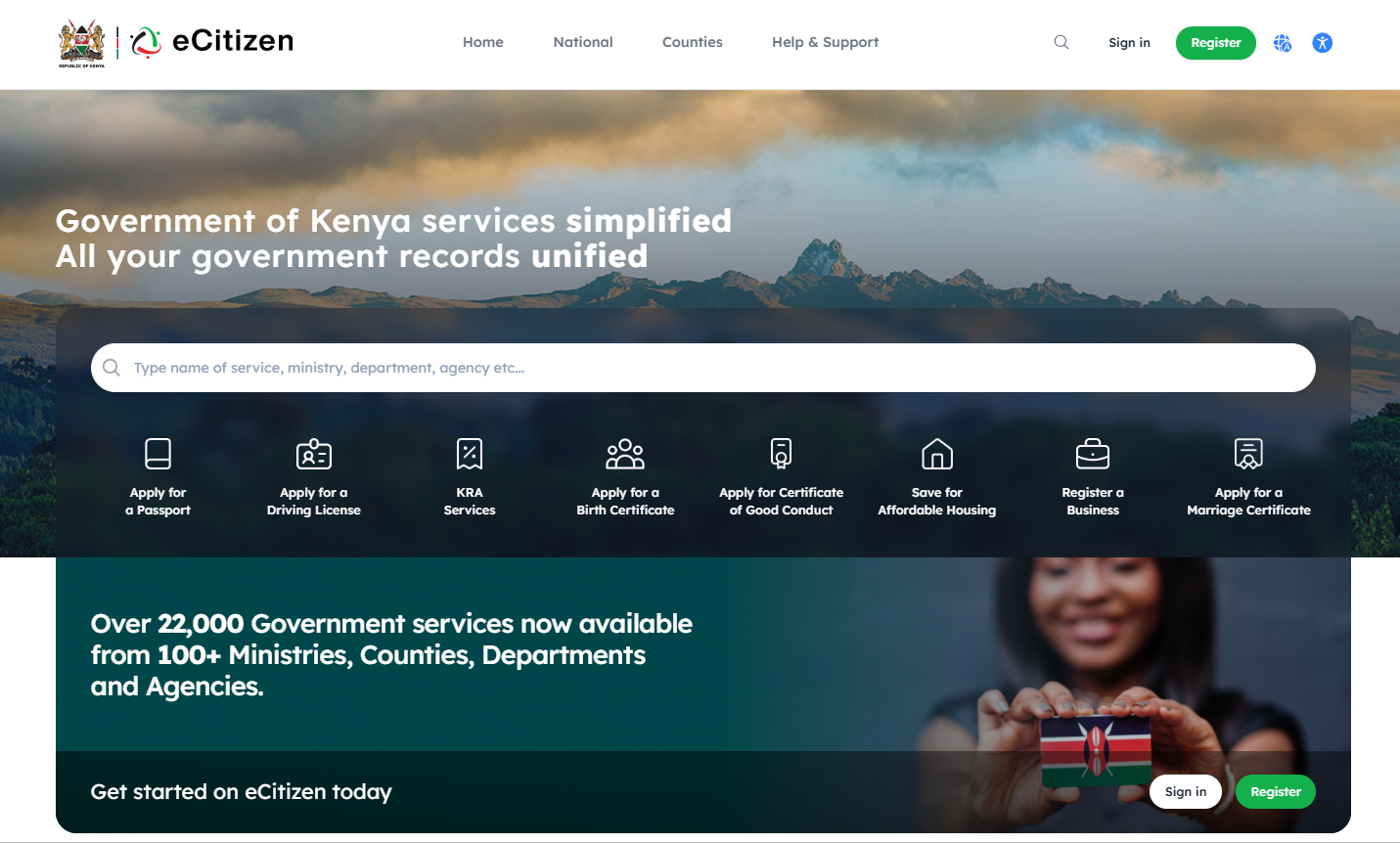
The first step in the process of checking eCitizen Account Audit Trail is to visit eCitizen website using https://accounts.ecitizen.go.ke/
- Step 2: Click on Sign in
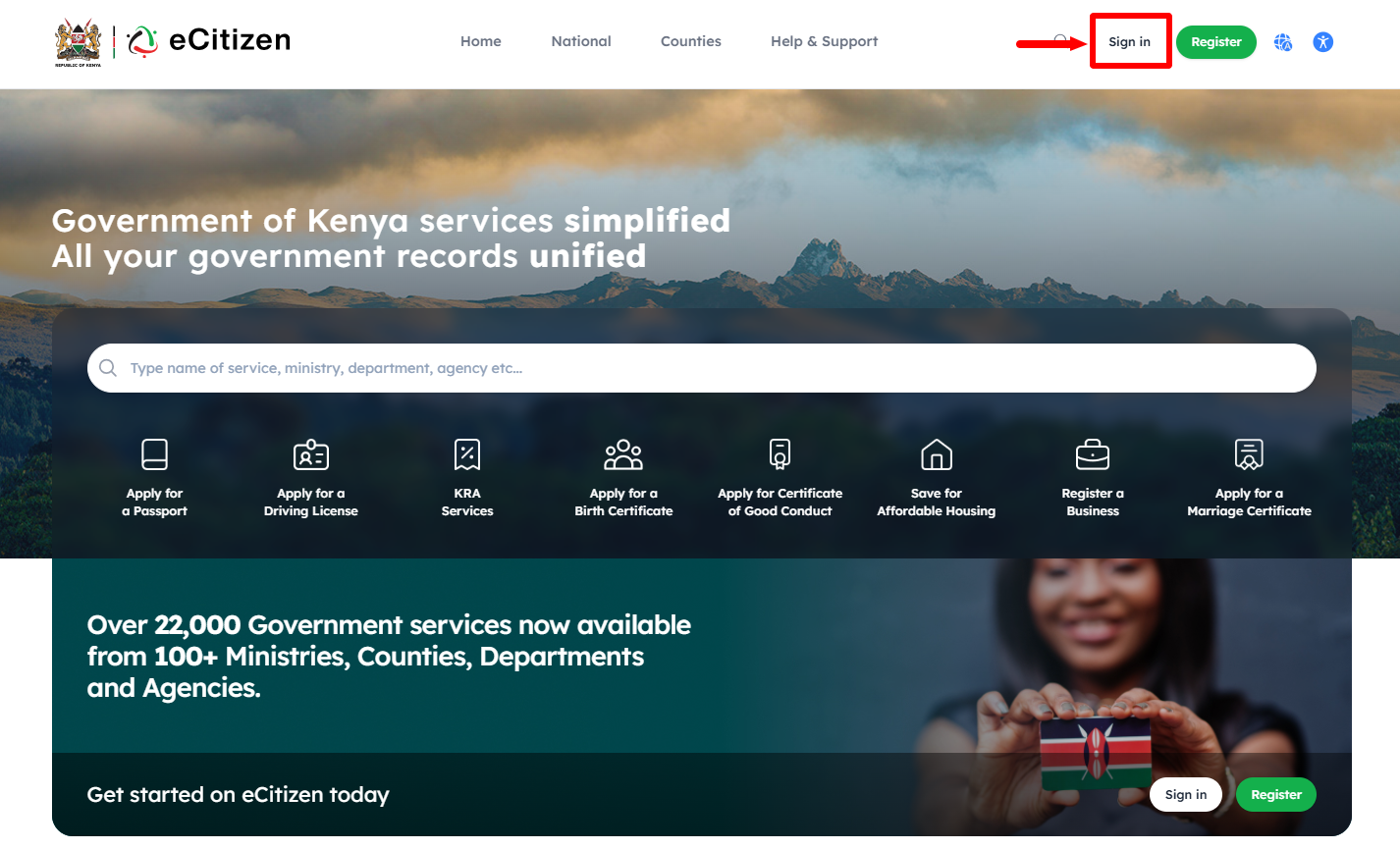
Next, click on the “Sign in” button and proceed to the next step.
- Step 3: Enter ID Number
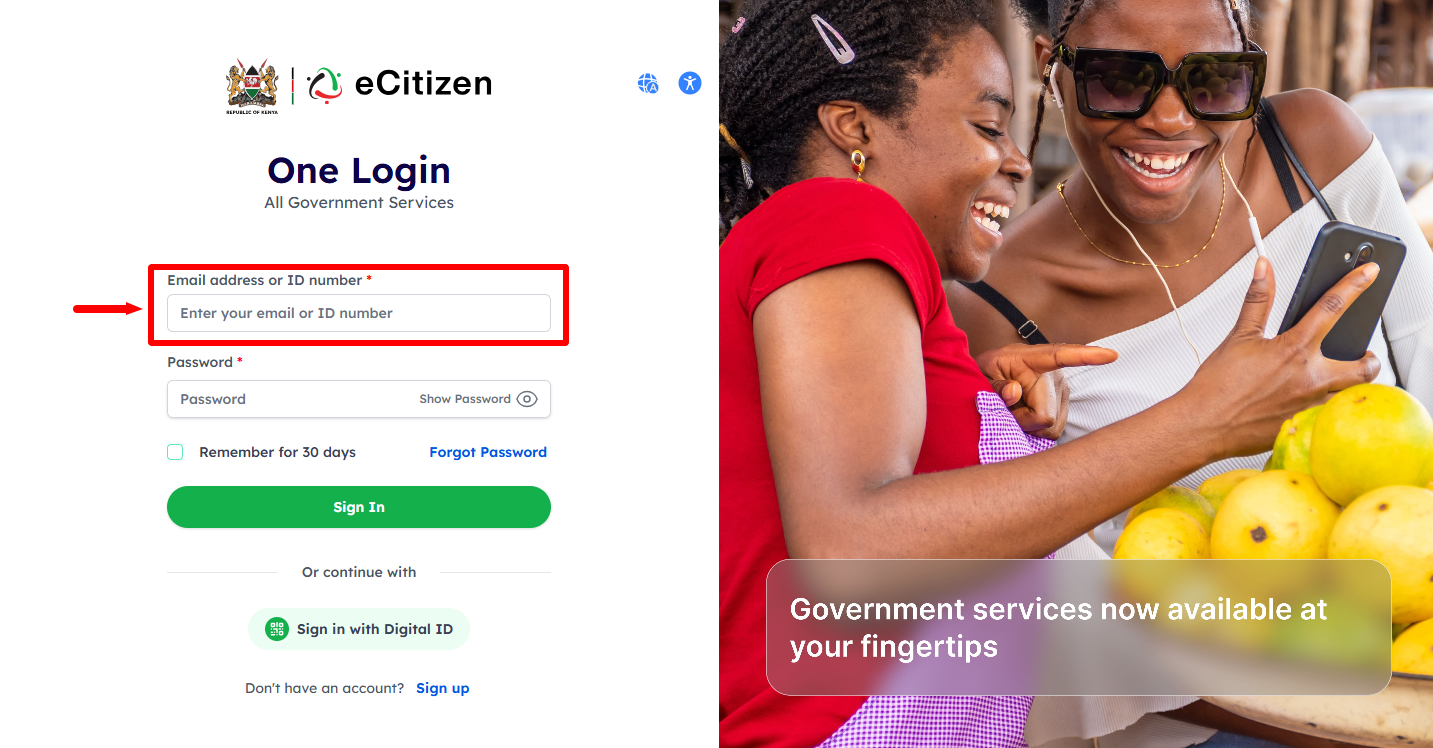
In this step, enter your “ID Number” then proceed to the next step.
- Step 4: Enter eCitizen Password
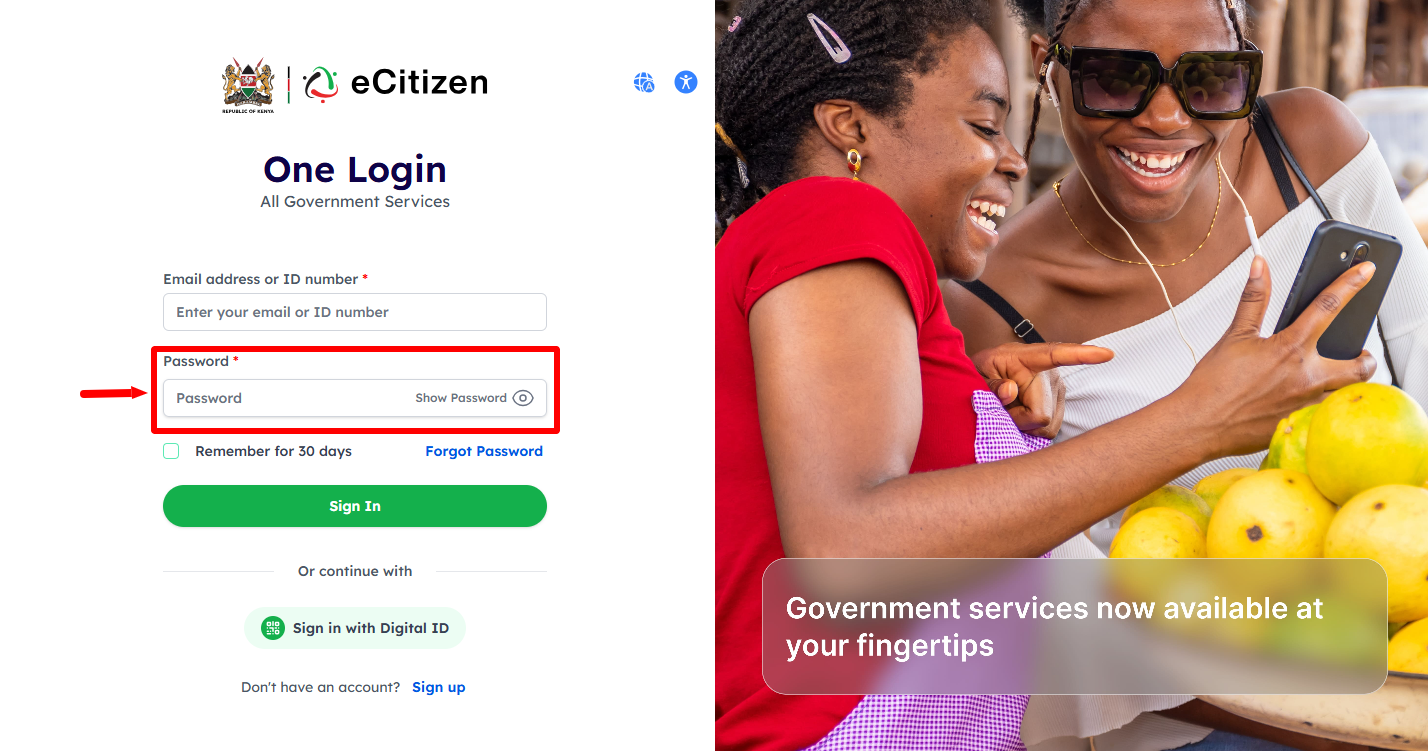
Next, enter your “eCitizen Password” and then click on the “Sign In” button.
- Step 5: OTP Verification
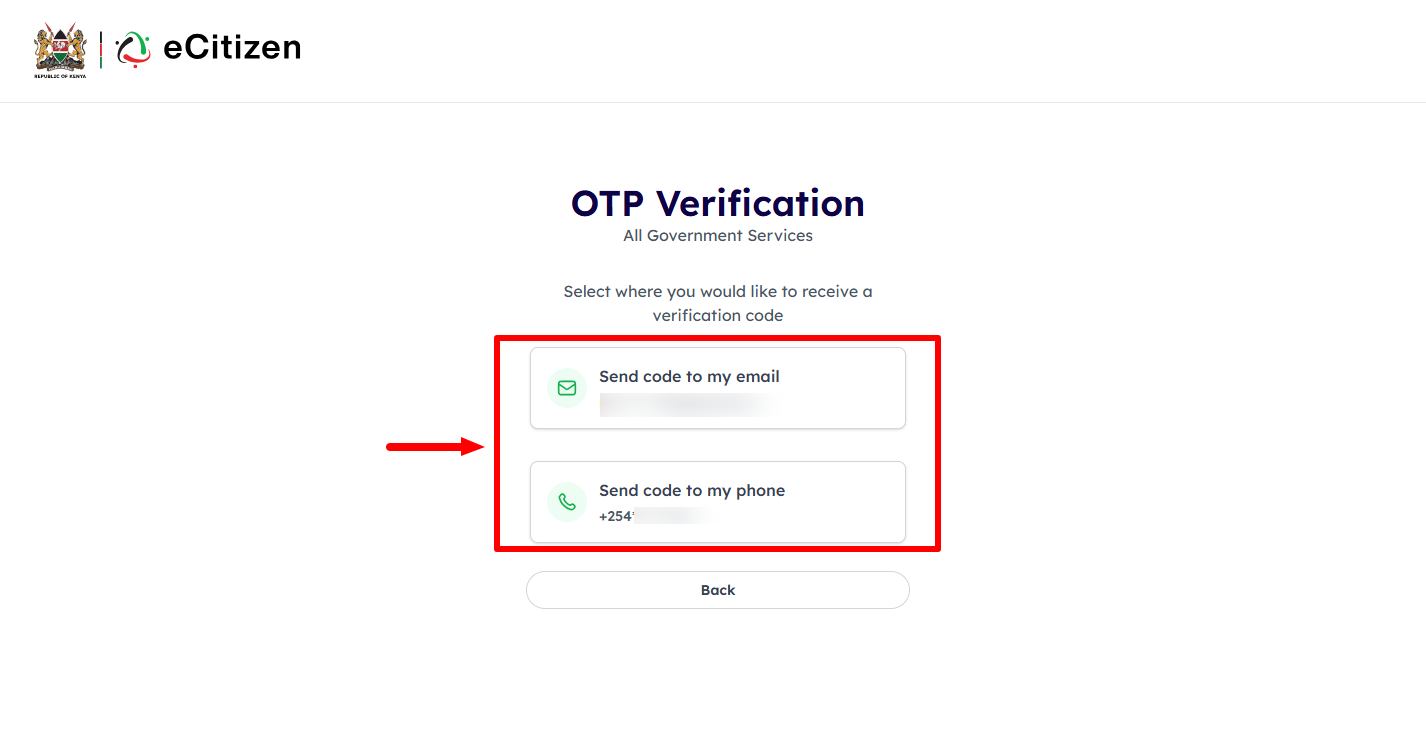
If you have enabled Two Factor Authentication (2FA) on your eCitizen account, you will have to verify using either the OTP sent to “Email Address” or “Phone Number” and proceed to the next step.
- Step 6: Enter eCitizen OTP Verification Code
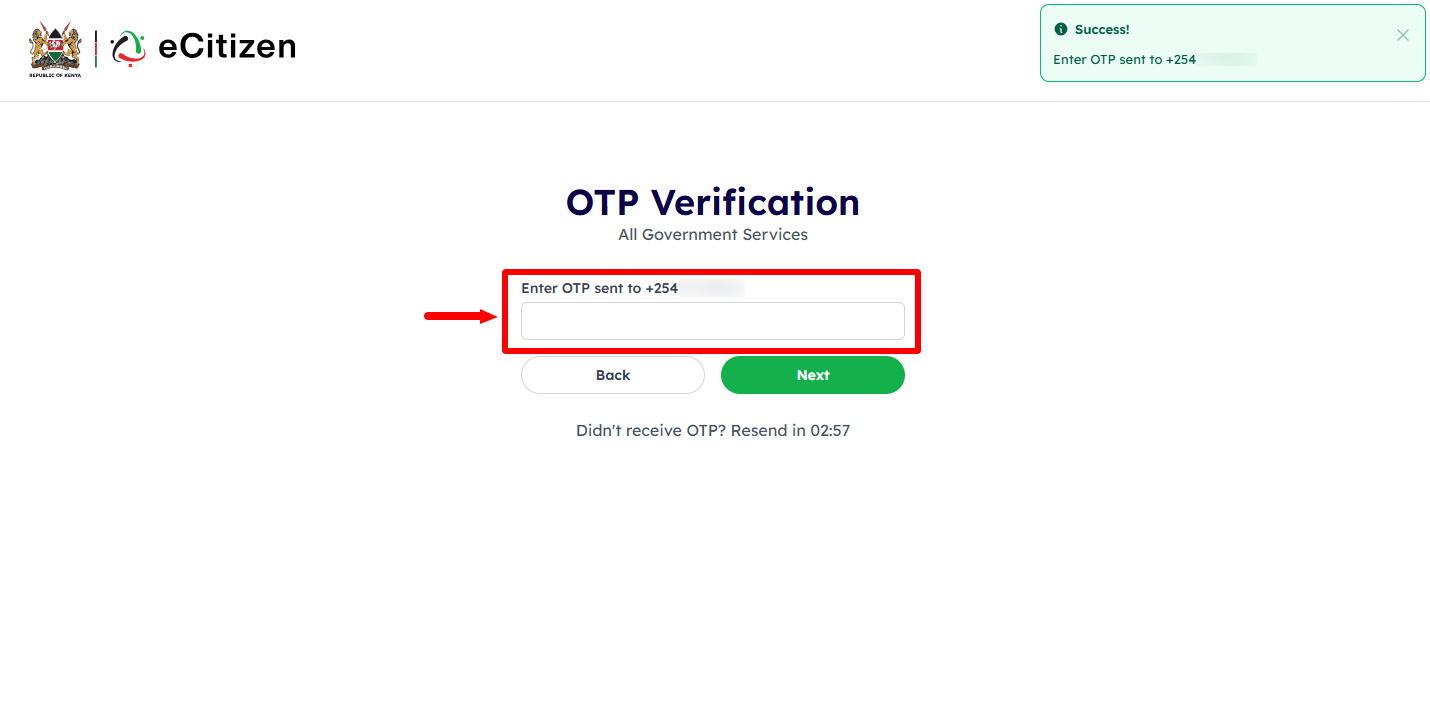
Enter the eCitizen “OTP Verification” Code that has been sent to both Phone Number and Email Address. Once you have entered the eCitizen OTP Code, click on the “Next” button to proceed to the next step.
- Step 7: eCitizen Login Successfull

Once you have entered the correct eCitizen OTP code, you will be logged into your eCitizen account successfully and you can now start the process of checking eCitizen account audit trail online.
- Step 8: Click on Account Management
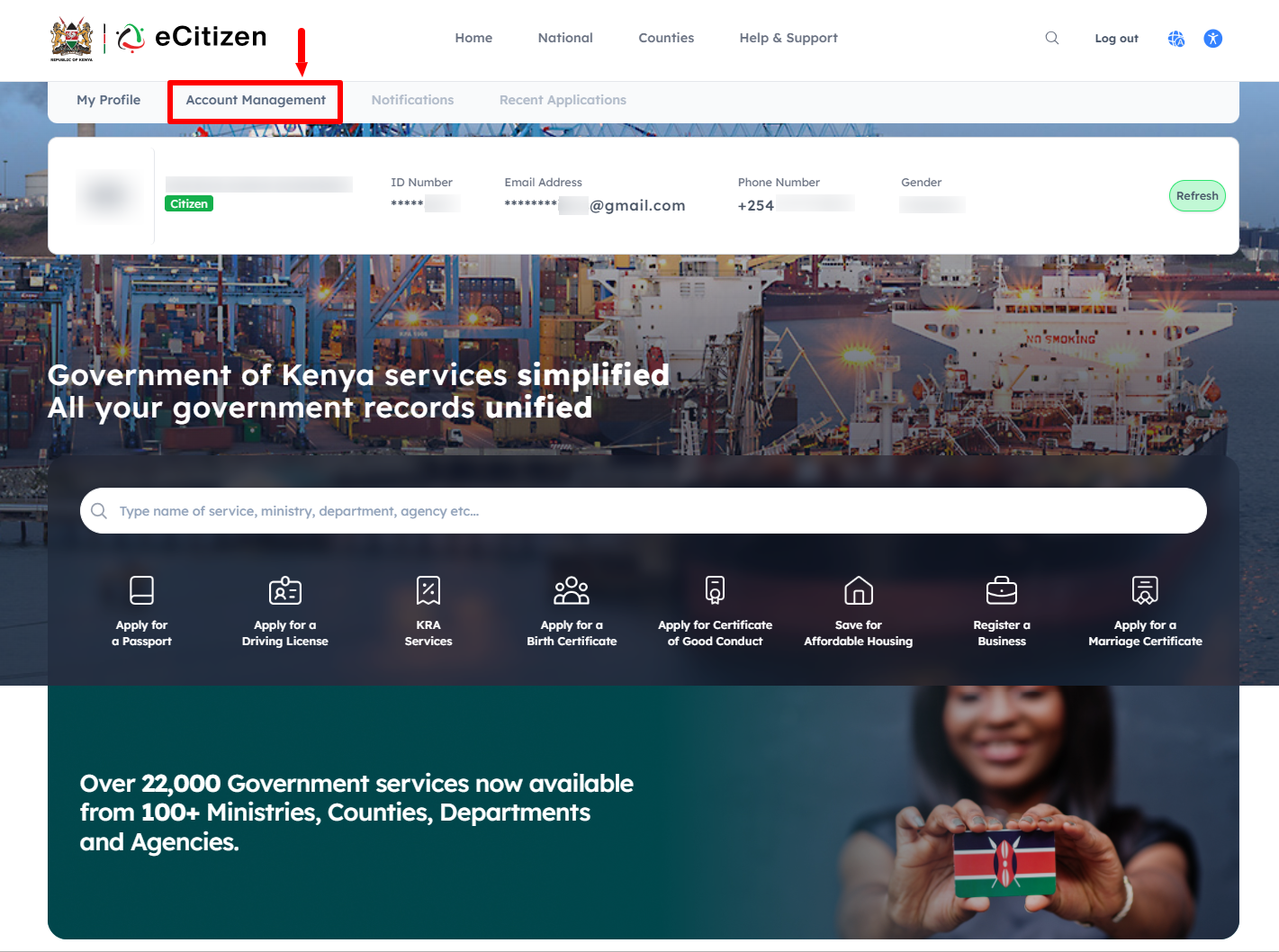
Next, click on “Account Management” and scroll down to “Audit Trail” section.
- Step 9: Audit Trail
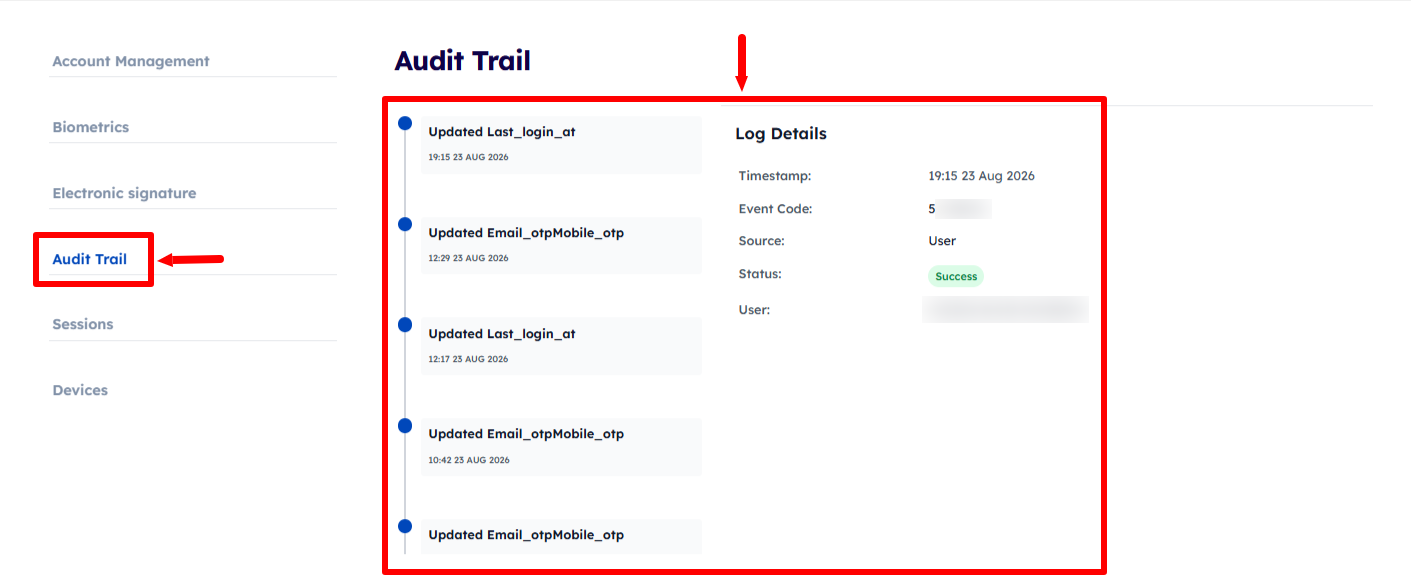
Lastly, the eCitizen audit trail shows details such as the date and time of an activity, event code, source, status, and the user who performed the activity. By reviewing these records, you can see successful account activities, including OTP preference updates, login activity, and other changes made to eCitizen account.
Overview: eCitizen Account Audit Trail Check
To check your eCitizen Account Audit Trail, start by visiting the eCitizen website and clicking on Sign in. Enter your ID number and eCitizen password, then complete the OTP verification by entering the verification code sent to you. Once the login is successful, you will be able to access your eCitizen account.
READ ALSO: How To Enable Two-Factor Authentication (2FA) on eCitizen Account
After logging in, click on Account Management to access your account settings and information. Select Audit Trail to view the recorded activities and changes associated with your eCitizen account, including login activity, OTP preference updates, timestamps, event codes, and the status of recorded actions.