
IPPMS Password Reset is the process of recovering access to an IPPMS account when a registered user has forgotten their password or cannot log in using their existing password. It allows the user to verify their account details and create a new password to regain access to their existing IPPMS account.
To reset your IPPMS password, you need your National ID Number or Passport Number and access to the email address registered with your IPPMS account. These details are required to verify your account and complete the password reset process.
- READ ALSO: How To Register on IPPMS
- READ ALSO: How To Reset BetPawa PIN
IPPMS Password Reset Steps
The IPPMS password reset process can be completed through the official IPPMS website by following a few steps. You will need to enter the required account details, verify your information, and create a new password before you can log in to your account again.
- Step 1: Visit IPPMS website
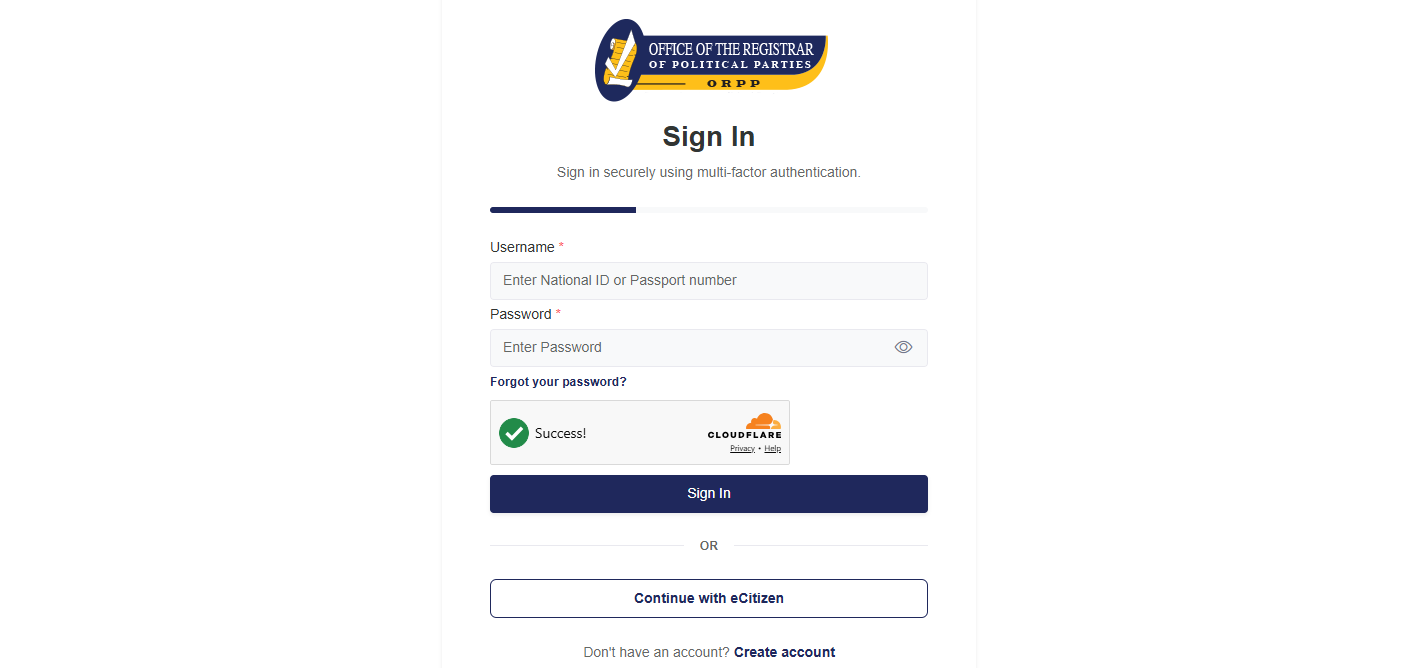
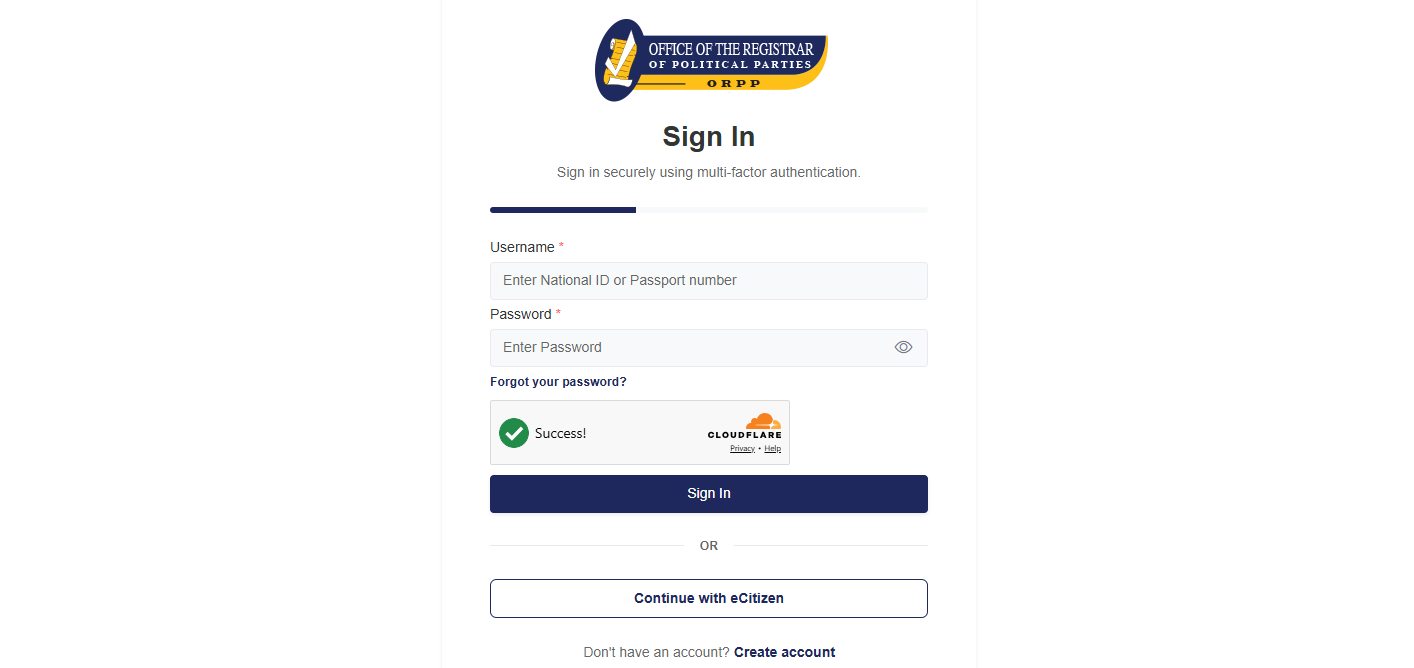
Open your preferred web browser and visit the official IPPMS website at ippms.orpp.or.ke. Once the website loads, access the login section where you can find the option for recovering or resetting your IPPMS Password.
- Step 2: Click Forgot Password
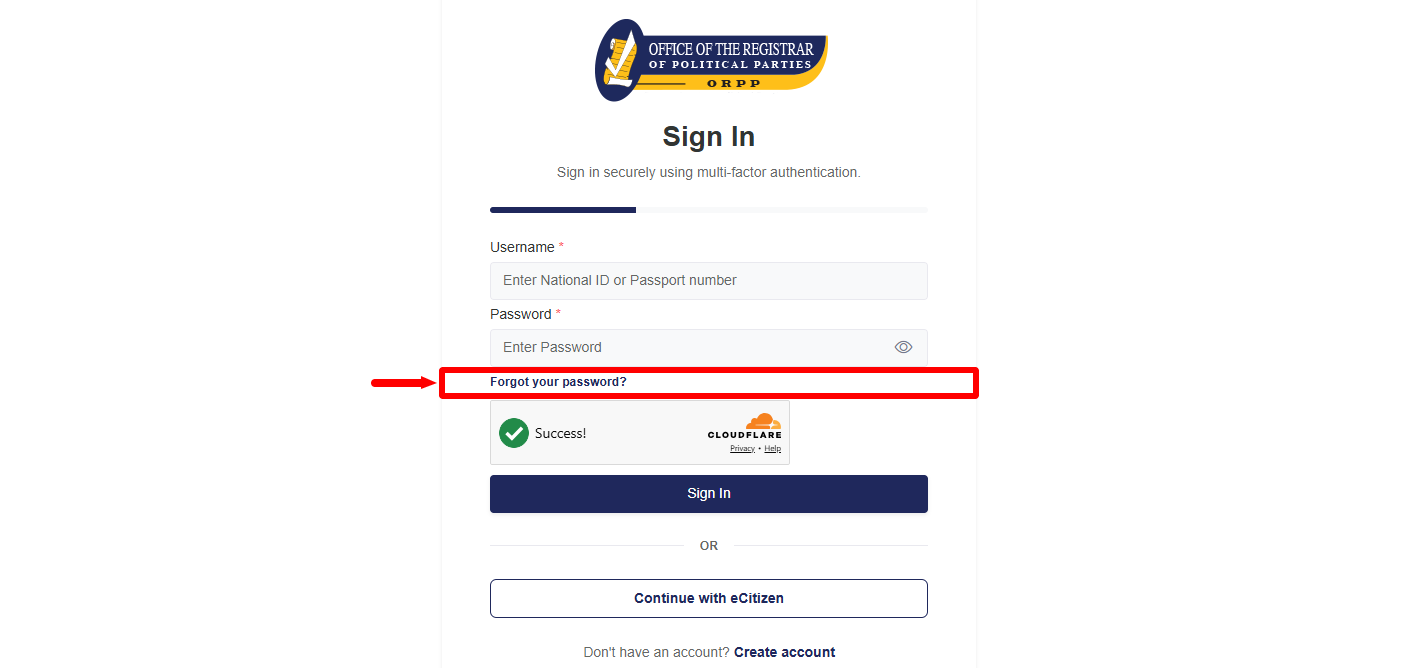
On the IPPMS login page, click Forgot Password to begin the password recovery process. This option allows you to request a password reset link when you cannot remember your current IPPMS Password.
- Step 3: Enter National ID Number or Passport Number
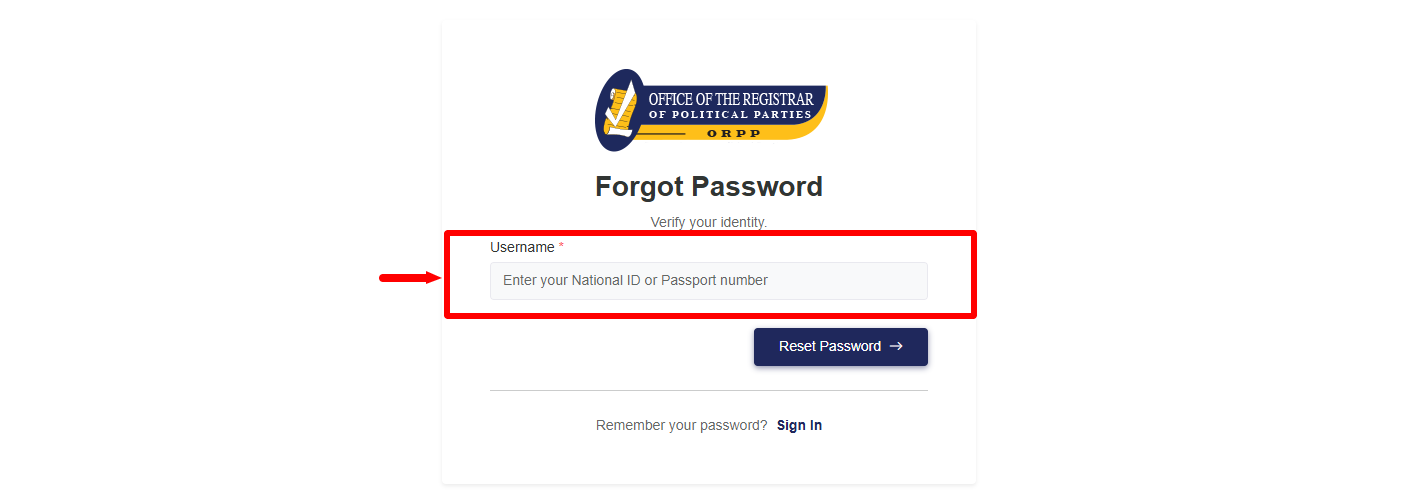
Enter your National ID Number or Passport Number in the required field. Use the identification document details associated with your IPPMS account and make sure the information is entered correctly before proceeding.
- Step 4: Click Reset Password
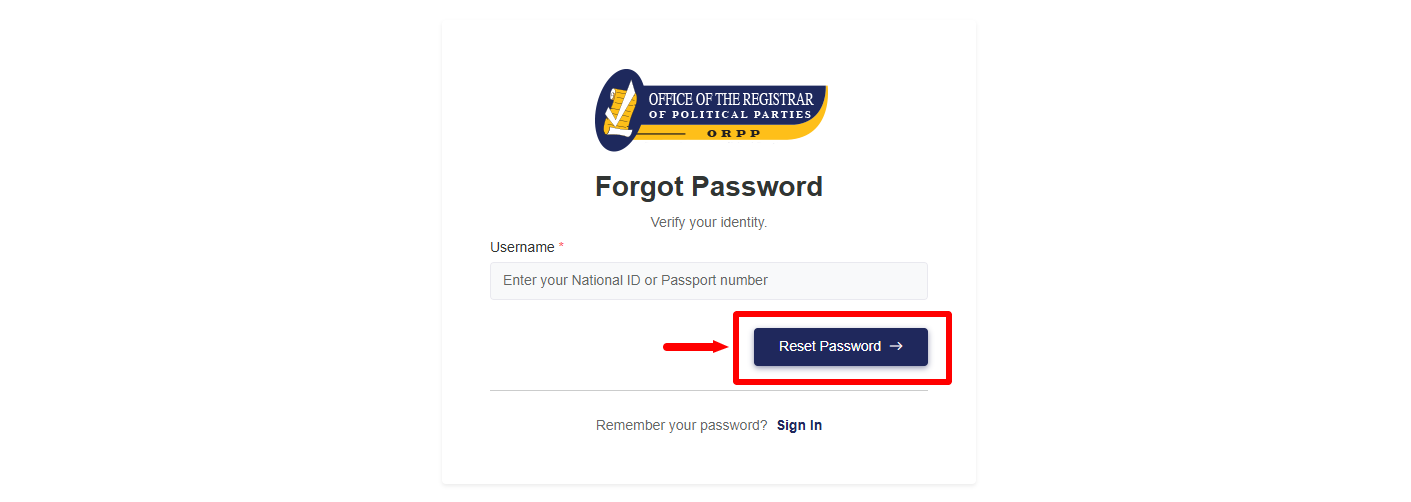
After entering your National ID Number or Passport Number, click Reset Password to submit the password recovery request. IPPMS will process the request and send a password reset link to the email address associated with your account.
- Step 5: Check your Email Address

Check the Email Address associated with your IPPMS account for the password reset message. The message contains a Password Reset Link that you can use to create a new password, and the link will expire in 1 hour, so make sure you use it within the stated period.
- Step 6: Click on Password Reset Link
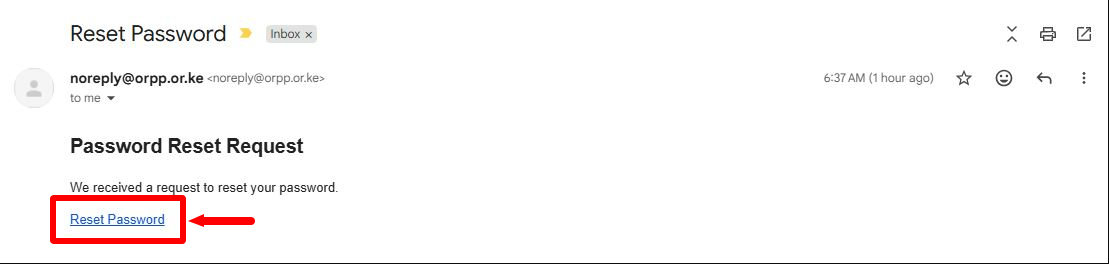
Open the password reset email and click on the Password Reset Link provided in the message. The link will take you to the IPPMS password reset page, where you can enter and confirm your new password.
- Step 7: Enter and Confirm New IPPMS Password
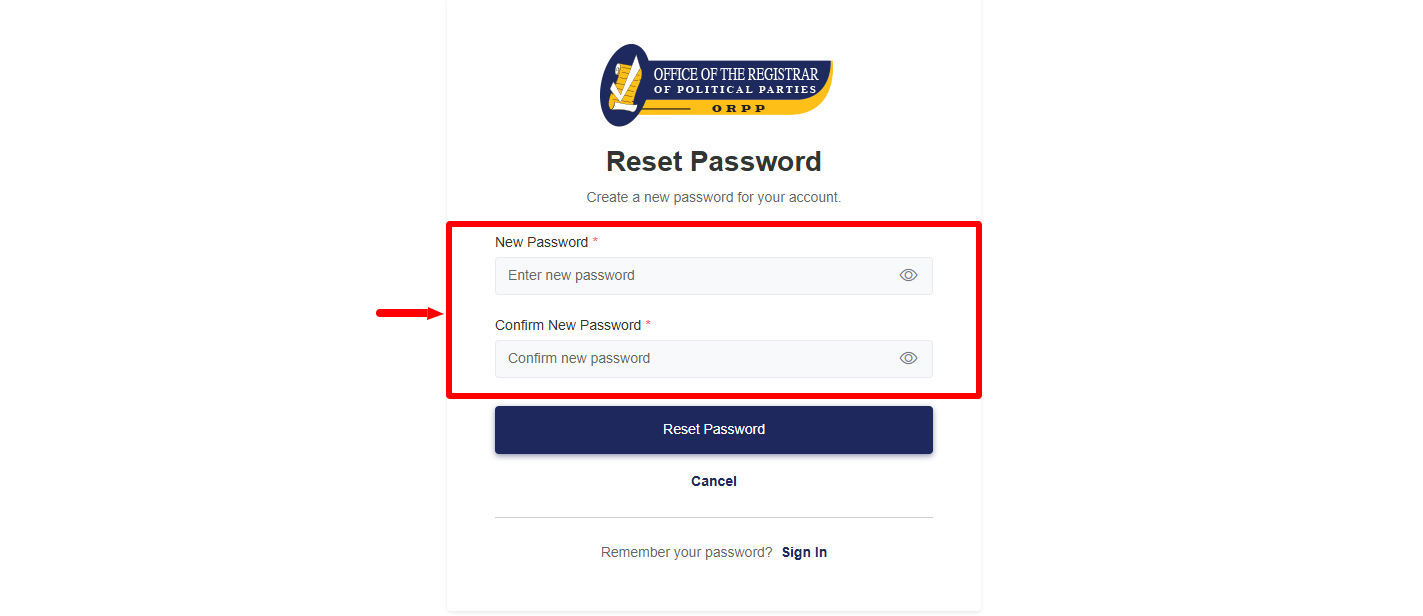
Enter your new IPPMS Password in the required password field and enter it again to confirm the new password. Make sure both password entries match and that you remember the new password for future access to your IPPMS account.
- Step 8: Click Reset Password
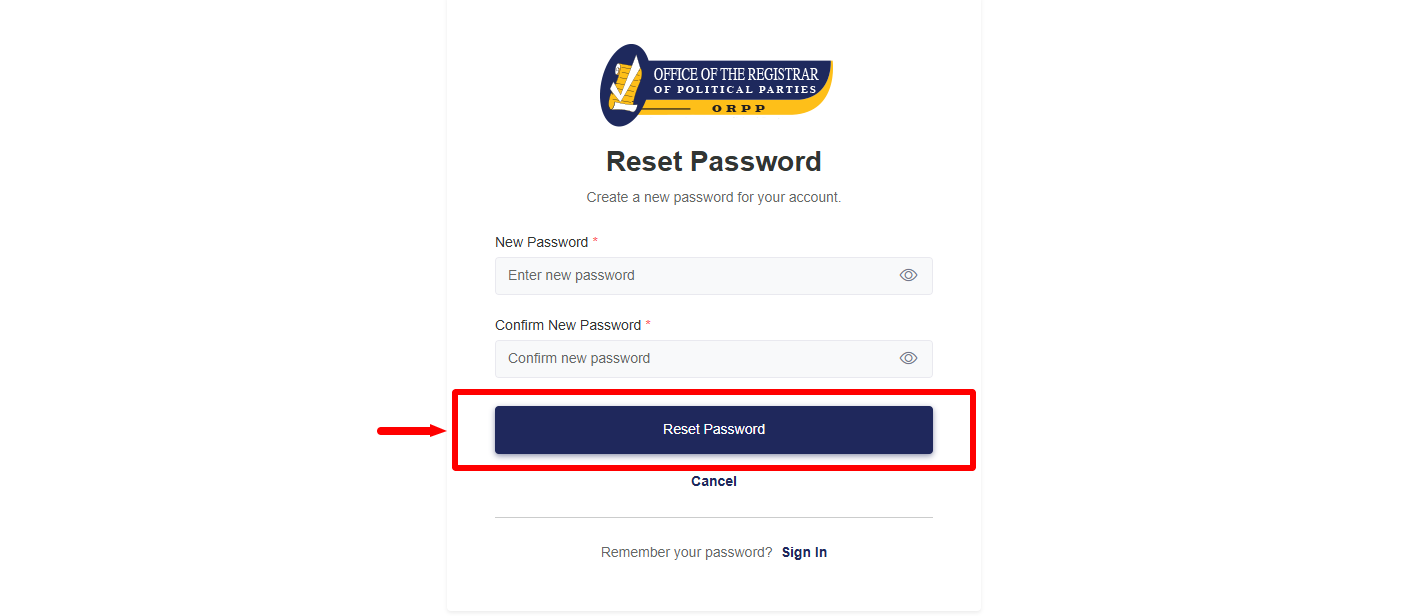
After entering and confirming your new IPPMS Password, click Reset Password to submit the new password. The system will process the request and, if successful, complete the password reset process.
- Step 9: IPPMS Password Password Reset Successful
Once the process is completed successfully, IPPMS will display the message Password Reset Successful – Your password has been reset successfully. Sign in using new password. You can then return to the IPPMS login page and sign in using your new password.