
IPPMS Registration is the process of creating an account on the Integrated Political Parties Management System (IPPMS), an online platform provided by the Office of the Registrar of Political Parties (ORPP). It allows users to create an IPPMS account by providing the personal and account information required by the system.
To register for an IPPMS account, you need your Document Number (ID Number or Passport Number), First Name, and a preferred OTP Delivery Method (SMS or Email). These details are required to create and verify your IPPMS account during the registration process.
- READ ALSO: How To Reset BetPawa PIN
- READ ALSO: How To Register on BetPawa
IPPMS Registration Steps
The IPPMS registration process can be completed through the official IPPMS website by following a few simple steps. You will need to enter your personal details, choose an OTP delivery method, verify your information, and complete the registration to create your IPPMS account.
- Step 1: Visit IPPMS website
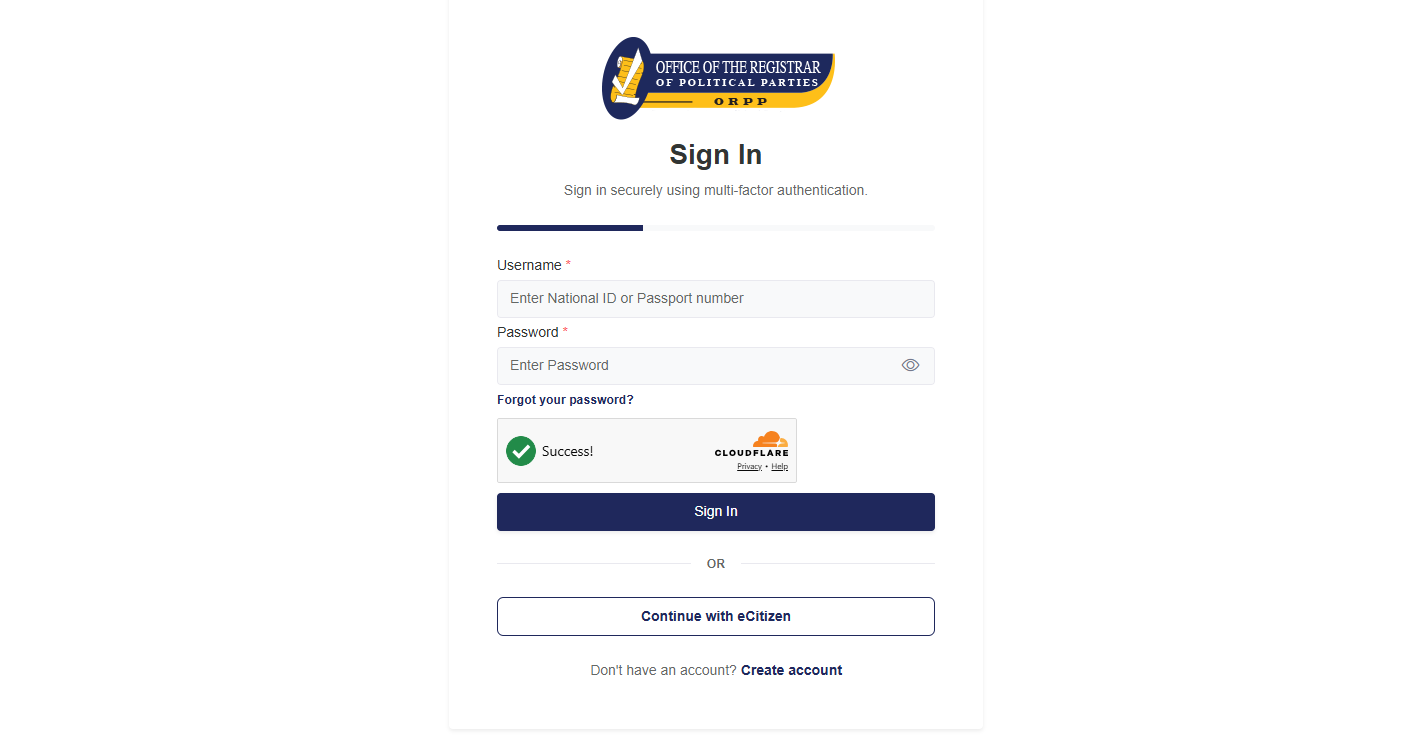
Open your preferred web browser and visit the official IPPMS website at ippms.orpp.or.ke. Once the IPPMS website loads, you can access the account registration section and begin the process of creating your IPPMS account.
- Step 2: Click Create Account
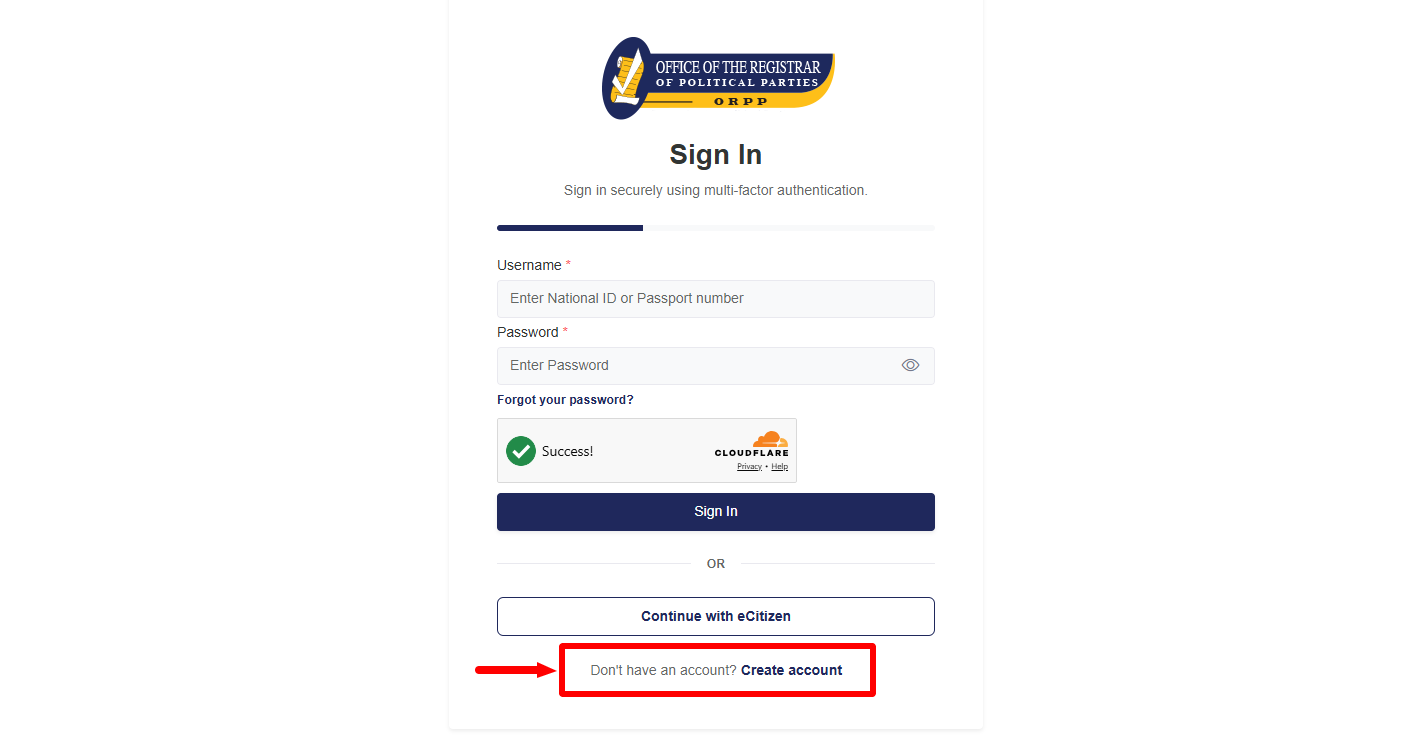
On the IPPMS website, click Create Account to begin the registration process. This will open the IPPMS registration page where you can provide your identification details and complete the required account verification steps.
- Step 3: Select Document Type
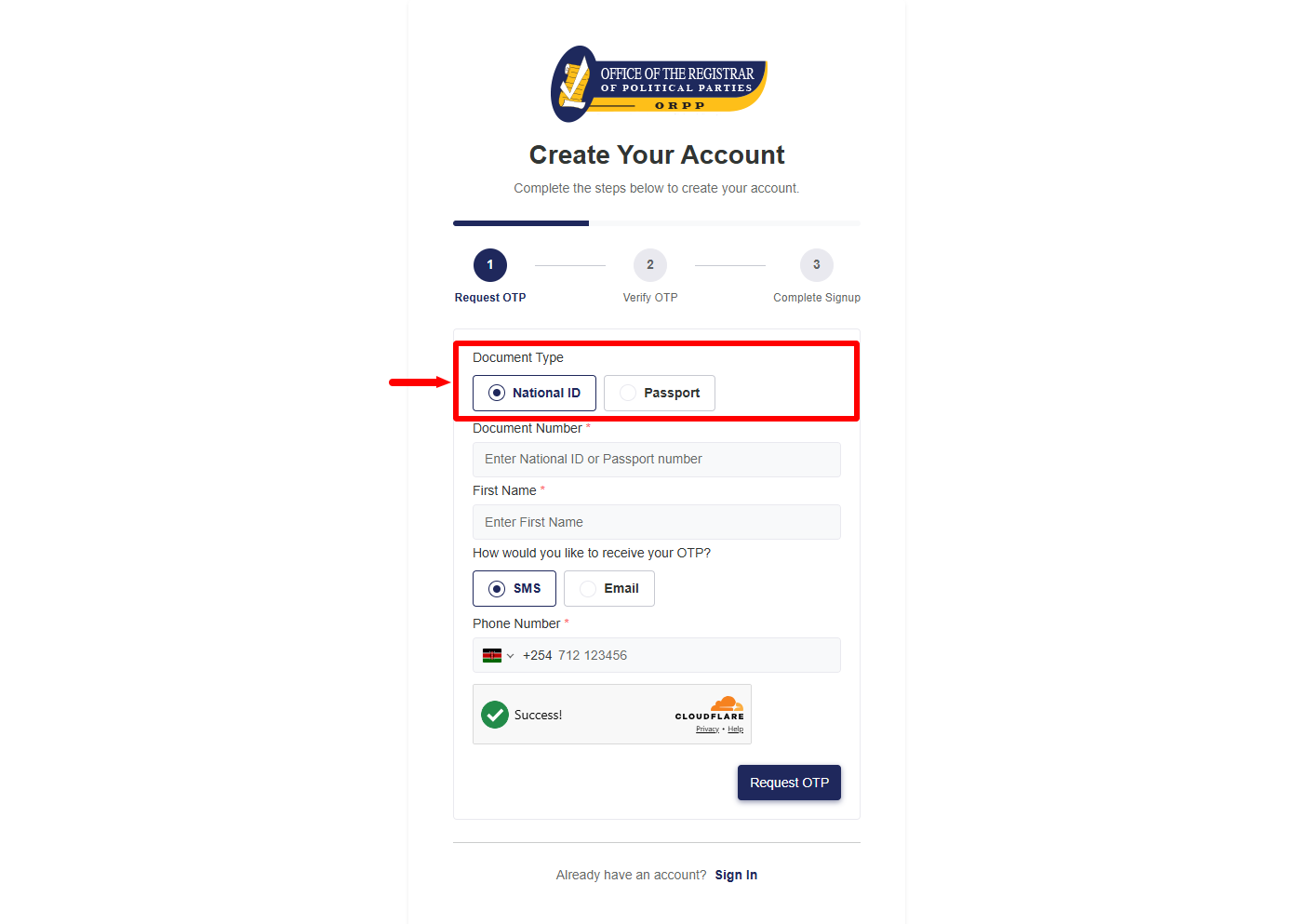
Select your Document Type from the available options. You can choose either National ID or Passport, depending on the identification document you intend to use for the IPPMS registration process.
- Step 4: Enter Document Number
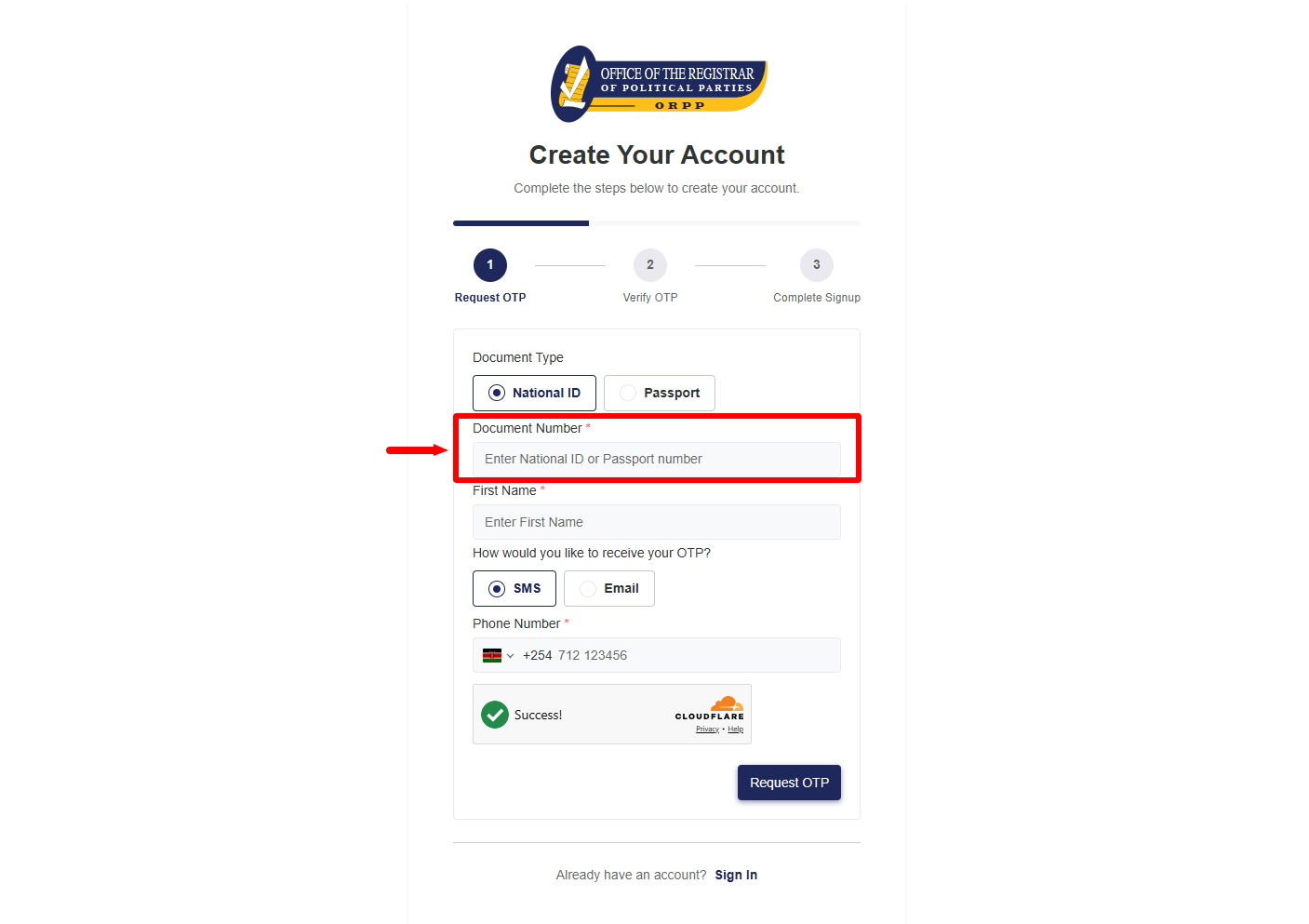
Enter your Document Number in the required field. If you selected National ID, enter your ID Number, or if you selected Passport, enter your Passport Number, ensuring that the details match the document you selected.
- Step 5: Enter First Name
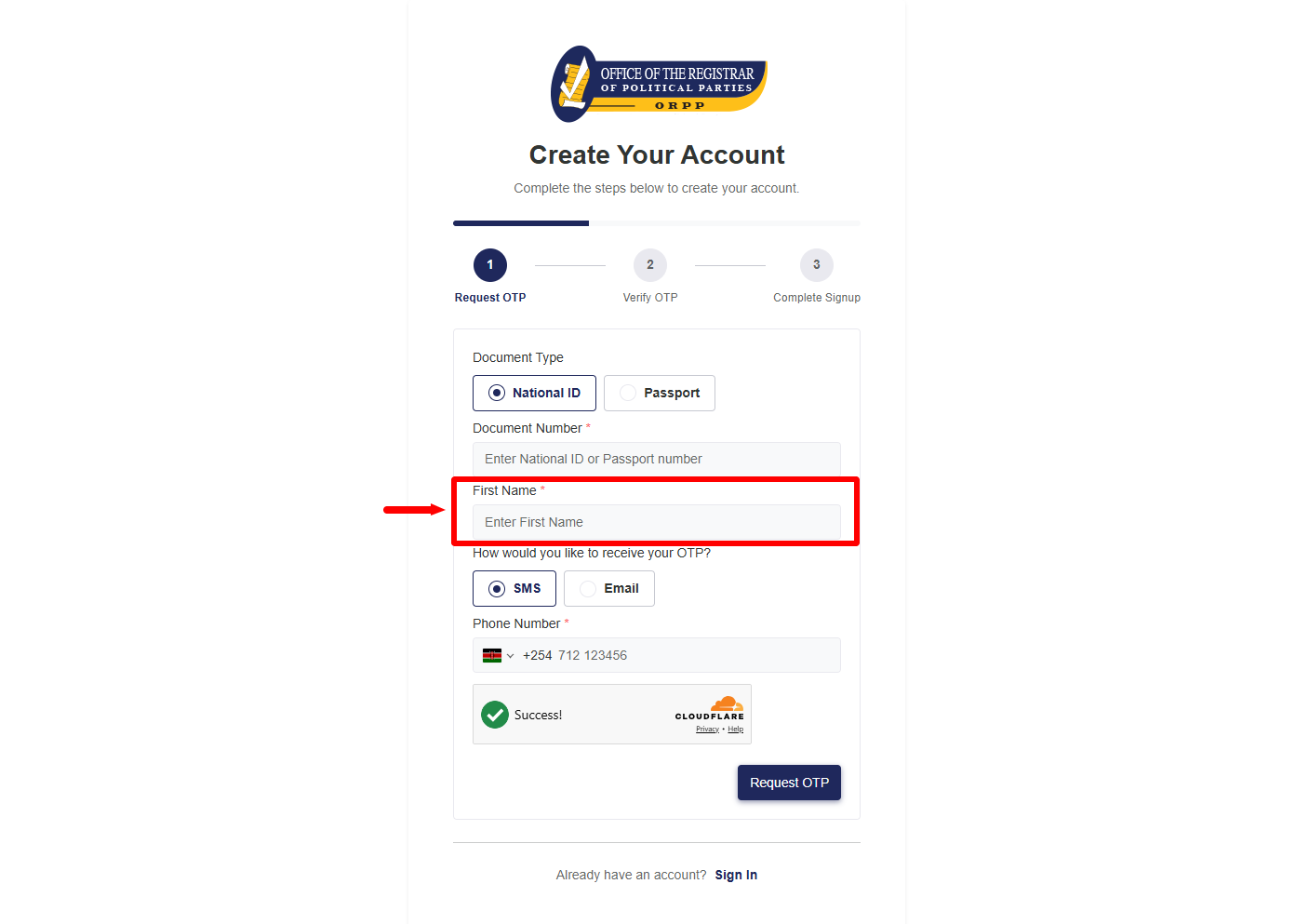
Enter your First Name in the required field. Make sure you enter the first name as it appears on your selected identification document so that your details can be matched correctly during the registration process.
- Step 6: Select Method to Receive OTP
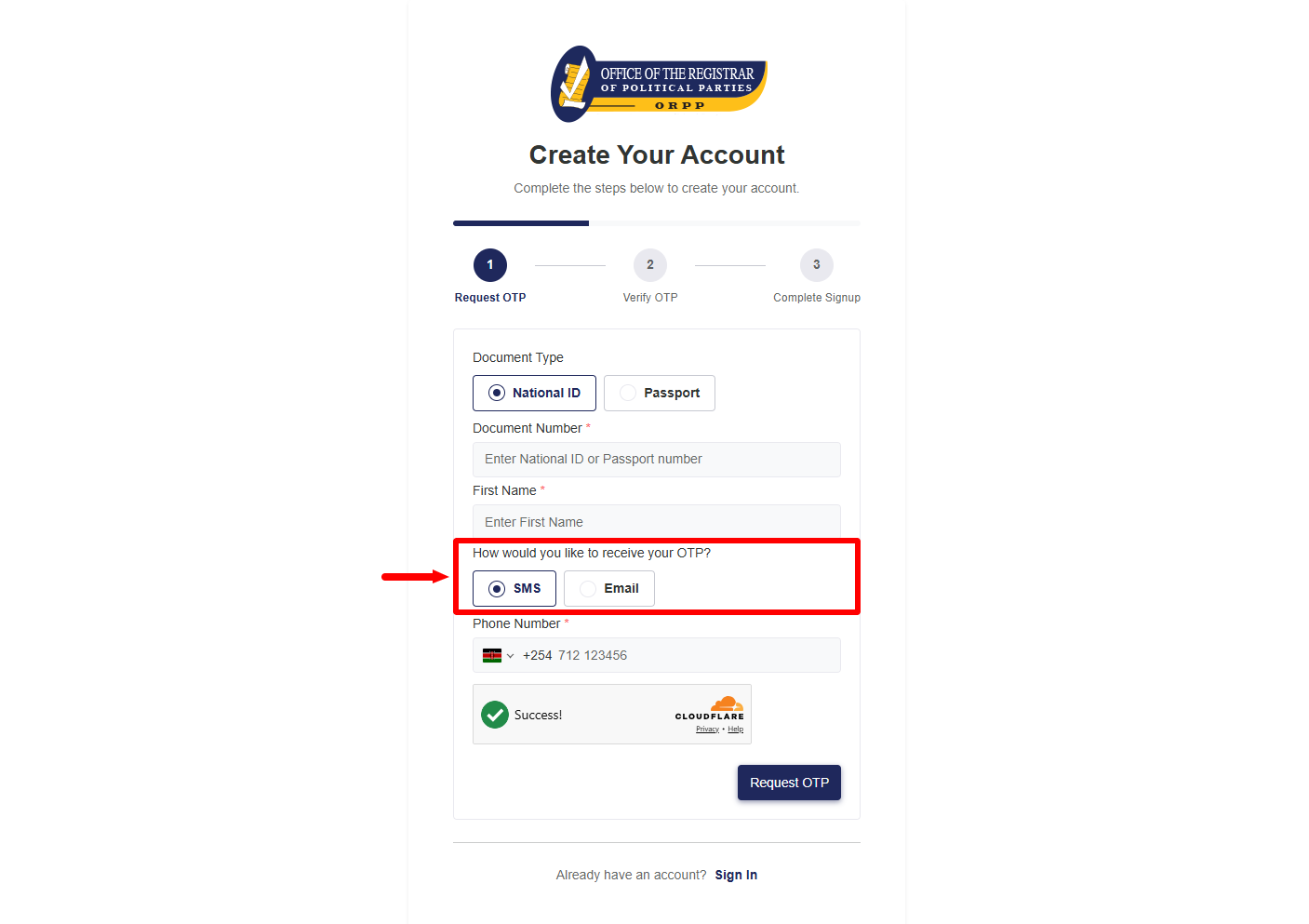
Select your preferred Method to Receive OTP from the available options. You can choose either SMS or Email, depending on where you want to receive the One-Time Password (OTP) required to verify your IPPMS account registration.
- Step 7: Enter Phone Number
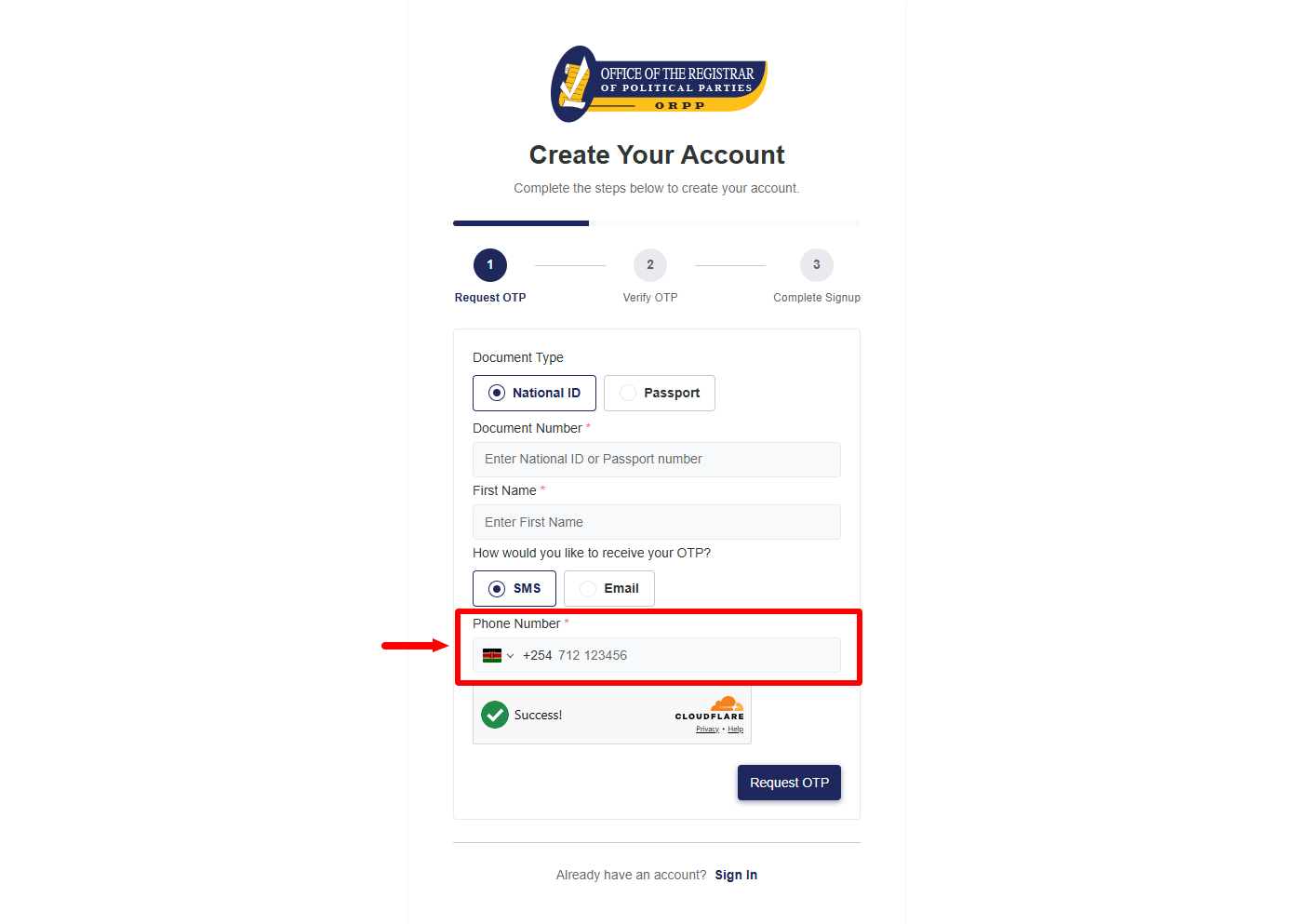
If you selected SMS as your preferred OTP delivery method, enter your Phone Number in the required field. Make sure you provide an active phone number that you can access because the registration verification code will be sent through SMS.
- Step 8: Click Request OTP
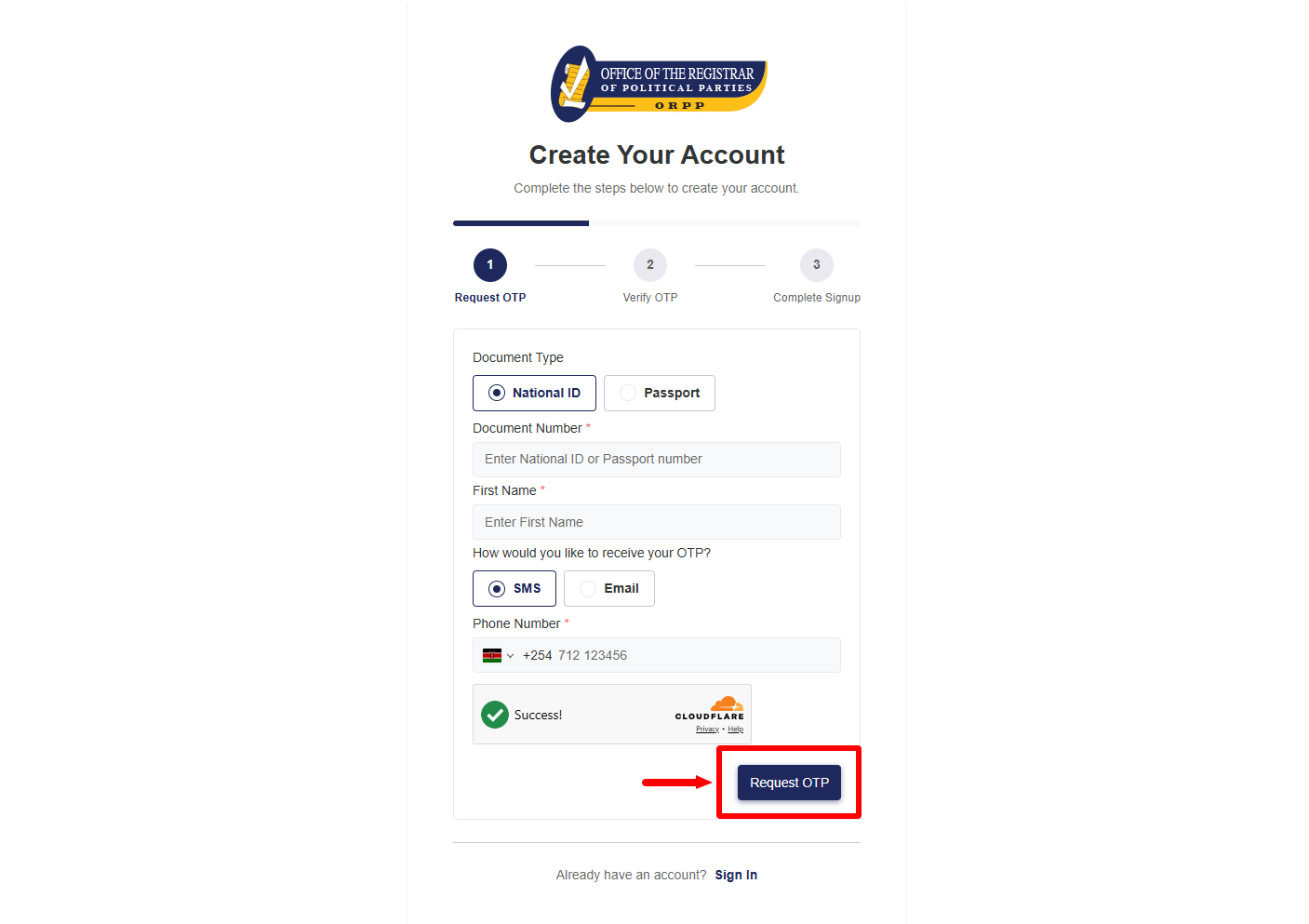
After entering the required information and selecting your preferred OTP delivery method, click Request OTP. The IPPMS system will process your request and send a registration verification code through the method you selected.
- Step 9: Enter OTP
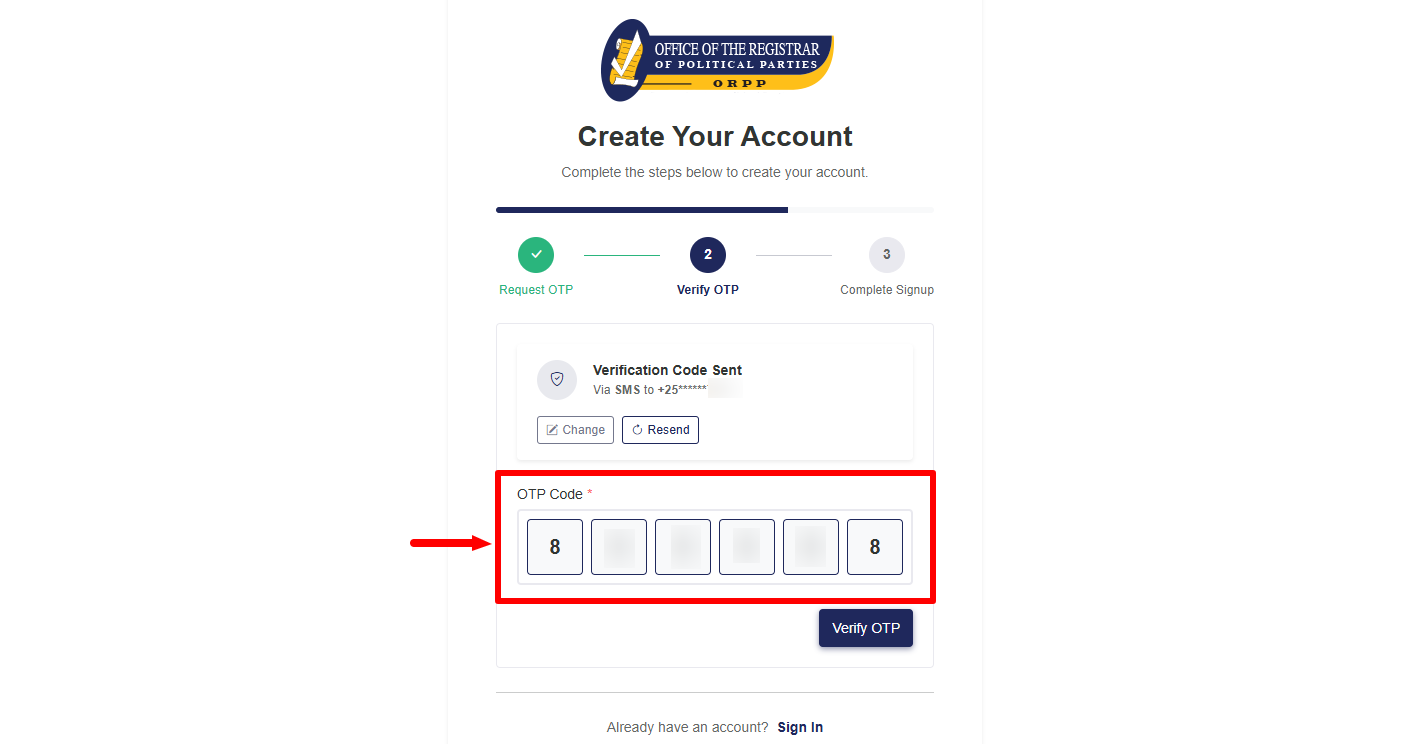
Enter the OTP received during the registration process in the required field. This is the registration verification code sent by ORPP Kenya via SMS when SMS is selected as the OTP delivery method, so enter the code exactly as received.
- Step 10: Click Verify OTP
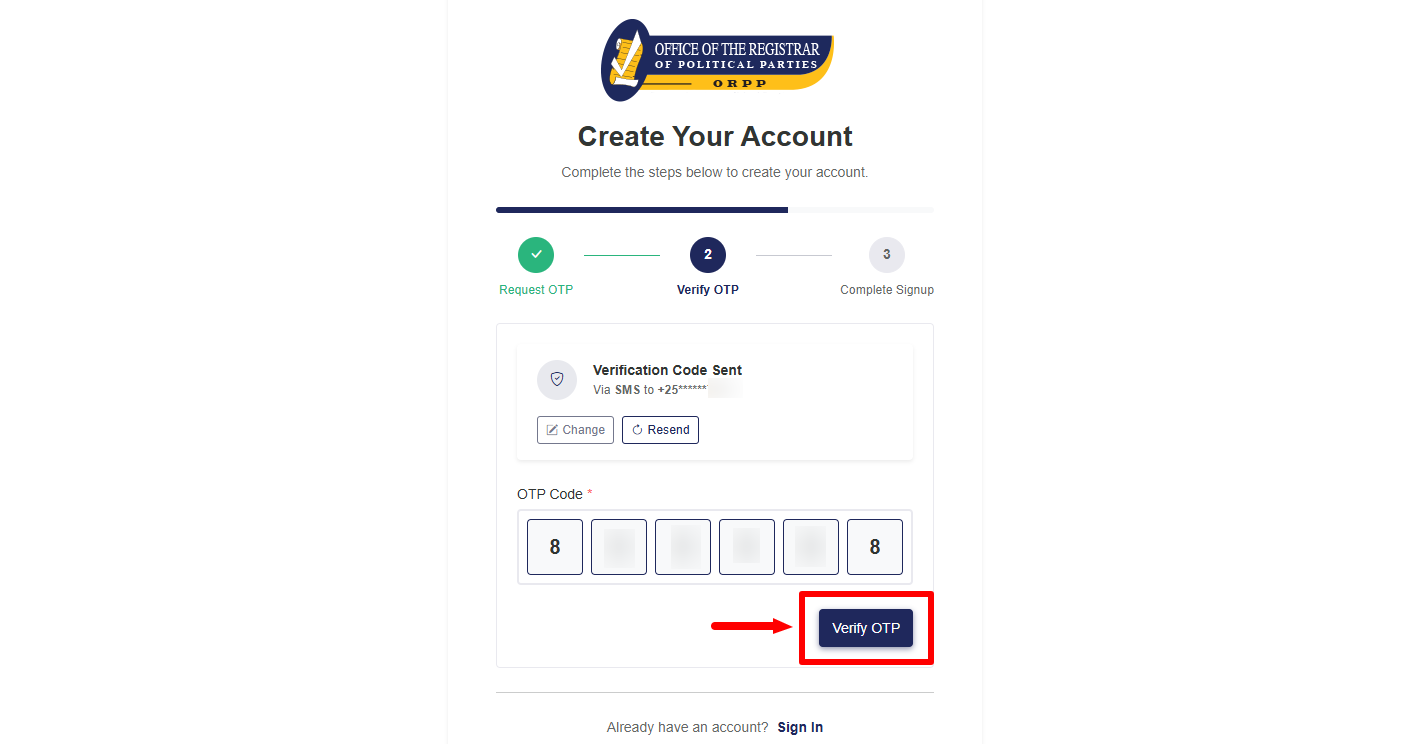
After entering the registration verification code, click Verify OTP to submit the code. The system will verify the OTP, and once the verification is successful, you can proceed to complete the remaining IPPMS account registration details.
- Step 11: Complete Sign Up
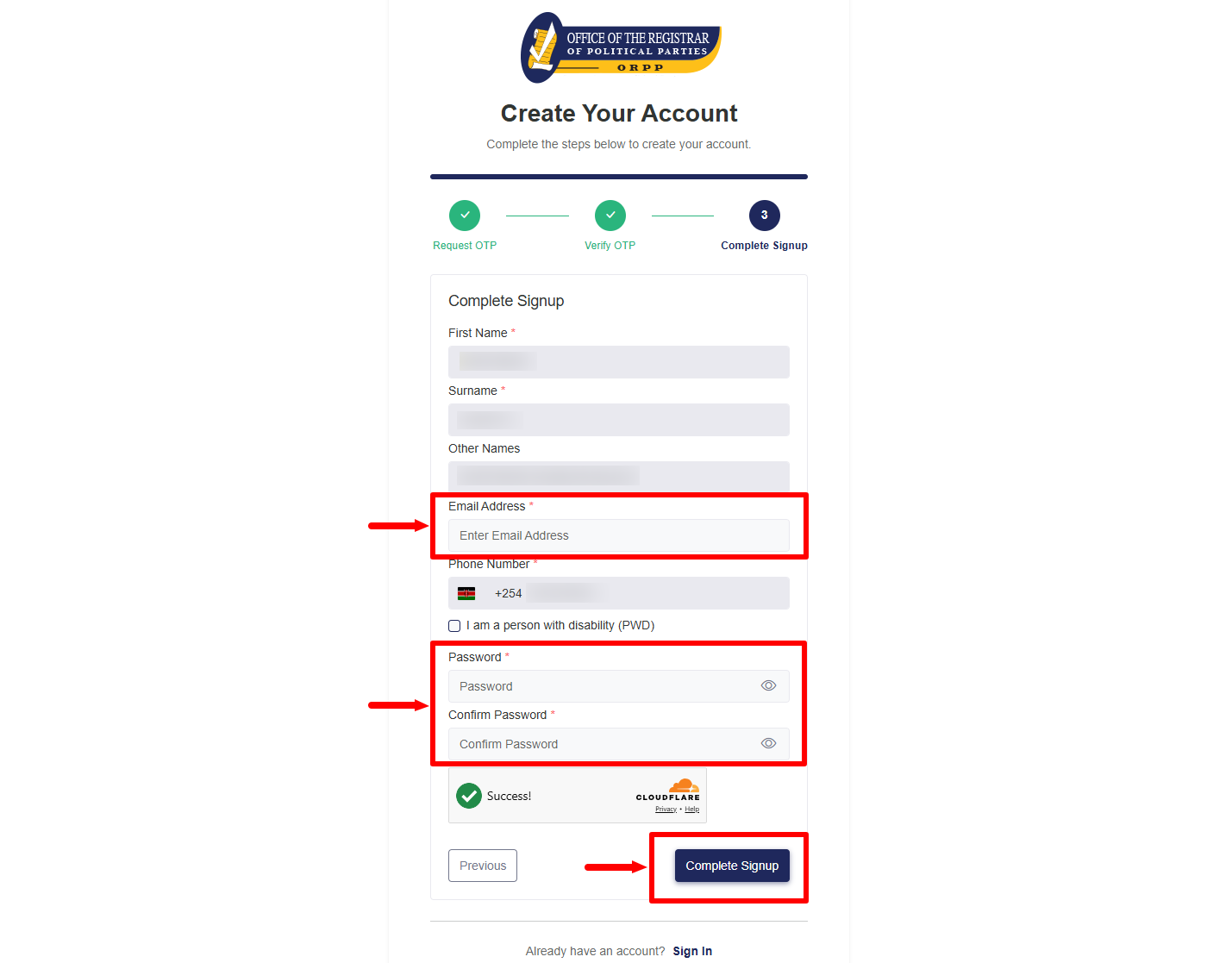
Complete the Sign Up process by entering your Email Address and setting up a password for your IPPMS account. Confirm your password by entering it again in the required field, then click Complete Sign Up to submit your registration details and create your account.
- Step 12: IPPMS Registration Complete

After successfully submitting the registration details, the IPPMS system will display the message Registration Complete – Your registration has been completed successfully. You may now sign in. This confirms that your IPPMS registration has been completed and you can proceed to sign in using your newly created account credentials.