
This step-by-step iTax Tutorial explains How To Download KRA Returns Receipt, providing clear and detailed guidance through each stage of the process from start to finish to help you Download KRA Returns Receipt in a few minutes.
READ ALSO: How To Download KRA PIN Certificate
Requirements Needed To Download KRA Returns Receipt
To be able to successfuly download KRA Returns Receipt on iTax (KRA Portal), you need to have with you the following two main requirements:
- KRA PIN Number or ID Number
- iTax Password (KRA Password)
Once you have the above two requirements, you will be able to download KRA Returns Receipt on iTax in a few minutes by following the steps outlined below.
How To Download KRA Returns Receipt
To download your KRA Returns Receipt on iTax (KRA Portal), follow the outlined steps below and get a copy of your KRA Returns Receipt online quickly and easily today.
Step 1: Visit iTax
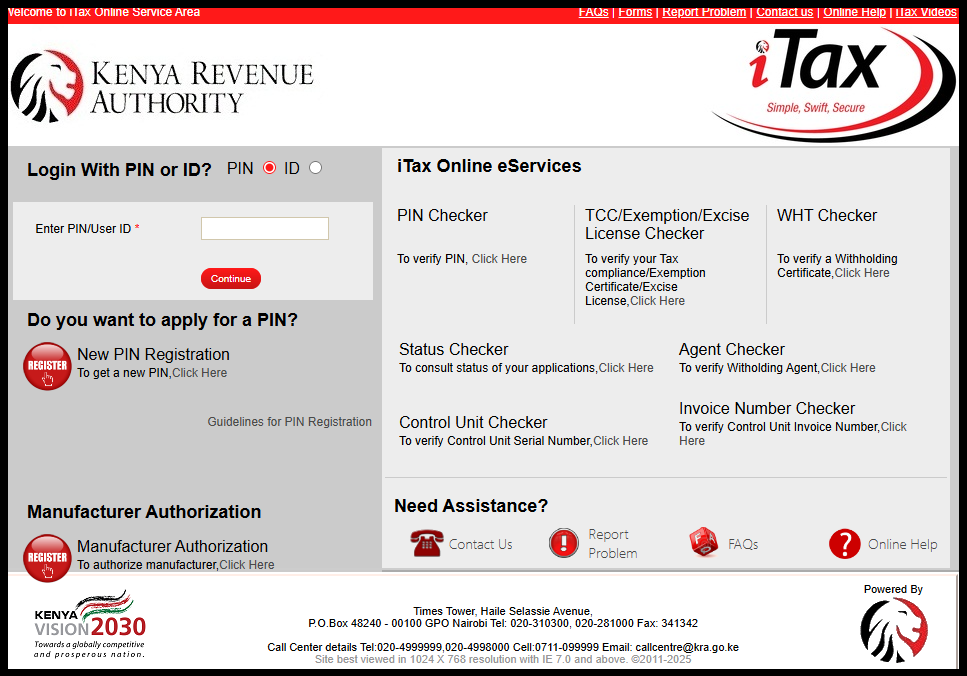
The first and foremost step in the process of How To Download KRA Returns Receipt, is to visit iTax using the link – https://itax.kra.go.ke/KRA-Portal/
Step 2: Log in to iTax
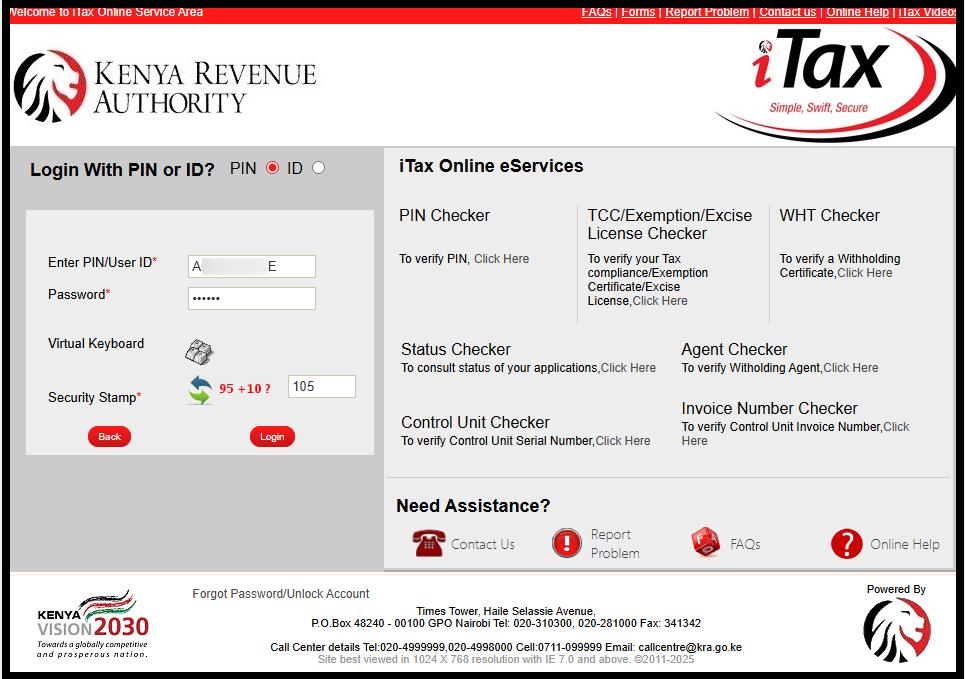
In this step, login to iTax using either your KRA PIN Number or National ID Number, along with your KRA Password (iTax Password). Follow this sequence; Enter KRA PIN Number or National ID Number, click on the “Continue” button, enter iTax Password (KRA Password), solve the arithmetic question (security stamp) and finally click on the “Login” button to access your iTax account dashboard.
Step 3: Click on Useful Links
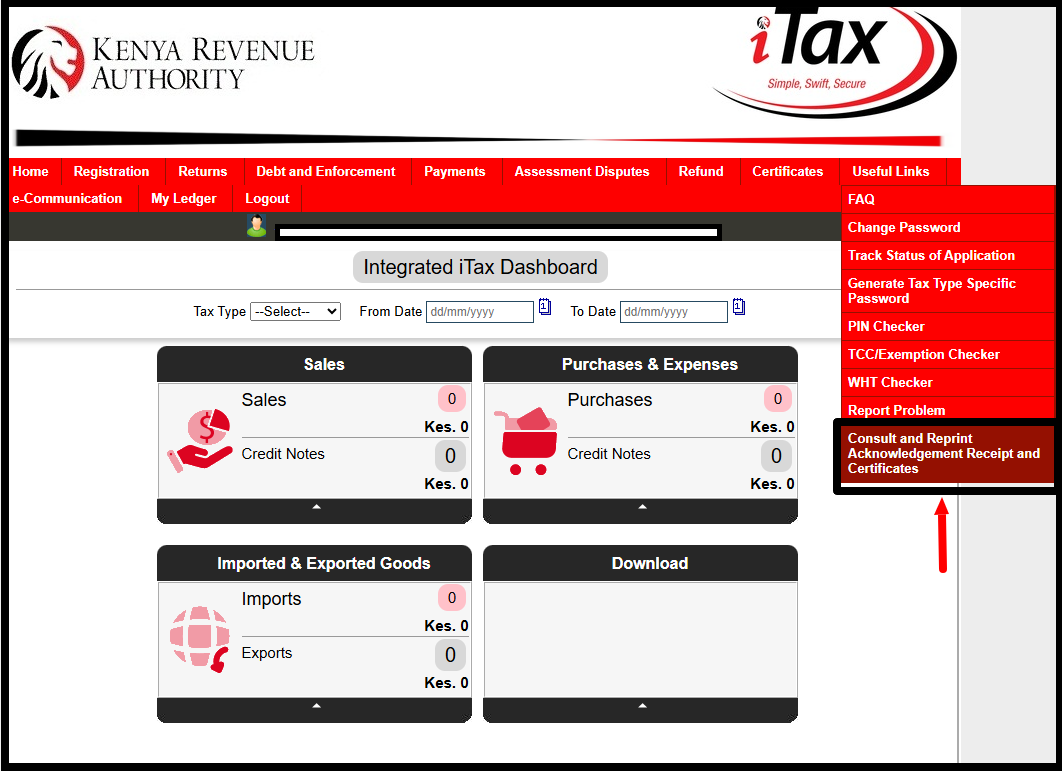
Once you are logged into iTax, on the right hand side – click on “Useful Links” then click on “Consult and Reprint Acknowledgement Receipt and Certificate” from the drop-down menu list.
Step 4: Fill the Consult and Reprint Acknowledgement Receipt Form
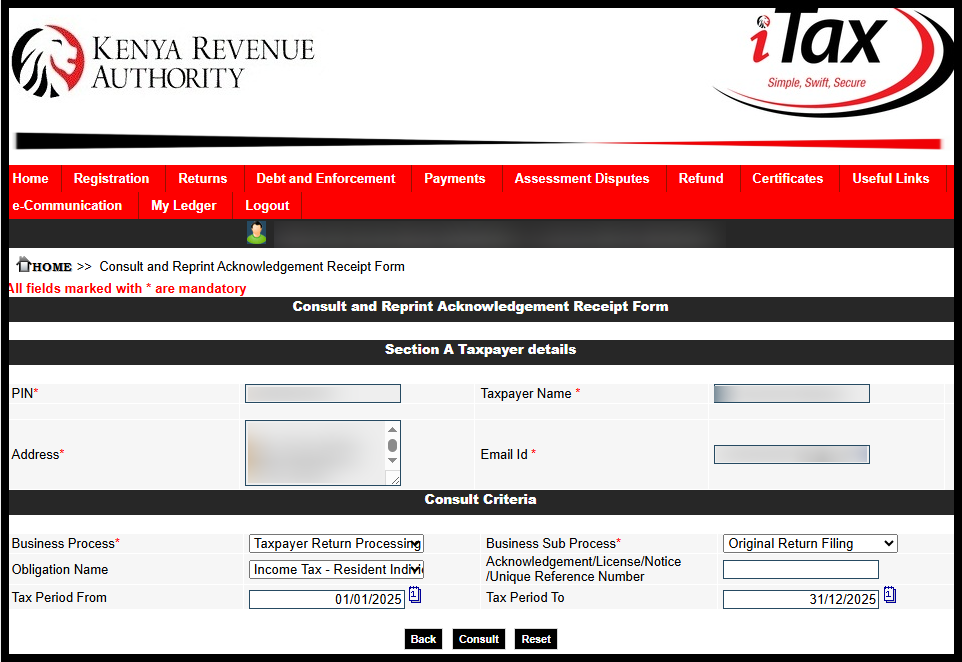
Next, in this step you need to fill in the Consult and Reprint KRA Acknowledgement Receipt Form in the taxpayer details and consult criteria sections.
You need to fill in the following fields by following this example; Business Process – Taxpayer Return Processing; Business Sub Process – Original Return Filing; Obligation Name – Income Tax Resident Individual; Tax Period From; 01/01/2025 and Tax Period To: 31/12/2025 (choose the return period that you want the KRA Returns Receipt for).
Once you have filled in those details, click on the “Consult” button to load the KRA Returns Acknowledgement Receipt. Note, on the pop up window “Do you want to consult with given details?” click on “OK” button.
Step 5: Download KRA Returns Receipt
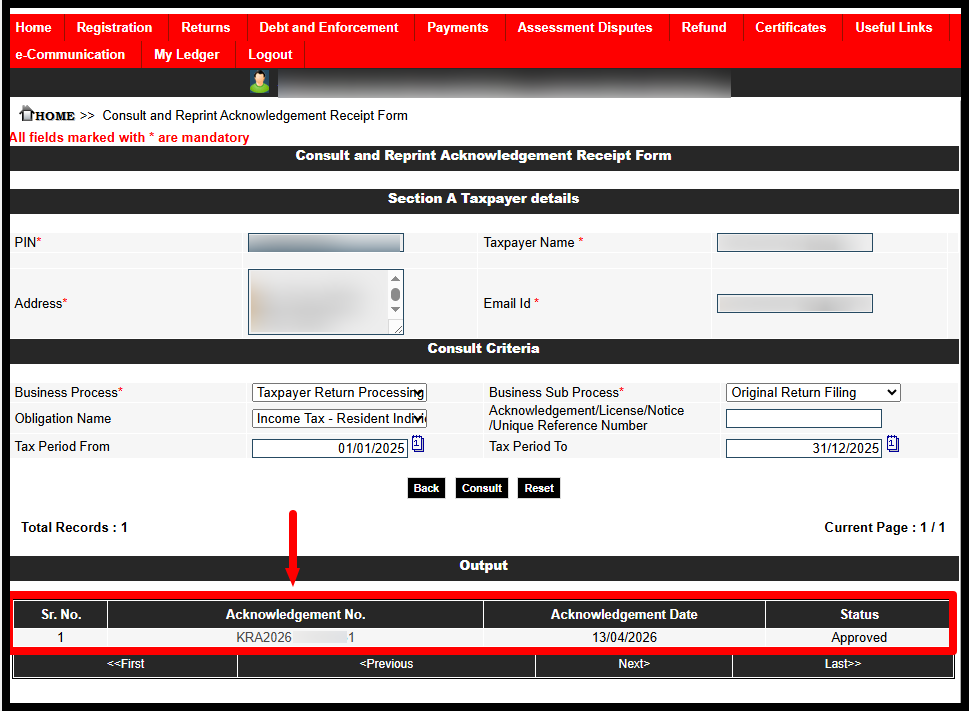
The final step in downloading your KRA Returns Receipt online is accessing and saving the receipt. In the output section of the form, under the “Acknowledgement Number” column, click on the “Acknowledgement Serial Number.”
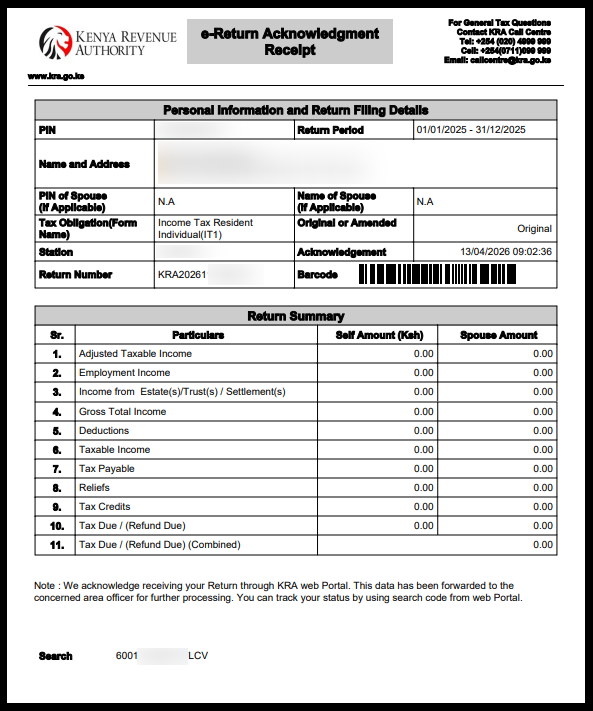
This action will automatically initiate the KRA Returns Receipt download from the iTax. Once the receipt opens, you can either save it to your device or print a hard copy for your records.
READ ALSO: How To File KRA Returns for Students
The above five steps summarize the complete process of downloading a KRA Returns Receipt online through iTax. In order to successfully access and download the receipt, a taxpayer must first log into their iTax account using their KRA PIN Number or National ID Number together with their KRA Password (iTax Password). Once you have these login credentials ready, you can follow the five steps outlined above to easily download, save or print your KRA Returns Receipt.

Tutorials Kenya is an independent Educational and Informational website that provides Latest Step-by-Step iTax Tutorials for Taxpayers in Kenya. You can contact us via Email Address: [email protected] or Chat on WhatsApp: 0723 737 740.
KRA Returns Filing

Trending Tutorials

KRA Returns Filing

