This step-by-step iTax Tutorial explains How To Get KRA PIN Number via SMS, providing clear and detailed guidance through each stage of the process from start to finish to help you get KRA PIN Number via SMS in a few minutes.
READ: Step-by-Step KRA Tutorials
Requirements Needed To Get KRA PIN Number via SMS
To be able to successfuly get KRA PIN Number via SMS, you need to have with you the following main requirement:
- ID Number
Once you have the above requirement, you will be able to get KRA PIN Number via SMS in a few minutes by following the steps outlined below.
How To Get KRA PIN Number via SMS
Below are the main steps that you need to follow so as to get your KRA PIN Number via SMS.
Step 1: Dial USSD Code *222#
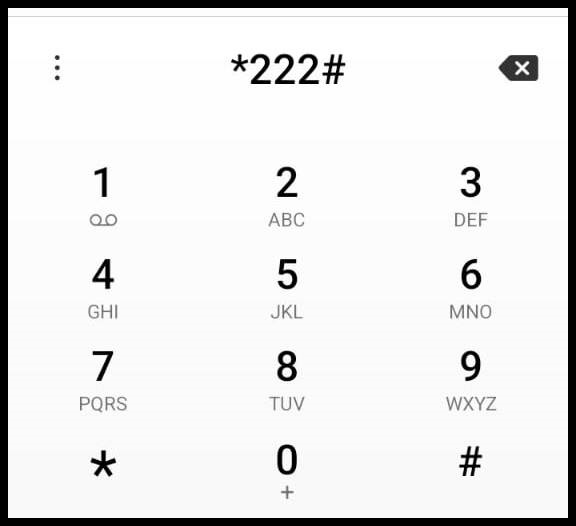
Begin by dialing *222# on your mobile phone to launch the eCitizen USSD menu. This service provides access to a wide range of government-related options in Kenya, including KRA Services and allows you to interact with them directly from your phone without requiring an internet connection.
Step 2: Select Option 5 – KRA Services
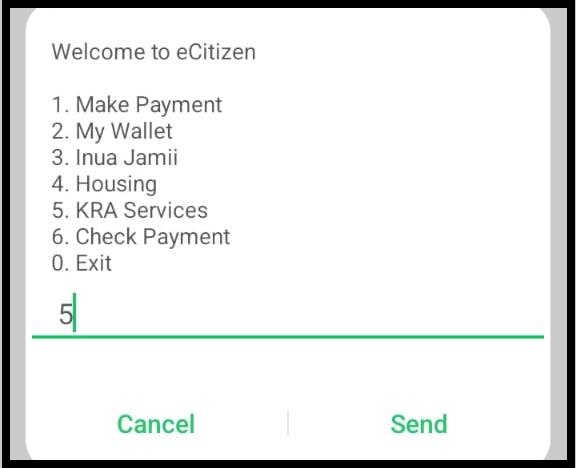
Once the menu appears on your screen, select Option 5 – KRA Services and press Send to proceed to the Kenya Revenue Authority services menu.
Step 3: Select Option 98 – More
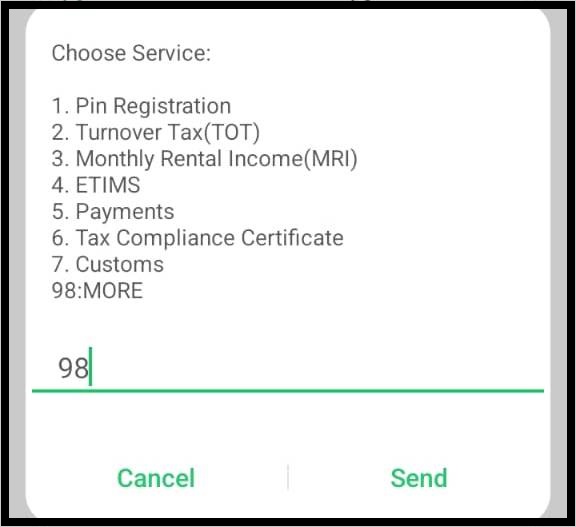
After selecting KRA Services, a list of available options will appear on your screen. Choose Option 98 – More to view additional KRA service options that are not displayed in the main menu, then press Send to continue.
Step 4: Select Option 9 – Other Services
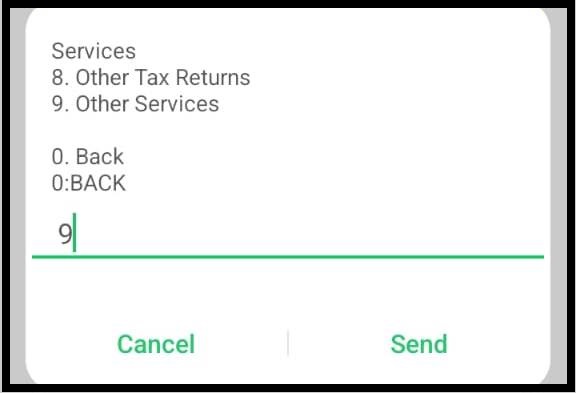
Next, select Option 9 – Other Services. This section contains additional KRA services, including the KRA PIN number retrieval option. Press Send to proceed.
Step 5: Select Option 3 – PIN Retrieval
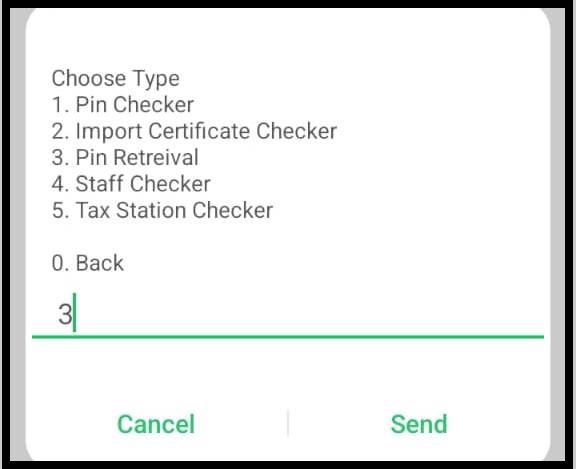
Now, select Option 3 – PIN Retrieval. This is the main step where the system initiates the process of retrieving your KRA PIN number from the KRA database using your registered National ID number. Press Send to continue.
Step 6: Choose Taxpayer Type – Select Option 1 (Kenyan)
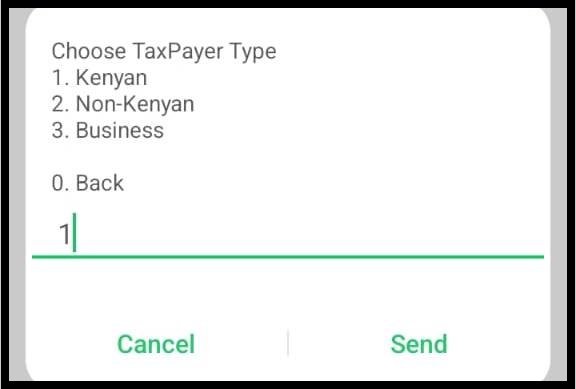
You will then be prompted to specify your taxpayer type, which may include Kenyan, Non-Kenyan or Business. Select Option 1 – Kenyan to allow the system to correctly process and retrieve your KRA PIN information from the KRA database. Press Send to continue.
Step 7: Enter Your National ID Number
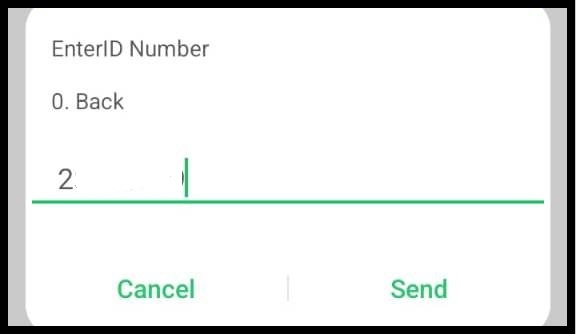
Next, the system will prompt you to enter your National ID Number. Carefully type in your ID number and double-check it for accuracy before submitting. The system uses this ID number to search the KRA database and retrieve your taxpayer information. Press Send to proceed.
Step 8: View Taxpayer Details – Names and KRA PIN Number
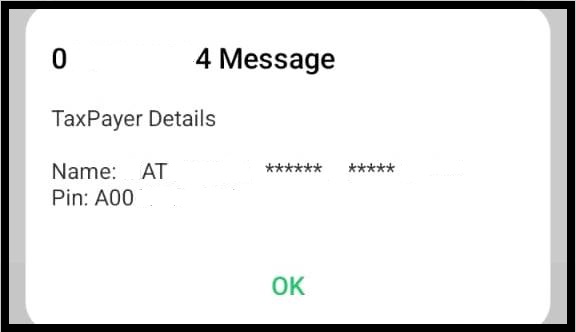
If your National ID number matches the records in the KRA database, your taxpayer details, including your registered names and KRA PIN number, will be displayed on your mobile screen. Review the information and press OK to confirm.
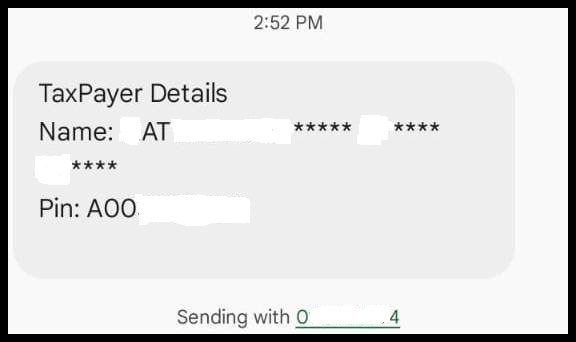
Step 9: Receive SMS with Your Taxpayer Details – Names and KRA PIN Number
READ: Step-by-Step KRA Tutorials
Finally, after confirming your taxpayer information on the screen, eCitizen will send you an SMS containing your complete taxpayer details, including your registered Names and KRA PIN Number, allowing you to have a secure copy for future reference.
Summary: Getting KRA PIN Number via SMS
Getting your KRA PIN Number via SMS is a convenient process that can be done using the eCitizen USSD service without requiring internet access. To begin, dial *222# on your mobile phone to access the eCitizen menu, then navigate to KRA-related services to start the PIN retrieval process.
Tutorial: KRA PIN Number
Once inside the menu, select KRA Services, then proceed through the options by choosing More, Other Services, and finally PIN Retrieval. You will then be prompted to select your taxpayer type, where you should choose Kenyan to ensure the system processes your request correctly.
Tutorial: KRA PIN Certificate
Next, enter your National ID number and submit it for verification. If the details match the KRA database, your KRA PIN and registered names will be displayed and also sent to you via SMS. This completes the process, allowing you to securely retrieve your KRA PIN Number on your mobile phone.