
This step-by-step iTax Tutorial explains How To Download Company KRA PIN Certificate, providing clear and detailed guidance through each stage of the process from start to finish to help you Download Company KRA PIN Certificate in a few minutes.
READ ALSO: How To Update Mobile Number on iTax
Requirements Needed To Download Company KRA PIN Certificate
To be able to successfuly download Company KRA PIN Certificate on iTax (KRA Portal), you need to have with you the following two main requirements:
- Company KRA PIN Number
- iTax Password (KRA Password)
Once you have the above two requirements, you will be able to download Company KRA PIN Certificate on iTax in a few minutes by following the steps outlined below.
How To Download Company KRA PIN Certificate
To download your Company KRA PIN Certificate on iTax (KRA Portal), follow the outlined 5 steps below and get a copy of your Company KRA PIN Cerrtificate online quickly and easily today.
Step 1: Visit iTax
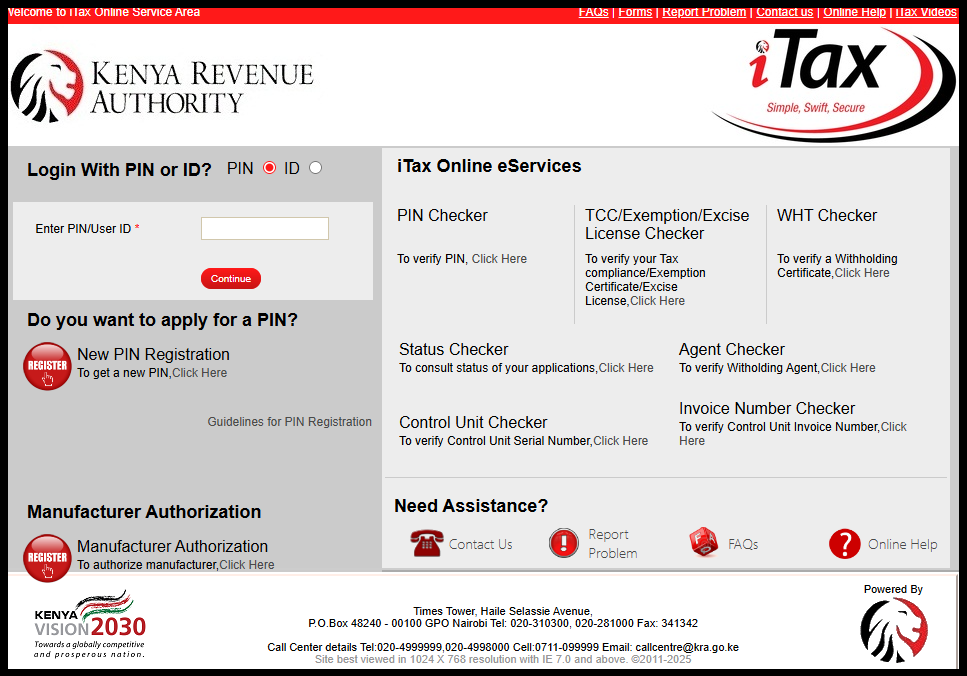
The first and foremost step in the process of How To Download Company KRA PIN Certificate, is to visit iTax (KRA Portal) using the link – https://itax.kra.go.ke/KRA-Portal/
Step 2: Log in to iTax
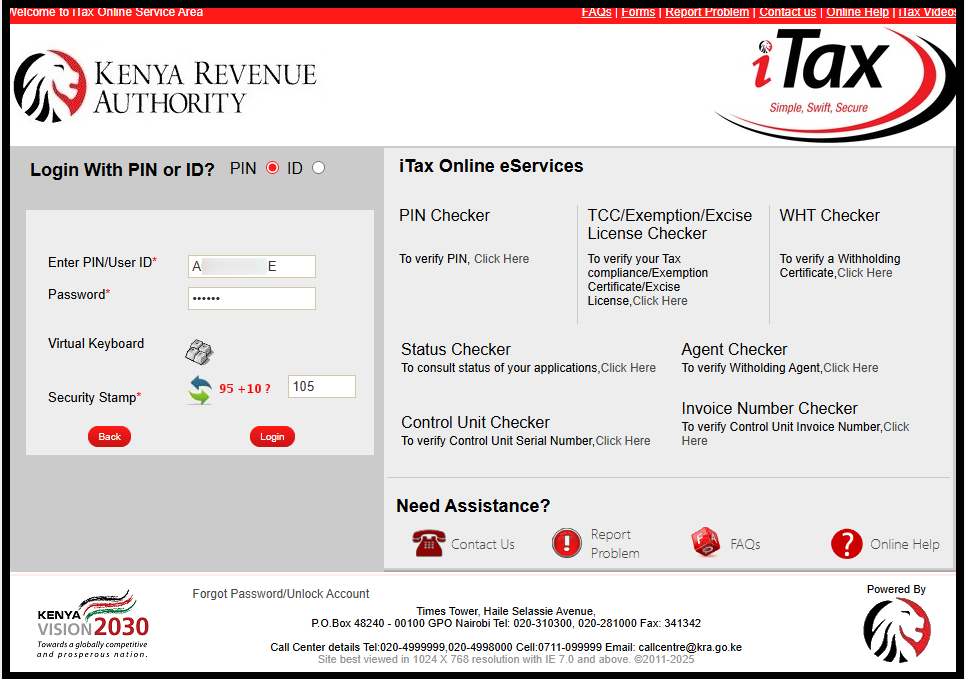
In this step, login to iTax using either your Company KRA PIN Number along with your KRA Password (iTax Password). Follow this sequence; Enter Company KRA PIN Number, click on the “Continue” button, enter iTax Password (KRA Password), solve the arithmetic question (security stamp) and finally click on the “Login” button to access your Company iTax account dashboard.
Step 3: Click on Registration – Taxpayer Profile – Reprint PIN Certificate
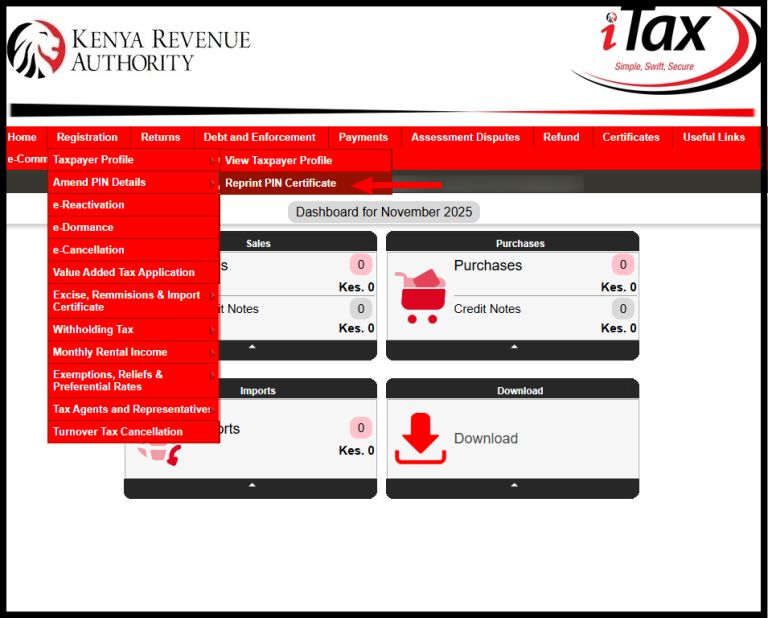
Once you are logged into iTax (KRA Portal) successfully, go to the top menu and click “Registration.” From the drop-down list, select “Taxpayer Profile” then proceed and click on “Reprint PIN Certificate.”
Step 4: Select Applicant Type as Taxpayer
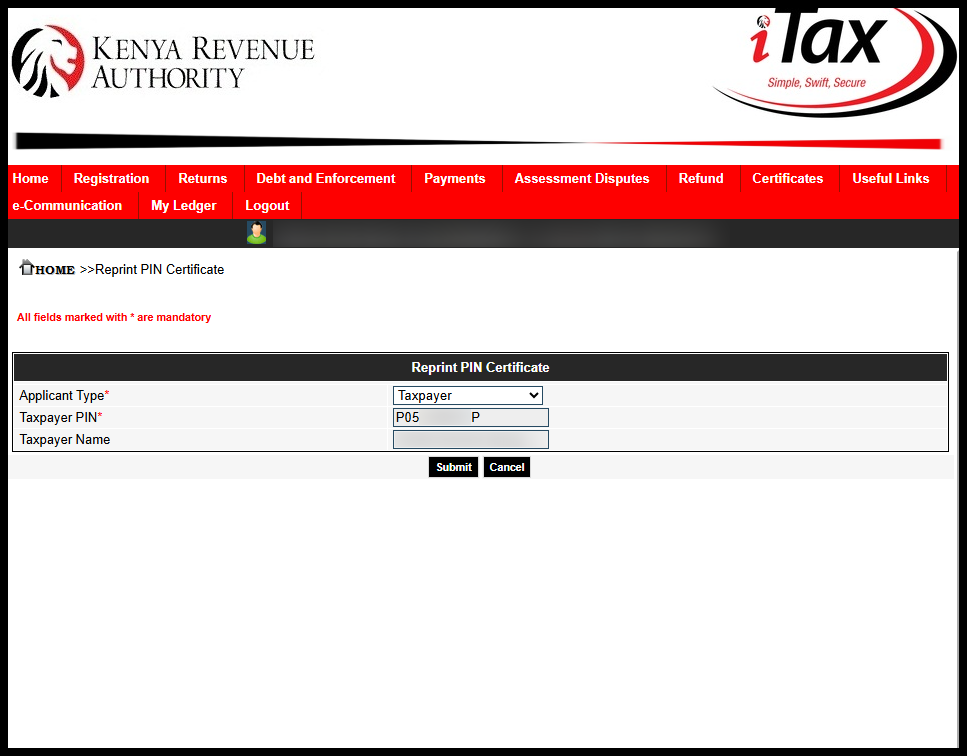
Next, you need to select the applicant type i.e. either “Agent” or “Taxpayer.” Since you are downloading your Company KRA PIN Certificate as a taxpayer, choose “Taxpayer” as the applicant type. Once selected, click the “Submit” button to proceed.
Step 5: Download Company KRA PIN Certificate
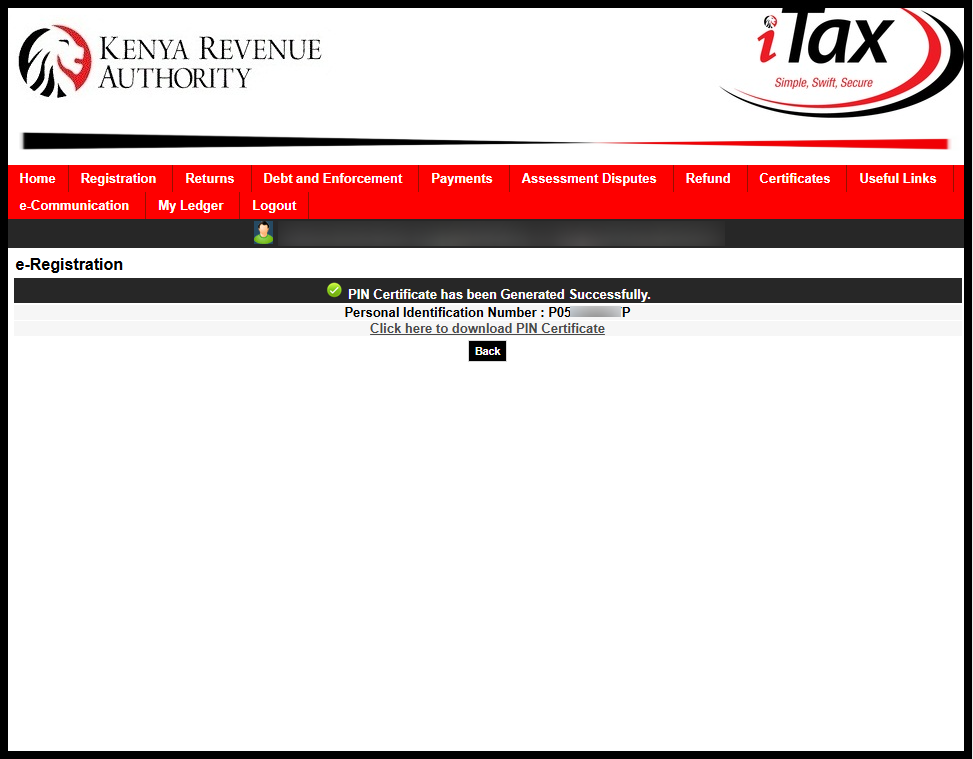
The last step in the process of downloading Company KRA PIN Certificate on iTax (KRA Portal) is to download the generated Company KRA PIN Certificate.
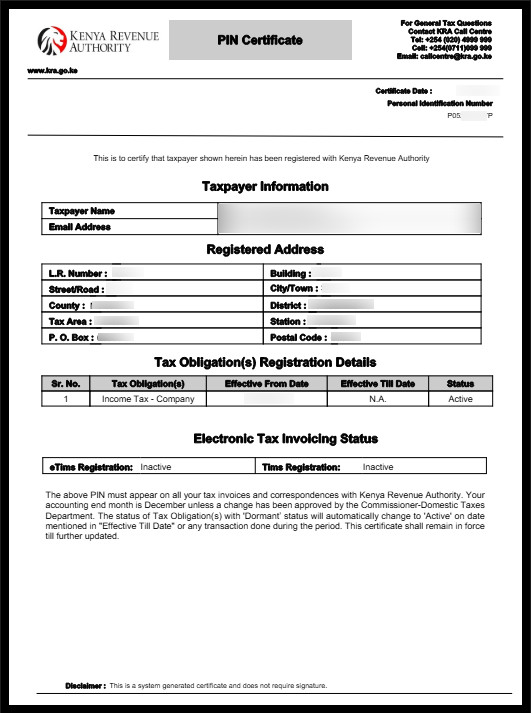
Once your Company KRA PIN Certificate has been successfully generated, you will see a notification – “Click here to download Company KRA PIN Certificate.”
READ ALSO: How To Retrieve KRA PIN Number
The above steps sums up the whole process of downloading Company KRA PIN Certificate on iTax (KRA Portal). To successfully download Company KRA PIN Certificate, ensure you have with you both the Company KRA PIN Number and iTax Password (KRA Password).

Tutorials Kenya is an independent Educational and Informational website that provides Latest Step-by-Step iTax Tutorials for Taxpayers in Kenya. You can contact us via Email Address: [email protected] or Chat on WhatsApp: 0723 737 740.
KRA Returns Filing

Trending Tutorials

KRA Returns Filing

