
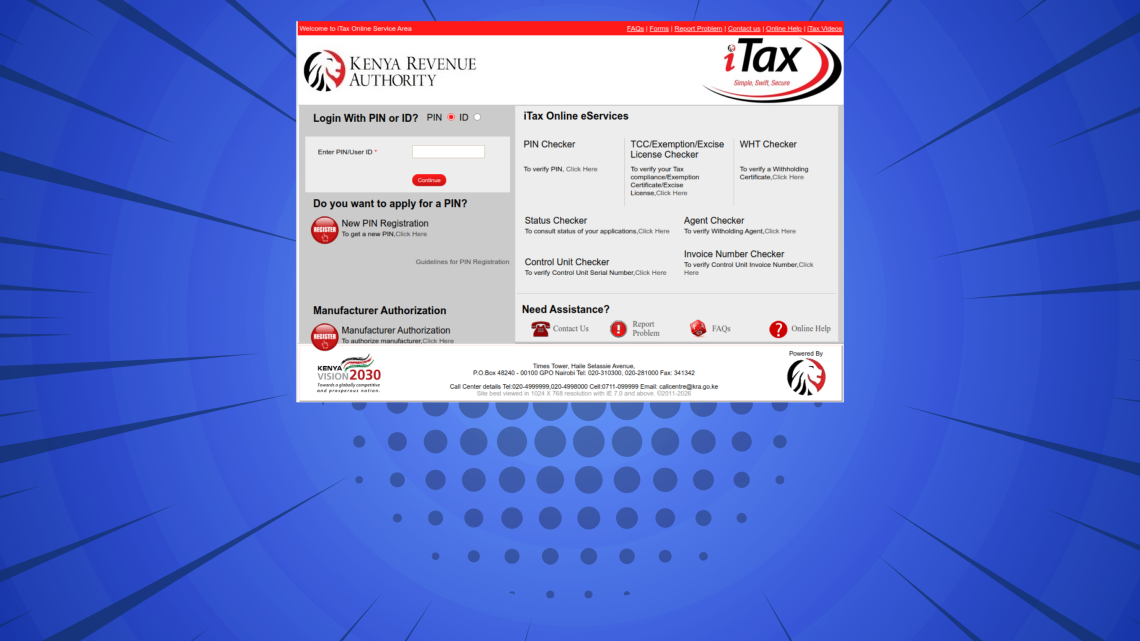
This step-by-step iTax Tutorial explains How To Update Mobile Number on iTax, providing clear and detailed guidance through each stage of the process from start to finish to help you Update Mobile Number on iTax in a few minutes.
READ ALSO: How To Download Company KRA PIN Certificate
Requirements Needed To Update Email Address on iTax
To be able to successfuly update Email Address on iTax (KRA Portal), you need to have with you the following two main requirements:
- KRA PIN Number or ID Number
- iTax Password (KRA Password)
- New Email Address
Once you have the above two requirements, you will be able to update Email Address on iTax in a few minutes by following the steps outlined below.
How To Update Email Address on iTax
To successfully update email address on iTax, you need to carefully follow the step-by-step instructions outlined below to ensure the process is completed correctly.
Step 1: Visit iTax
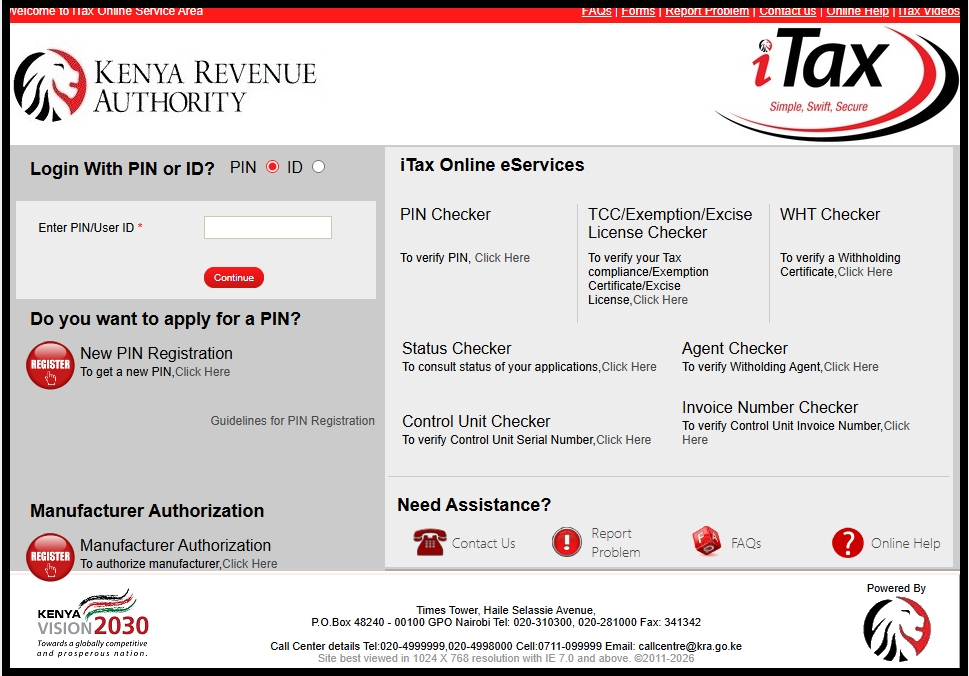
The first step in the process of How To Update Email Address on iTax is to visit iTax using the link https://itax.kra.go.ke/KRA-Portal/
Step 2: Log in to iTax
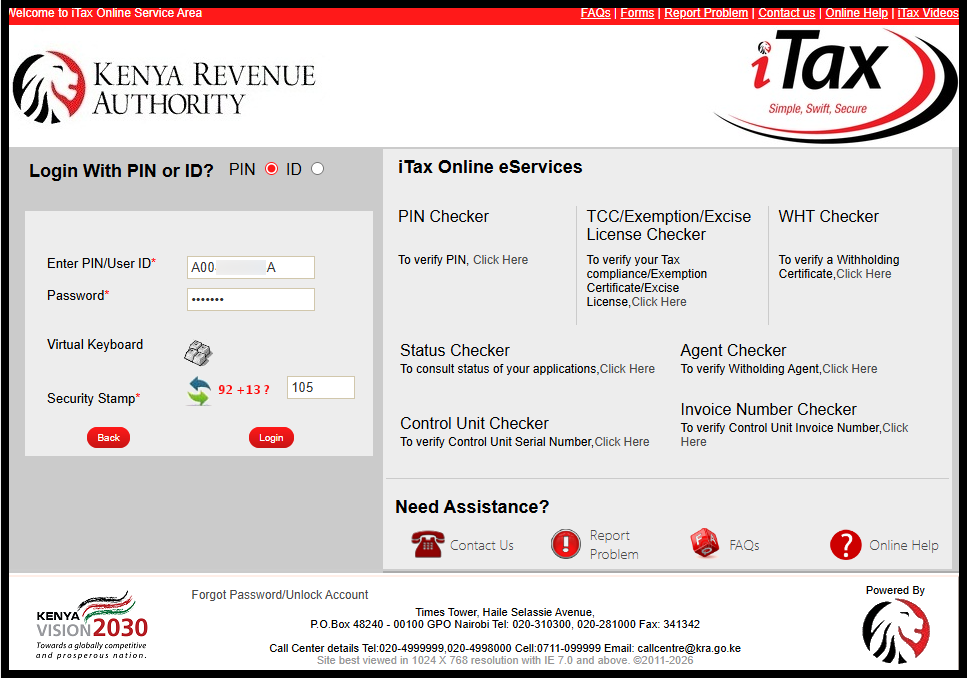
Next, you need to log in to iTax by entering your KRA PIN Number or National ID Number the clicking on “Continue” button, enter iTax Password (KRA Password), solve the arithmetic question (security stamp) and then click on the “Login” button.
Step 3: Click on Registration – Amend PIN Details – Update Contact Details
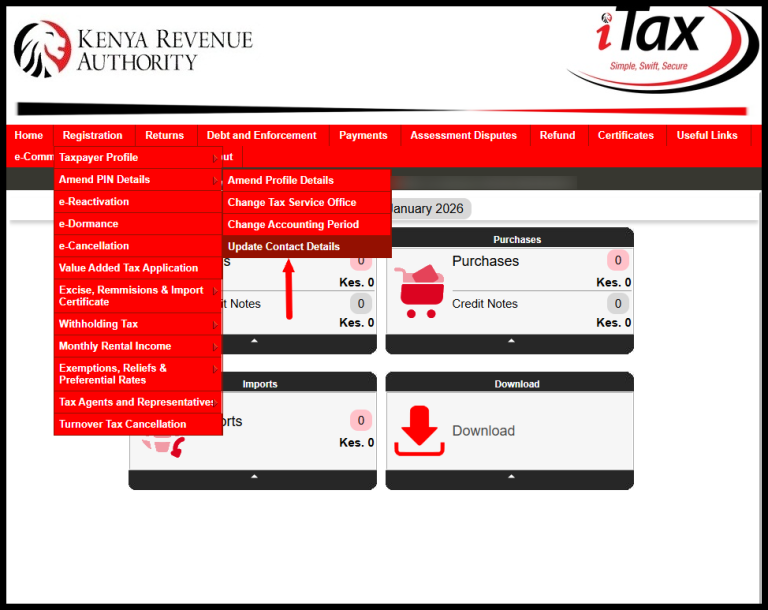
Once you are logged into iTax, click on “Registration” menu, then click on “Amend PIN Details” followed by “Update Contact Details” to begin the process of changing email address on iTax (updating email address on iTax).
Step 4: Amend Contact Details
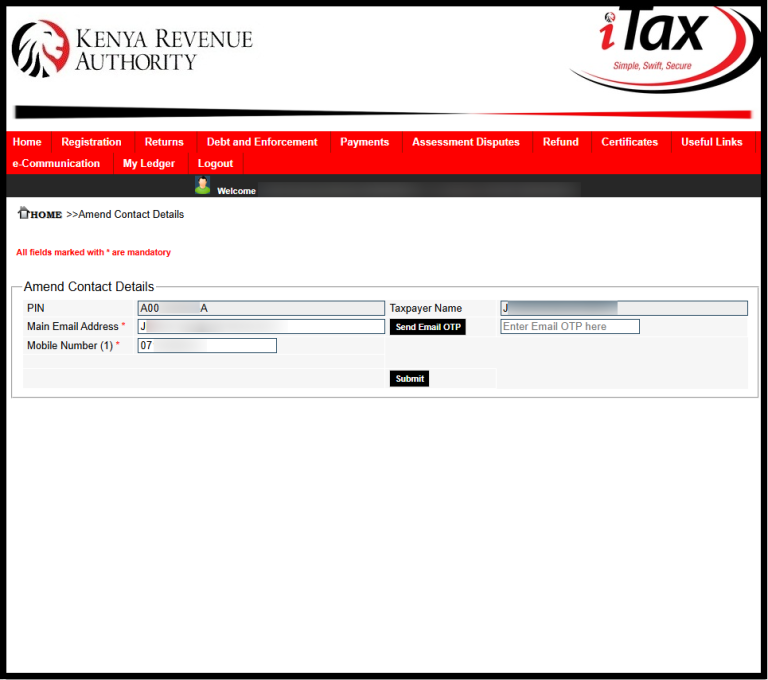
In this step you need to enter your new email address that you want to link to your KRA PIN Number on iTax. Ensure that you are able to access that new email address as Kenya Revenue Authority (KRA) will send an OTP to that email for verification purposes. Once you enter the new email address on iTax, a popup will appear:
In order to continue using iTax functionality you are required to verify your email address. Please click “Send Email OTP” button to receive OTP on mentioned email address.
To proceed, click on the “OK” button.
Step 5: Click Send Email OTP
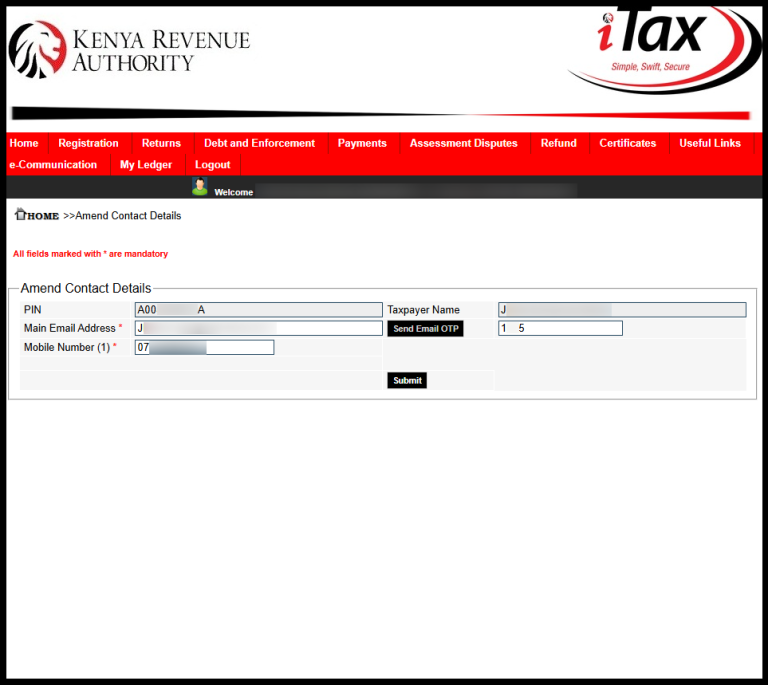
Next, click on the “Send Email OTP” button to receive the OTP verification code from Kenya Revnue Authority (KRA). Check your inbox for the 4 digit KRA OTP code.
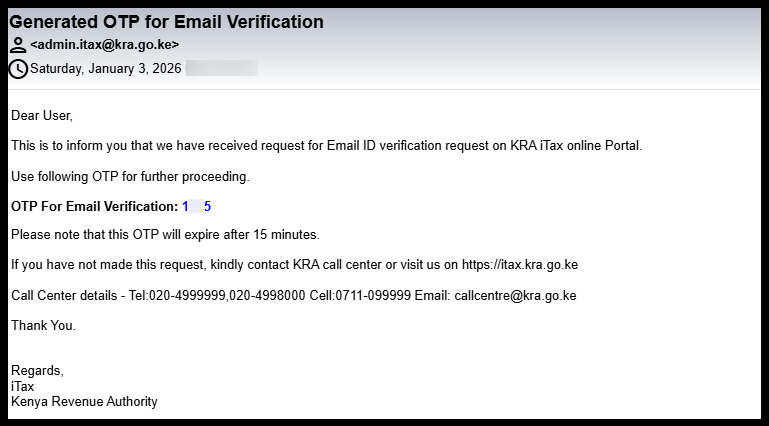
Once you have received the OTP For Email Verification from KRA, enter the same and click on “Submit” button.
Step 6: Email Address Changed Successfully
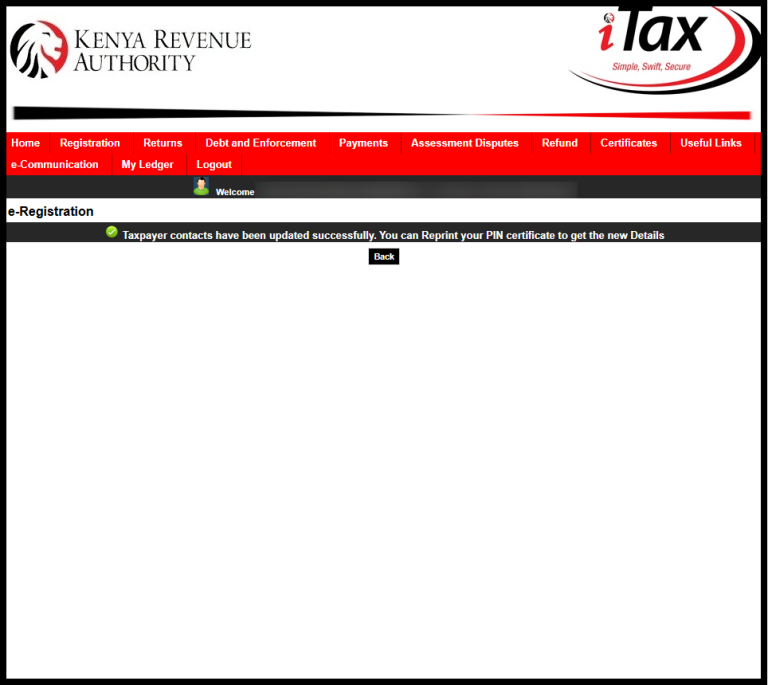
In this last step, once you entered the OTP for Email Verification on iTax, you will see the notification – “Taxpayer contacts have been updated successfully. You can Reprint your PIN certificate to get the new Details.”” This confirms that you have successfully changed and updated the email address on iTax.
READ ALSO: How To Update Mobile Number on iTax
The above steps sums up the process involved in updating Email Address on iTax. It is important for taxpayers to update their email address so as to be able to receive password reset emails and any other important notifications from Kenya Revenue Authority (KRA).

Tutorials Kenya is an independent Educational and Informational website that provides Latest Step-by-Step iTax Tutorials for Taxpayers in Kenya. You can contact us via Email Address: [email protected] or Chat on WhatsApp: 0723 737 740.
KRA Returns Filing

Trending Tutorials

KRA Returns Filing

