
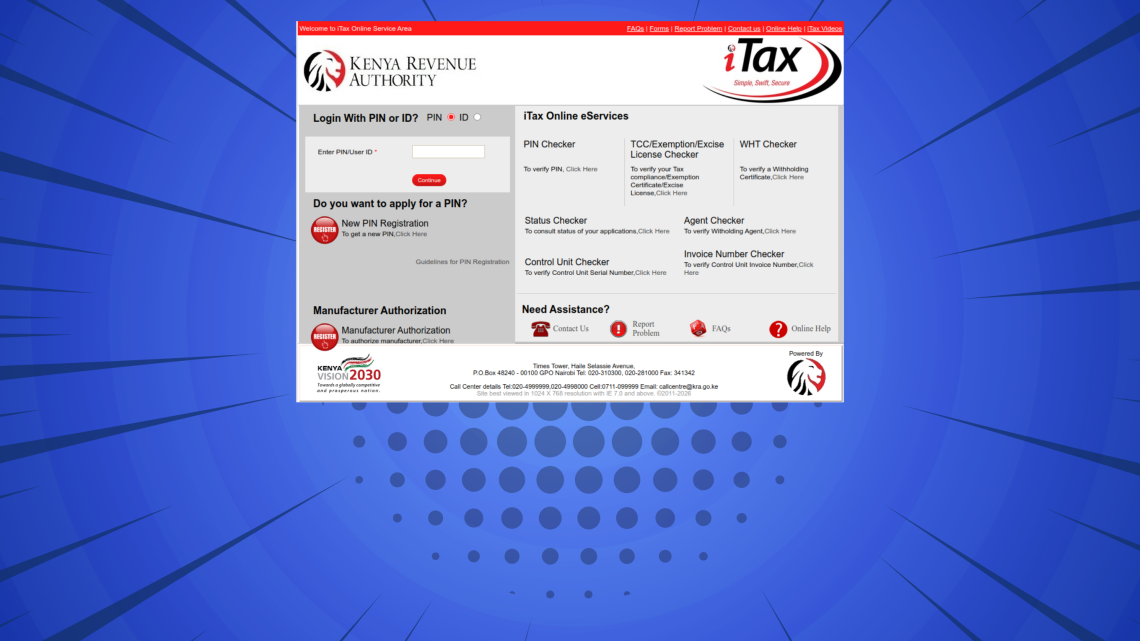
This step-by-step iTax Tutorial explains How To Generate KRA Payment Slip on iTax, providing clear and detailed guidance through each stage of the process from start to finish to help you Generate KRA Payment Slip on iTax in a few minutes.
READ ALSO: How To Download Group KRA PIN Certificate
Requirements Needed To Generate KRA Payment Slip
To be able to successfuly generate KRA Payment Slip on iTax (KRA Portal), you need to have with you the following two main requirements:
- KRA PIN Number or ID Number
- iTax Password (KRA Password)
Once you have the above two requirements, you will be able to generate KRA Payment Slip on iTax in a few minutes by following the steps outlined below.
How To Generate KRA Payment Slip
To successfully Generate KRA Payment Slip on iTax, you need to carefully follow the step-by-step instructions outlined below to ensure the process is completed correctly.
Step 1: Visit iTax
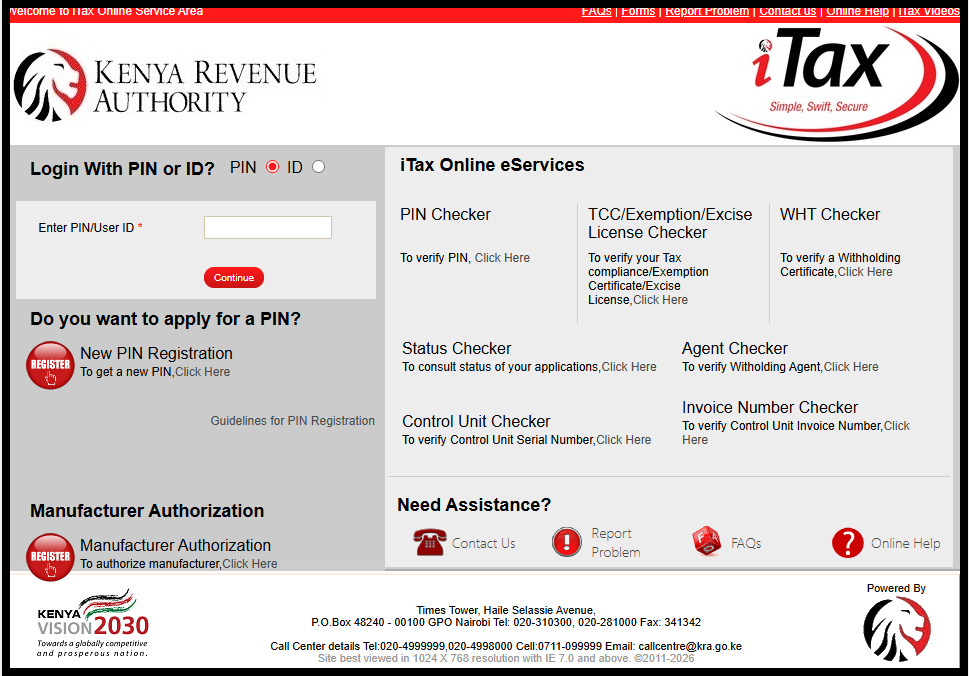
The first step in the process of How To Generate KRA Payment Slip on iTax is to visit iTax using the link https://itax.kra.go.ke/KRA-Portal/
Step 2: Log in to iTax
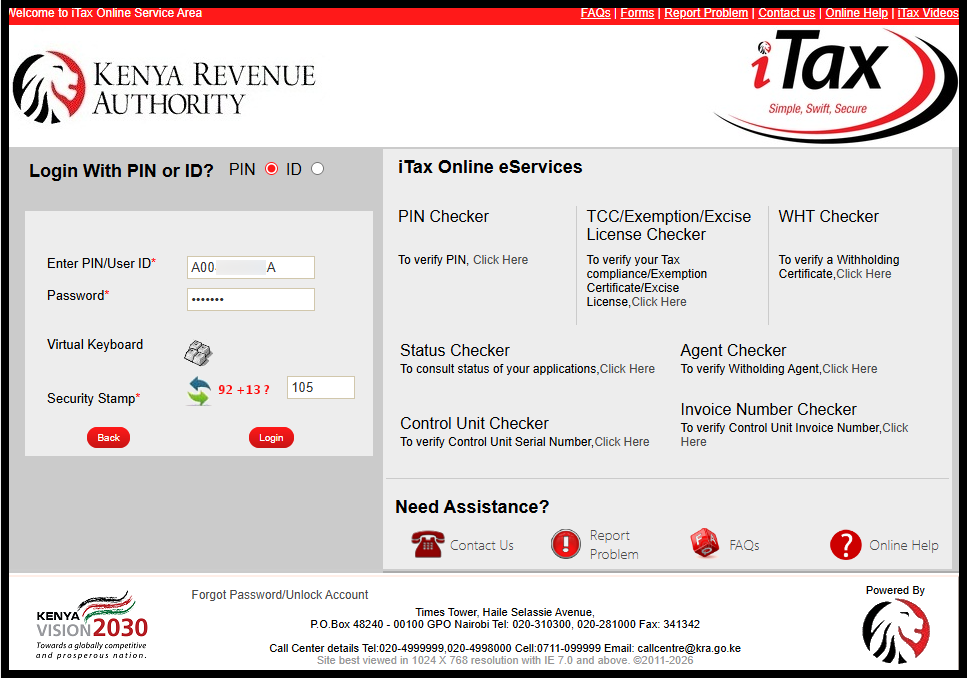
Next, you need to log in to iTax by entering your KRA PIN Number or National ID Number the clicking on “Continue” button, enter iTax Password (KRA Password), solve the arithmetic question (security stamp) and then click on the “Login” button.
Step 3: Click Payments – Payment Registration
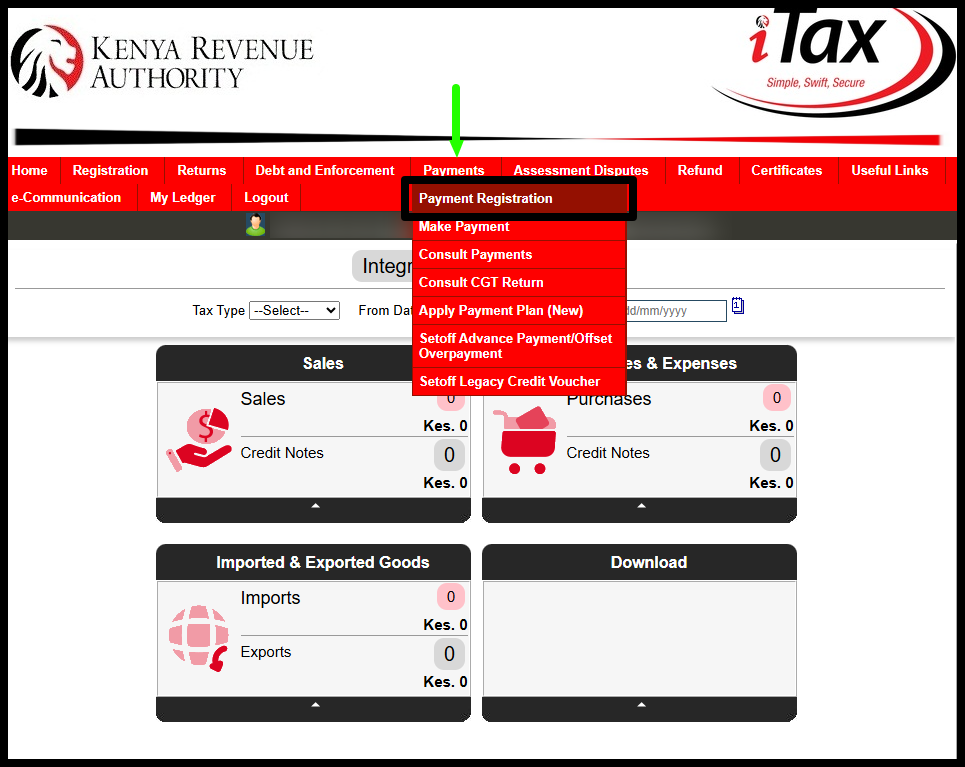
Once you are logged into iTax account, on the top menu, click on “Payments” then from the drop down menu list click on “Payment Registration” to start the process of generating KRA Payment Slip.
Step 4: e-Payment
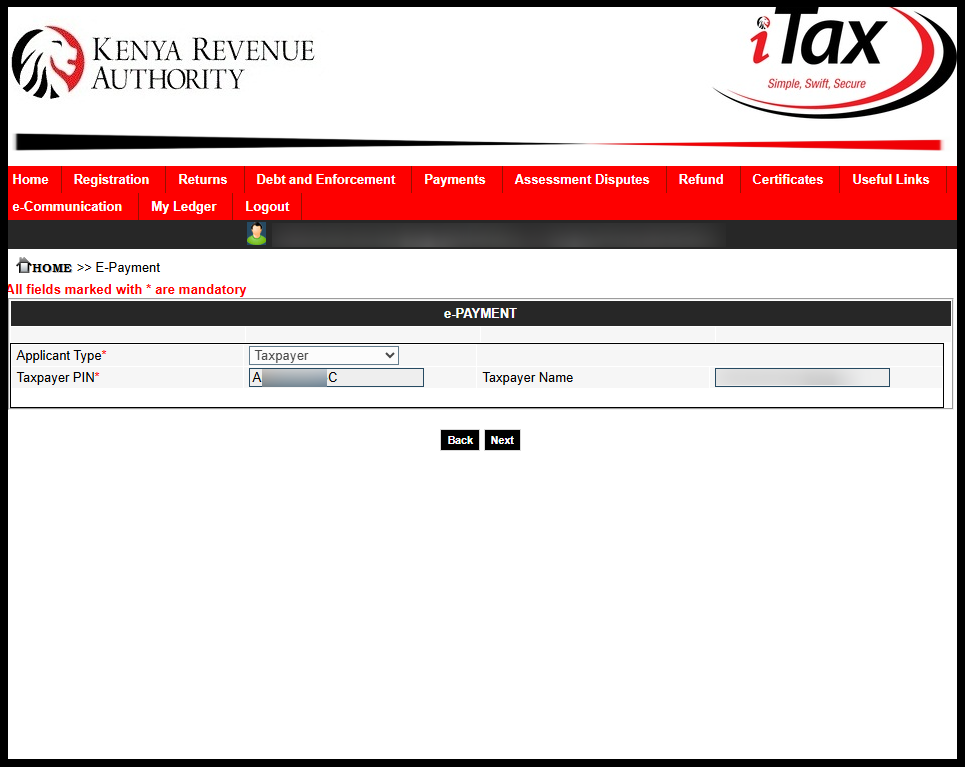
In this step, everything is pre-filled for you and what you need to do is confirm the: “Applicant Tye – Taxpayer“, “KRA PIN Number” and “Taxpayer Name“. Once you have done that, just click on the “Next” button to proceed to the next step. A pop up will appear asking you – “Do you want to proceed?” click on “OK“.
Step 5: KRA e-Payment Registration Form
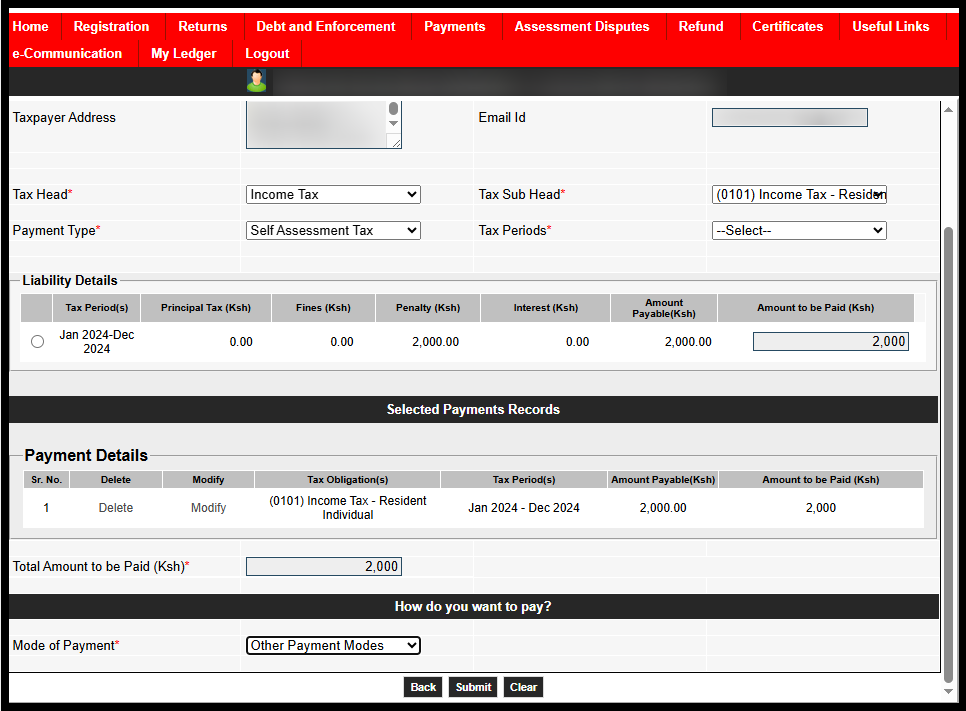
This is the most important step in the process of generating KRA Payment Slip on iTax. The KRA e-Payment Registration Form is a crucial part of the process, as it allows you to generate Payment Slip online.
This form captures the payment details, including the tax obligation and your preferred payment method. The key fields that must be completed are Tax Head, Tax Sub Head, Payment Type and Tax Period.
For example, when generating a Payment Slip (i.e to pay KRA Penalty), enter the following details:
- Tax Head: Income Tax
- Tax Sub Head: (0101) Income Tax – Resident Individual
- Payment Type: Self Assessment Tax
- Tax Period: Select the applicable period (e.g., Jan 2024 – Dec 2024)
Once the details have been entered correctly, click the “Add” button to include the tax obligation in the payment records. A pop up will appear – “Do you want to add details?” click on “OK” to proceed.
Under the Mode of Payment section, you can choose your preferred payment option, such as Other Payment Modes (M-PESA through Paybill Number 222222) or RTGS. Regardless of the payment method selected, the funds will be remitted to the Kenya Revenue Authority (KRA).
The same procedure applies when generating Payment Slips for other tax obligations, including Income Tax – Resident Individual, Monthly Rental Income (MRI), Value Added Tax (VAT), Turnover Tax (TOT), and Pay As You Earn (PAYE), among others.
Click on “Submit” to proceed to the next step. A pop up will appear – “Do you want to submit details?” click on “OK” to submit details.
Step 6: Download KRA Payment Slip
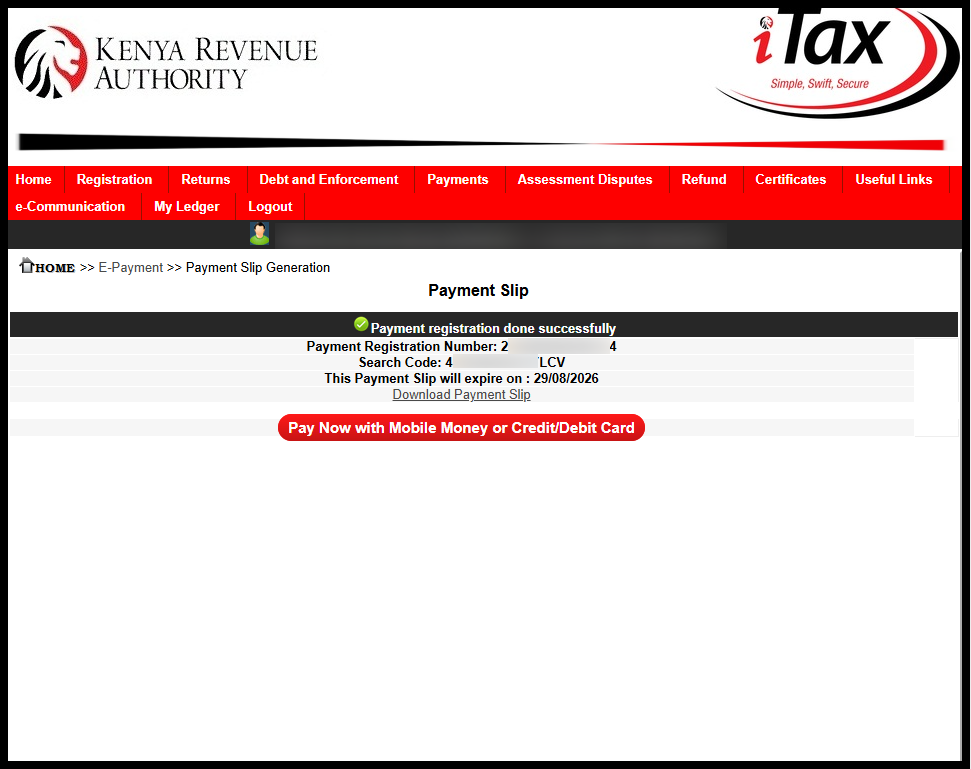
The last step involves downloading the generated KRA Payment Slip on iTax. To download the Payment Slip, just click on the link labeled – “Download Payment Slip” to download a PDF version of the KRA Payment Slip on iTax.
READ ALSO: How To Update Email Address on iTax
To be able to generate Payment Slip using iTax, you need to ensure that you are able to login using your credentials and proceed to generate the KRA Payment Slip for the tax obligation that you want to make payment for to Kenya Revenue Authority (KRA).

Tutorials Kenya is an independent Educational and Informational website that provides Latest Step-by-Step iTax Tutorials for Taxpayers in Kenya. You can contact us via Email Address: [email protected] or Chat on WhatsApp: 0723 737 740.
KRA Returns Filing

Trending Tutorials

KRA Returns Filing

