Disclaimer
Tutorials Kenya provides Professional Assistance with KRA Individual Services and KRA Returns Services to Taxpayers in Kenya. We are an independent Cyber Services website and are not affiliated with any government agency, including Kenya Revenue Authority (KRA). We charge a service fee for the Professional Assistance provided to Taxpayers in Kenya.
This step-by-step iTax Tutorial explains How To File KRA Returns for Students, providing clear and detailed guidance through each stage of the process from start to finish to help you File KRA Returns for Students in a few minutes.
READ ALSO: How To File KRA Returns for Unemployed
Professional KRA Services Assistance
How To File KRA Returns for Students
To file KRA Returns for Students, follow the outlined steps below.
Step 1: Visit iTax
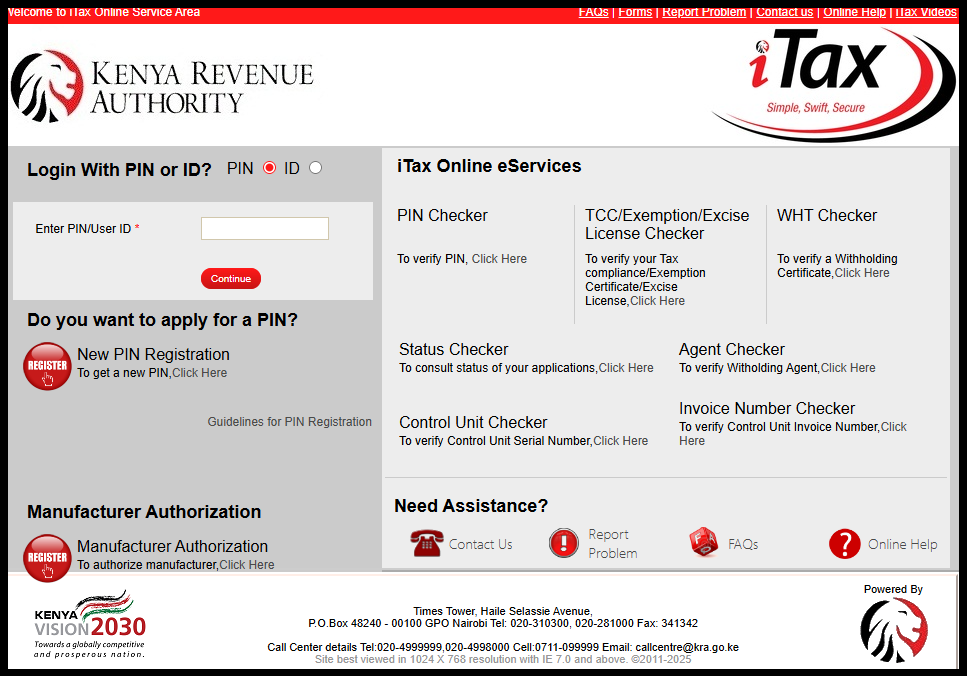
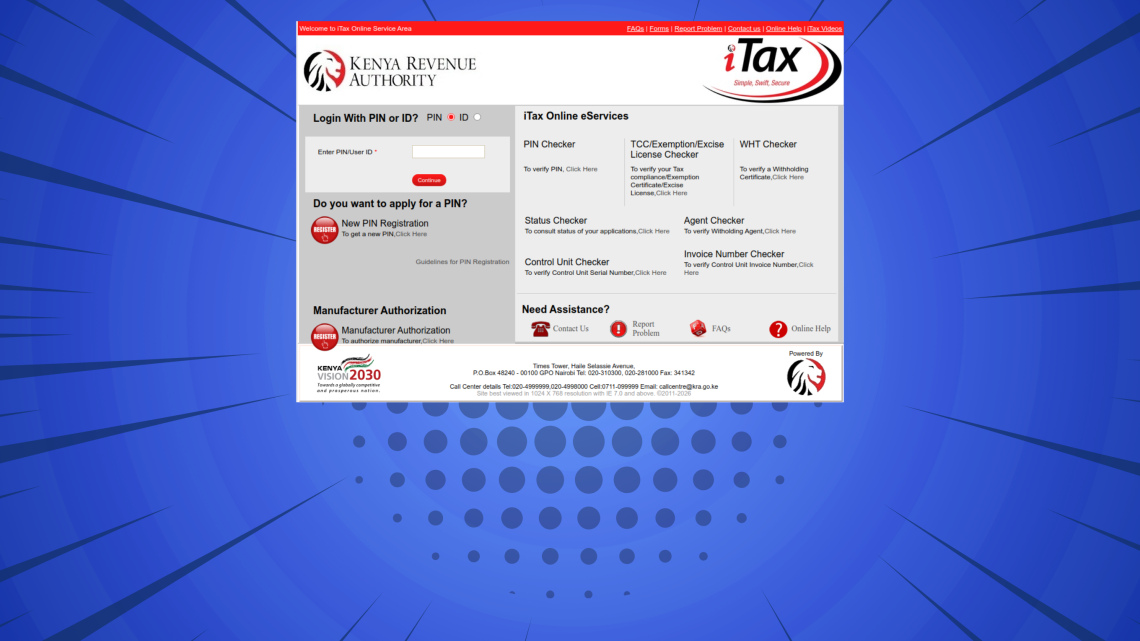
To file KRA Returns for Students, start by visiting iTax using this link: https://itax.kra.go.ke/KRA-Portal/
Step 2: Log in to iTax
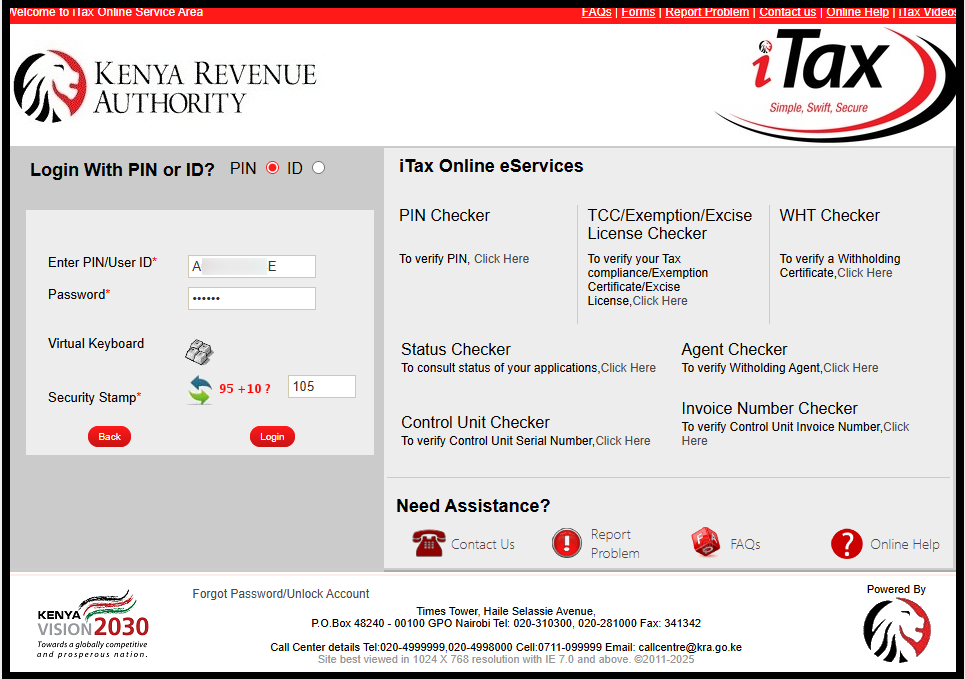
Next, log in to iTax (KRA Portal) using either your KRA PIN Number or National ID Number, along with your KRA Password (iTax Password).
After entering your credentials, complete the arithmetic security question and click the “Login” button to access your KRA Portal account.
Step 3: Click on Returns then File KRA Nil Returns
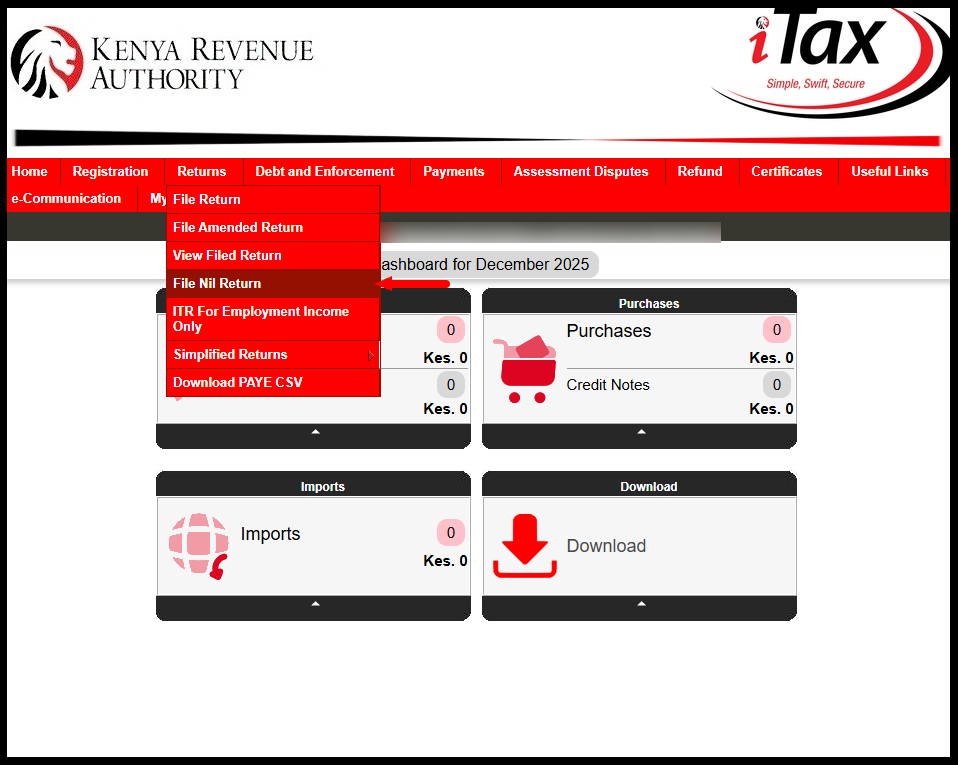
After logging in to iTax, go to the “Returns” menu and select “File KRA Nil Returns” from the dropdown list.
Step 4: Select KRA Tax Obligation
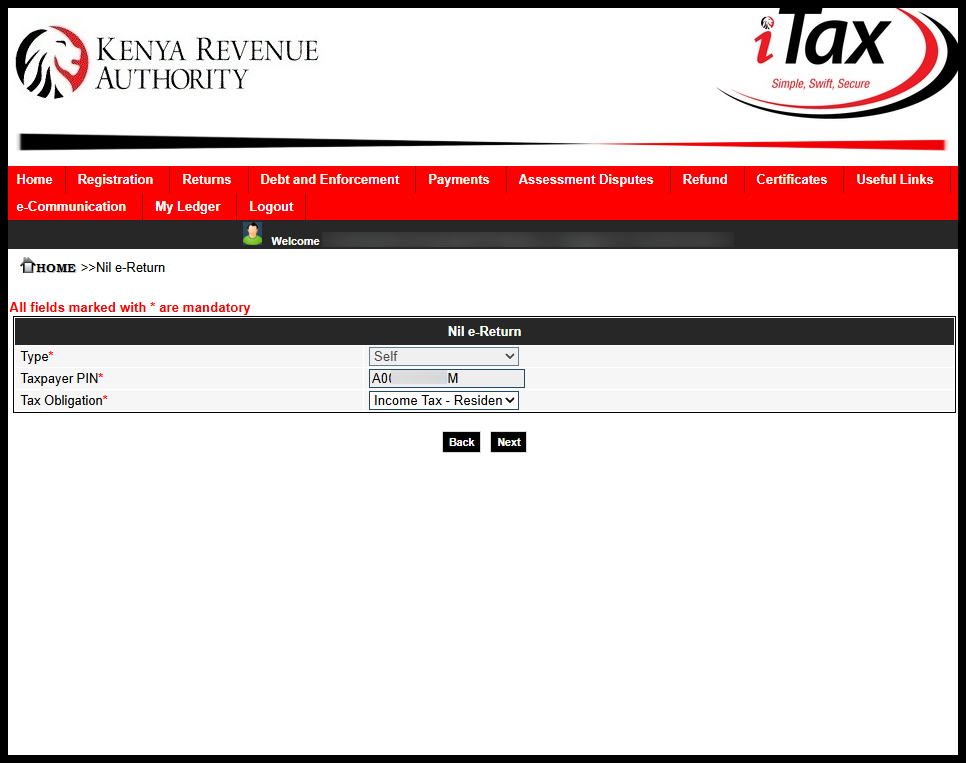
In this step, select the KRA Tax Obligation for which you want to file the Nil Returns. For students, choose “Income Tax – Resident Individual,” then click the “Next” button to proceed.
Step 5: Fill In The Income Tax – Resident Individual Nil e-Return Form
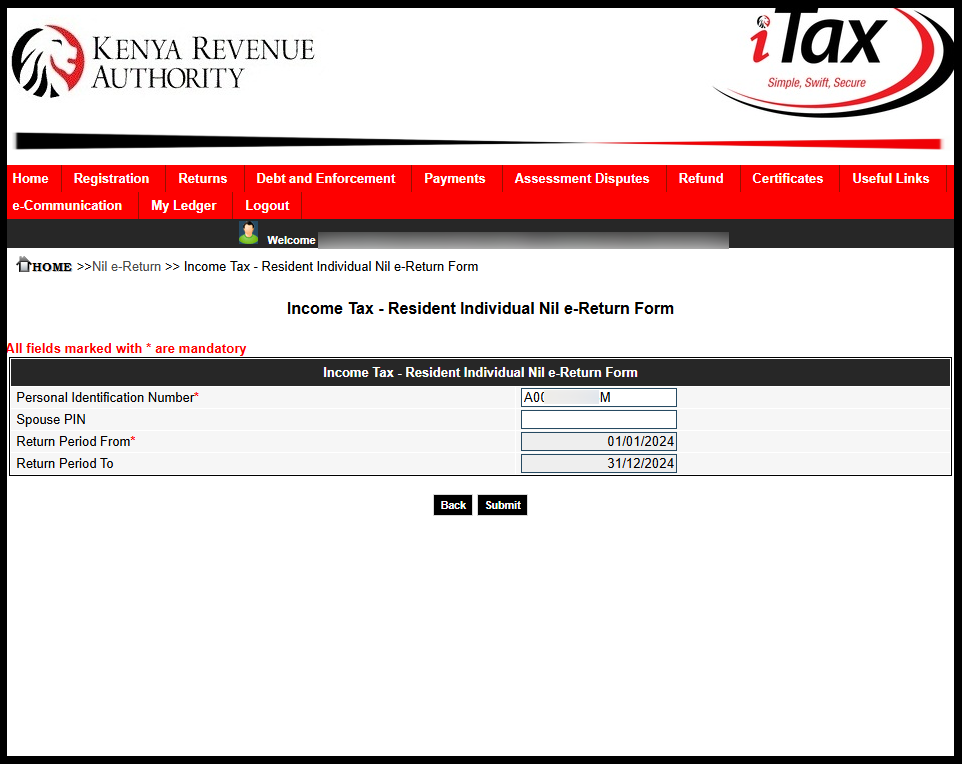
Next, fill in the Income Tax Resident Individual Nil e-Return form. If your KRA returns are up to date, entering the “Return Period From” will automatically set the “Return Period To.” For example, enter 01/01/2025 as the start date, which will set 31/12/2025 as the end date, then click “Submit.”
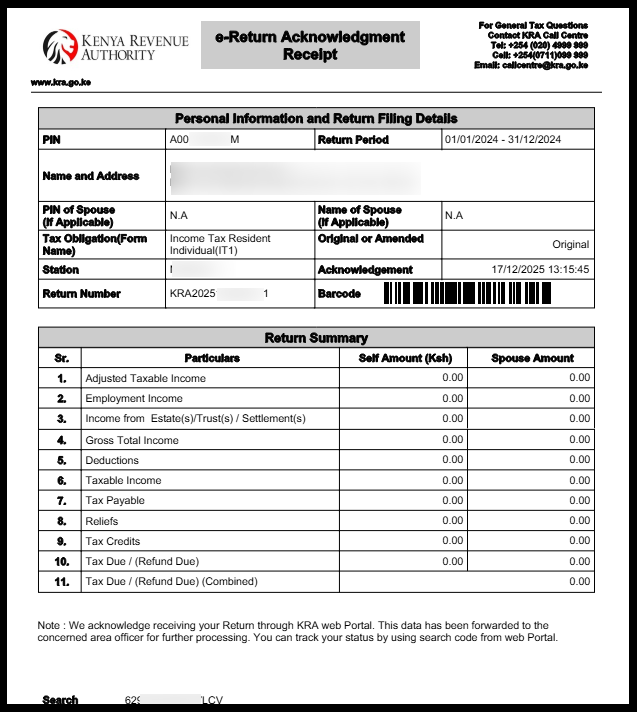
Step 6: Download KRA Returns Acknowledgement Receipt (e-Return Acknowledgement Receipt)
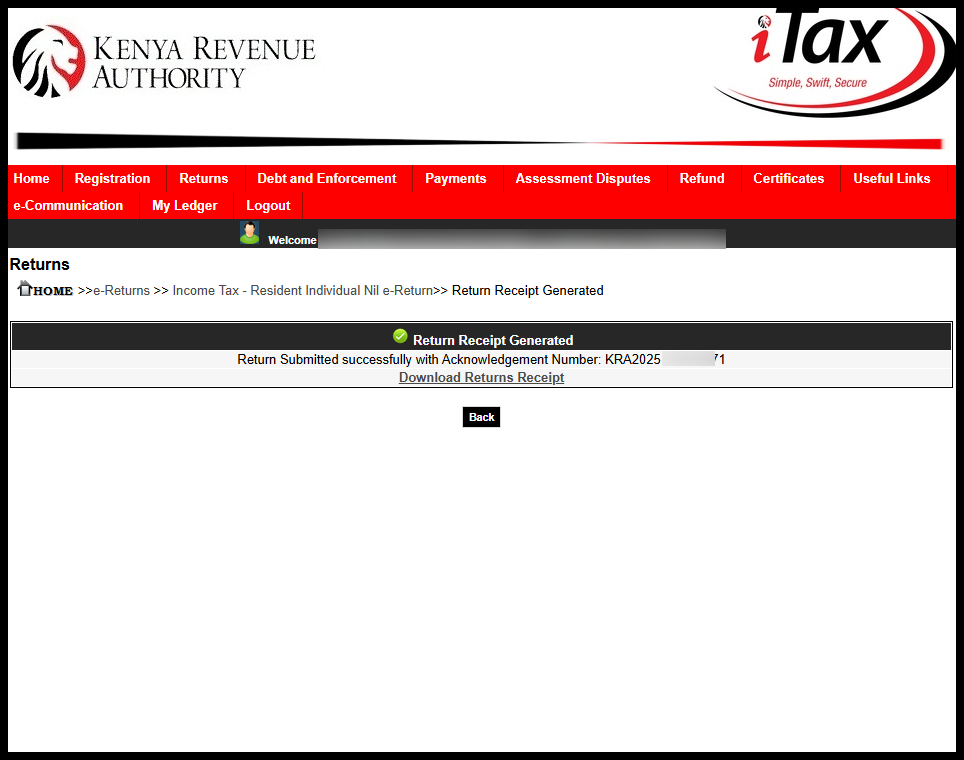
The final step in filing KRA Returns for students on iTax is to download the KRA Nil Returns Acknowledgement Receipt, also called the KRA Returns Receipt. Simply click the “Download KRA Returns Receipt” link to save or print a copy for your records.
Professional KRA Services Assistance
READ ALSO: How To Download KRA PIN Certificate
The above steps sums up the whole process of How to File KRA Returns for Students in Kenya. If you want to file KRA Returns for Students, just follow the above simple steps.

Need help with KRA Services? Tutorials Kenya provides Professional Assistance with KRA Individual Services and KRA Returns Services to Taxpayers in Kenya.